Picklist Value Groups in Forms 2.0 | Community
Skip to main content
February 3, 2014
Solved

Picklist Value Groups in Forms 2.0

  • February 3, 2014
  • 3 replies
  • 3439 views
When using the visibility rules in forms 2.0 in the webinar I saw the values grouped together. How do you combine the values for a field into a group (i.e. US States or Canadian Provinces)?
This post is no longer active and is closed to new replies. Need help? Start a new post to ask your question.
Best answer by
Hey Jeff,

You define the values for the picklists in the modal that controls visibility rules.

Here's what it looks like today:
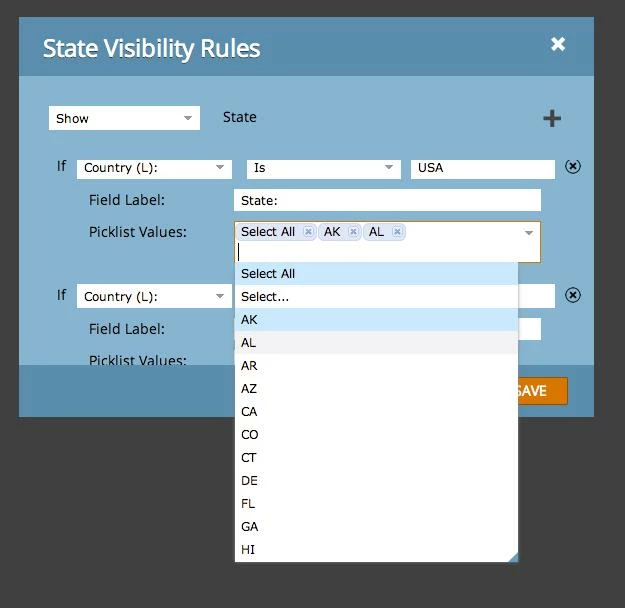

This is accessed through the "Visibility Rules" option under behavior in the right panel of the field details page.

From this screen, you will individually select the values you would like to have loaded for the specific picklist you are defining. 

When you're running through this, please make sure to de-select the "Select All" option by clicking the "x" on the bubble. 

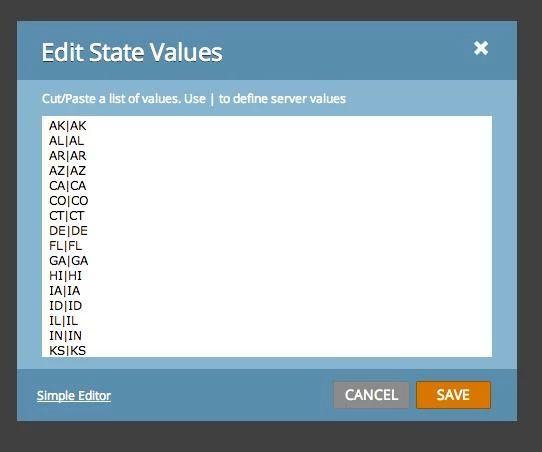
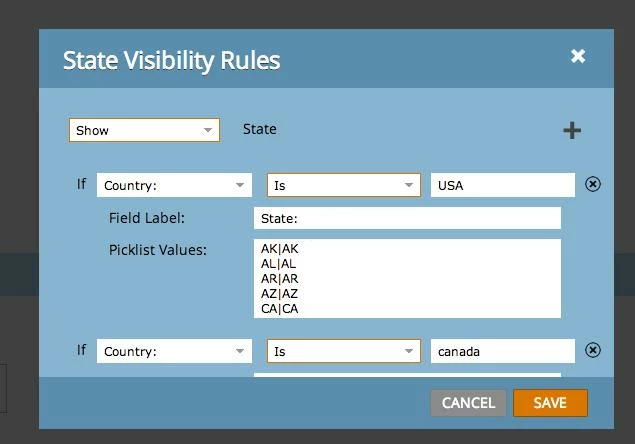
To make this process faster, for the February release, we've updated the picklist selector to be consistent with our advanced values editor... like so:

(Advanced values editor)

(Feb. Visibility Rules editor)
 

Hope this helps!

Thanks,

Jason

3 replies

February 4, 2014
Choosing "Select All" will combine all US and Australian states and Canadian provinces under a single list. 
February 4, 2014
But I want to have "if country is United States show only US States" and "If Country is Canada show only Canadian Provinces" I don't know where to define which are the US States v which are Canadian Provinces 
Accepted solution
February 4, 2014
Hey Jeff,

You define the values for the picklists in the modal that controls visibility rules.

Here's what it looks like today:


This is accessed through the "Visibility Rules" option under behavior in the right panel of the field details page.

From this screen, you will individually select the values you would like to have loaded for the specific picklist you are defining. 

When you're running through this, please make sure to de-select the "Select All" option by clicking the "x" on the bubble. 

To make this process faster, for the February release, we've updated the picklist selector to be consistent with our advanced values editor... like so:

(Advanced values editor)


(Feb. Visibility Rules editor)
 

Hope this helps!

Thanks,

Jason
James_Zolinski
Level 4
August 23, 2017

I did this for just Country and State fields. Just did 3 countries (USA, Canada, and Mexico), but for some reason, when I would select Canada or Mexico, their values would not load. The label would properly change to state/province if I selected Canada, but no actual values in the dropdown.

I was super confused as why US values would load, but not the other two.

My mistake was only populating the Canada and Mexico values into the visibility rules screen, and not actually placing those same values into the state field itself. My actual state field had only US values in it, not all values for US, Canada and Mexico.

So, I copy/pasted my values out of the visibility rules section, and added them all into the state field. Once I did that, my state field would properly, dynamically load the correct state/province values for Canada and Mexico.


From my searches, it isn't properly documented that you need to have ALL values in the field you are doing visibility rules on. From what I read, I thought everything was perfectly setup by having specific values only on the visibility rules screen, but I needed to have all values in both places (the field itself, and again on the visibility rules, but broken out to their respective options).

SanfordWhiteman
Level 10
August 23, 2017

Yessir! I had a blog post about this ready but I lost the screenshots when my machine crashed.