Level 2
March 9, 2021
Question

Marketo email editor doesn't show longer headings correctly

  • March 9, 2021
  • 2 replies
  • 1813 views

Hello,


When I have longer headings in my email like:


<h1>Heading line Lorem Ipsum is simply dummy text of the printing and typesetting industry.</h1>


the Editor(editor only, when I click Save everything is fine) shows the text like this:
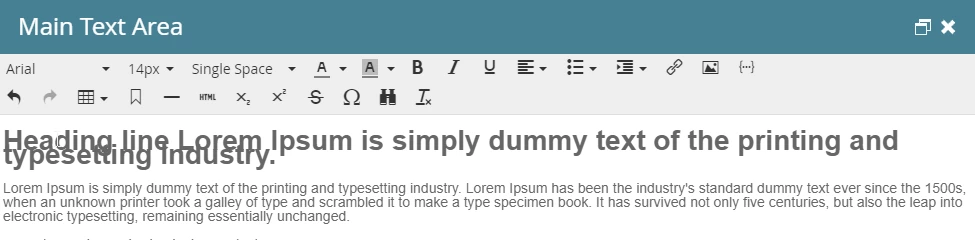
 

It looks like the line-height is small and the text is overlapping. I tried to add this CSS in the email template, but it didn't work.


body.mce-content-body { line-height: normal !important; }


Is there a way to fix this?


Thanks.

This post is no longer active and is closed to new replies. Need help? Start a new post to ask your question.

2 replies

Adobe Employee
March 9, 2021

Hey did you try giving up numbers instead of normal as per below.

line-height: 10px!important;

Also, try to give CSS inline too in landing page only while editing HTML. 

Dave_Roberts
Level 10
March 9, 2021

Are you able to provide a shot of the HTML inside that editable area (click into the HTML toolbar icon)? 

To my eye, it looks like you might have copied in some CSS from a source somewhere else and pasted that into the Rich Text Editor by accident. Sometimes when you copy info from a website, Google Doc or Word Doc, etc - the underlying CSS is picked up and Marketo tries to do you a solid by interpreting and rendering that CSS when you paste the text into the WYSIWYG editor (rather than into the HTML/code view -or- use the "paste as plain text" command). 


There's usually a string of style="" that are about 4-5 lines long in the editor if you've run into something like, maybe best to check there and remove any style="...." attributes that you didn't add yourself.  In email, this might be included in a <span></span> tag around your text or it might show up on the element (<h3>) like in the example below.

In the screenshot below, I copied some text from another section on the page by highlighting it, right clicking and choosing "copy" from the dialog box. Then I went into another editable area, clicked into, then pasted my clipboard into the Rich Text Editor (WYSIWYG - shown in the background behind the HTML Source Editor in the image). From there I clicked into the HTML icon in the toolbar to see HTML Source Editor window so that I could see the underlying issue in the code. 

Removing everything highlighted in gray here will remove the junk styles and restore the element to it's original state.