Marketo and Web Forms: Use Cases, Pros, Cons and How-Tos
Since I always go through web forms and web integration options with clients during enablement, I wanted to document this here as a reference guide.
You have a few options when it comes to web forms and Marketo. I’m going to cover the 4 primary methods that my clients choose.
Here’s a quick summary of the primary use case and pros / cons for each:
| Header 1 | Primary Use Case | Pros | Cons |
|---|---|---|---|
OPTION 1 Marketo form on Marketo landing page | Gated content, promotional content | Easy for marketers to deploy, i.e. clone and apply tokens! | May prefer to have visitors on your website, instead of Marketo landing pages |
OPTION 2 Marketo form on website within iframe | Forms you want to keep on your website like contact us, demo forms | Keep visitors on your website while retaining most Marketo form functionality, like form pre-fill | May be more difficult to implement responsive design |
OPTION 3 Marketo form on website with embed code | Same as Option 2 | Keep visitors on your web and may be easier to implement than iframe, responsive | Retains less Marketo form functionality than using iframe, e.g. form pre-fill |
OPTION 3 Use your own form on your website and post data to Marketo using our API | You need to keep your forms bc of other back-end and business requirements | Meets requirements of your existing non-Marketo forms, yet still gets data to Marketo | Requires custom development and you don't get Marketo form benefits |
OPTION 1. Use a Marketo form on Marketo landing pages.
Use Case: Gated content, promotional content
Pros: Easy to clone, can apply tokens! Great for marketers because it’s easier to execute then going back into your web CMS or bugging your web developer.
Cons: Sometimes you want to keep people on your website, instead of sending them to a separate landing page. For example, you might not want to have your contact us form on a Marketo landing page.
How to Do it:
- Create a form. Likely you’ll want to create a global form in Design Studio that you can use many times for one use case, e.g. a content download form, a webinar form, an event form.
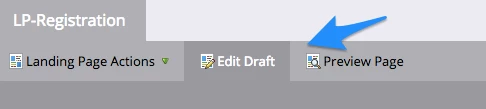
- Create a registration page for your form and a thank you landing page, likely within a marketing program that contains all your related campaigns and local assets.
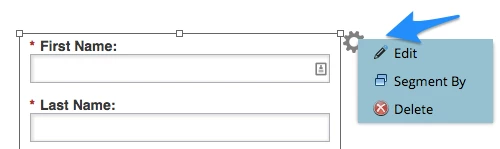
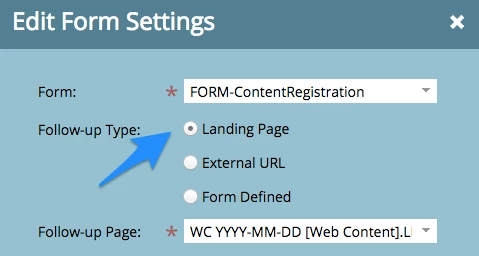
- Put your global form on the local registration landing page, and edit the form settings within the page to define the thank you page. You can do this at the form level, but you’ll want to do this at the local landing page level if each program has a unique thank you page.
OPTION 2. Use a Marketo form on your website, using an iFrame.
Use Case: Forms that you’d want to keep on your website like contact forms, demo forms.
Pros: Retains most Marketo form functionality like form pre-fill (see the chart on this page which compares features of each form option.)
Cons: May require web help to get the form to look nice.
How to Do it:
- Create a form. It could be a global for in Design Studio or a local form within a marketing program, like a Contact Form program using a Web Form channel.
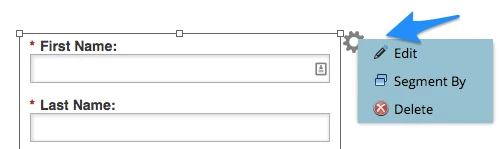
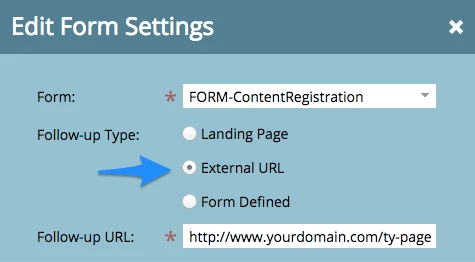
- Put the form on a Marketo landing page using a blank landing page template, then edit the form settings within the landing page to define the thank you page.
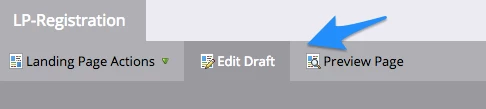
- Grab the URL of the blanking landing page with the form on it and put it on your website using iframe code like this: <iframe src="go.yourdomain.com/your-landing-page"></iframe>.
- You can go back and edit the form CSS as well.
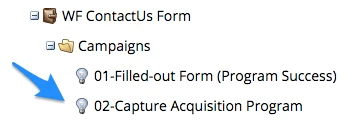
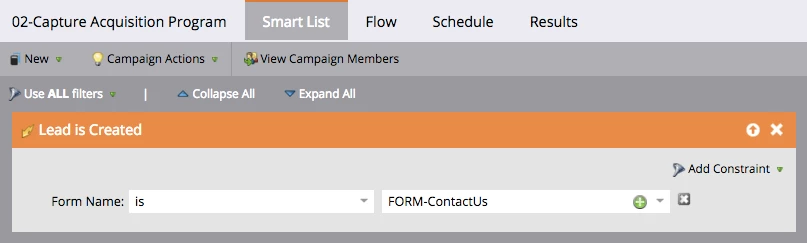
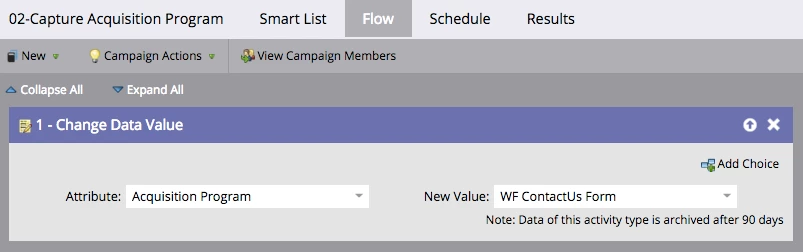
- In your program, be sure to include a campaign to capture acquisition program because Marketo can’t do this automatically on non-Marketo pages.
OPTION 3. Use a Marketo form on your website, using embed code.
Use Case: Same as above
Pros: Easier to implement, responsive.
Cons: Retains less Marketo form functionality than using an iframe (see the chart on this page which compares features of each form option).
How to Do it:
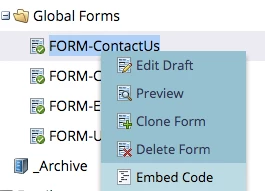
- Follow the same instructions as in Option 2 but instead of putting the form on a blank landing page and using iframe code, simply right click on the form to retrieve the embed code.
- Tip: If you want to use a global form but unique thank you pages, read this blog post for how to do that: Embedding Global Forms without Losing Tracking: Part II (See Steps 1-4 in particular.)
OPTION 4. Use a non-Marketo form on your website, but post that data to Marketo using our API.
Use Case: Sometimes you just can’t use a Marketo form but you want to post that data to Marketo, for example, if you’re collecting data for a software app, membership portal, e-commerce shop, etc.
Pros: Meets requirements of your current forms that are not available with Marketo forms, yet gets your data into Marketo.
Cons: Requires development resources and you don't get the benefits of Marketo forms (see the chart on this page which compares features of each form option).
How to Do it:
- First, refer to our developers.marketo.com site for more information about Forms 2.0 and advanced API functions: http://developers.marketo.com/documentation/websites/forms-2-0/
- Second, if you have further questions or need help, contact your Marketo enablement consultant. If you don’t have one, then you can engage Marketo services by emailing services@marketo.com.
Additional Resource:
I often refer clients to the chart on this blog post because it’s a great summary of the feature benefits of each method above, and then some: