Landing Page Hacks | Community
Skip to main content
October 10, 2013
Solved

Landing Page Hacks

  • October 10, 2013
  • 7 replies
  • 3360 views
Does anyone have some quick tips they can provide to help spruce up a Landing Page?  

Thinking about 

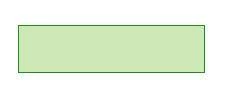
- Round corners on rectangles
- Apply a shadow to a rectangle
- Change the input font size on a form

Any other cool useful tricks / tips to make a landing page look better for those less design inclined would be much appreciated!
This post is no longer active and is closed to new replies. Need help? Start a new post to ask your question.
Best answer by
Hi Kyle -

You can do this stuff with CSS. What I find to be easiest is to add the property to the landing page, approve it, and then open the page in google Chrome. Right click on the rectangle and say "Inspect Element".  


Once I did that I saw that the rectangle was named with class "boxSpan", but I bet this is a generic class that applies to all rectangles on marketo lps, not JUST this specific box. If you want to only target a single box on the page then you'll need to be more specific at targeting the naming. Google Chrome can help you figure that out.

Then I just added a custom HTML block, used < style type="text/css" > and the class boxSpan...  

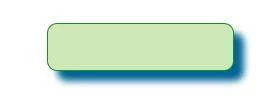
.boxSpan {border-radius:12px;box-shadow:12px 12px 12px #069;}


Which makes the box now look like this. 

Changing the form field text is harder. I just gave it a good 5 minute try but the css is being overwritten by the LP styles css file. //shrug// it would take more than 5 minutes to figure out. 


Remember, Google Chrome is your friend.

7 replies

October 10, 2013
We have a number of LPs and Emails in the Marketo Program Library that you can import following instructions at https://community.marketo.com/MarketoArticle?id=kA050000000L7xvCAC
October 10, 2013
Thanks Raj.  Will look for templates.marketo.com.  Is there an estimated launch date for that?
October 10, 2013
Hey Kyle,

Not sure on the styling of rectangles, but you can adjust the form input font size in the form editor.

Also if you haven't seen, you can customize the form fields on the landing page via HTML. Marketo has some pre-built one's here.

Also you can use those freebies as a template and adjust the various styling elements to match you website's feel whether it be the style of the form or the color of the input text.
Josh_Hill13
Level 10
October 11, 2013
I would check out whichtestwon.com and templates from Spear Marketing and HubSpot for ideas.
October 11, 2013
Thanks Caleb, helpful link.  Would love to see more tutorials like this.

@Josh - Thanks for the tips, hope you are doing well.
Accepted solution
October 11, 2013
Hi Kyle -

You can do this stuff with CSS. What I find to be easiest is to add the property to the landing page, approve it, and then open the page in google Chrome. Right click on the rectangle and say "Inspect Element".  


Once I did that I saw that the rectangle was named with class "boxSpan", but I bet this is a generic class that applies to all rectangles on marketo lps, not JUST this specific box. If you want to only target a single box on the page then you'll need to be more specific at targeting the naming. Google Chrome can help you figure that out.

Then I just added a custom HTML block, used < style type="text/css" > and the class boxSpan...  

.boxSpan {border-radius:12px;box-shadow:12px 12px 12px #069;}


Which makes the box now look like this. 

Changing the form field text is harder. I just gave it a good 5 minute try but the css is being overwritten by the LP styles css file. //shrug// it would take more than 5 minutes to figure out. 


Remember, Google Chrome is your friend.
October 11, 2013
Very helpful Adam, thanks for the detail much appreciated!

I can apply the style to the boxSpan class and it works.  If I try to apply it to a specific rectangle element, the style works in the Marketo LP editor but not on the actual approved web page.  Must be getting trumped by the stylesheet I assume? !important does not work either