Hyperlinks not a different color | Community
Skip to main content
March 19, 2018
Question

Hyperlinks not a different color

  • March 19, 2018
  • 2 replies
  • 6606 views

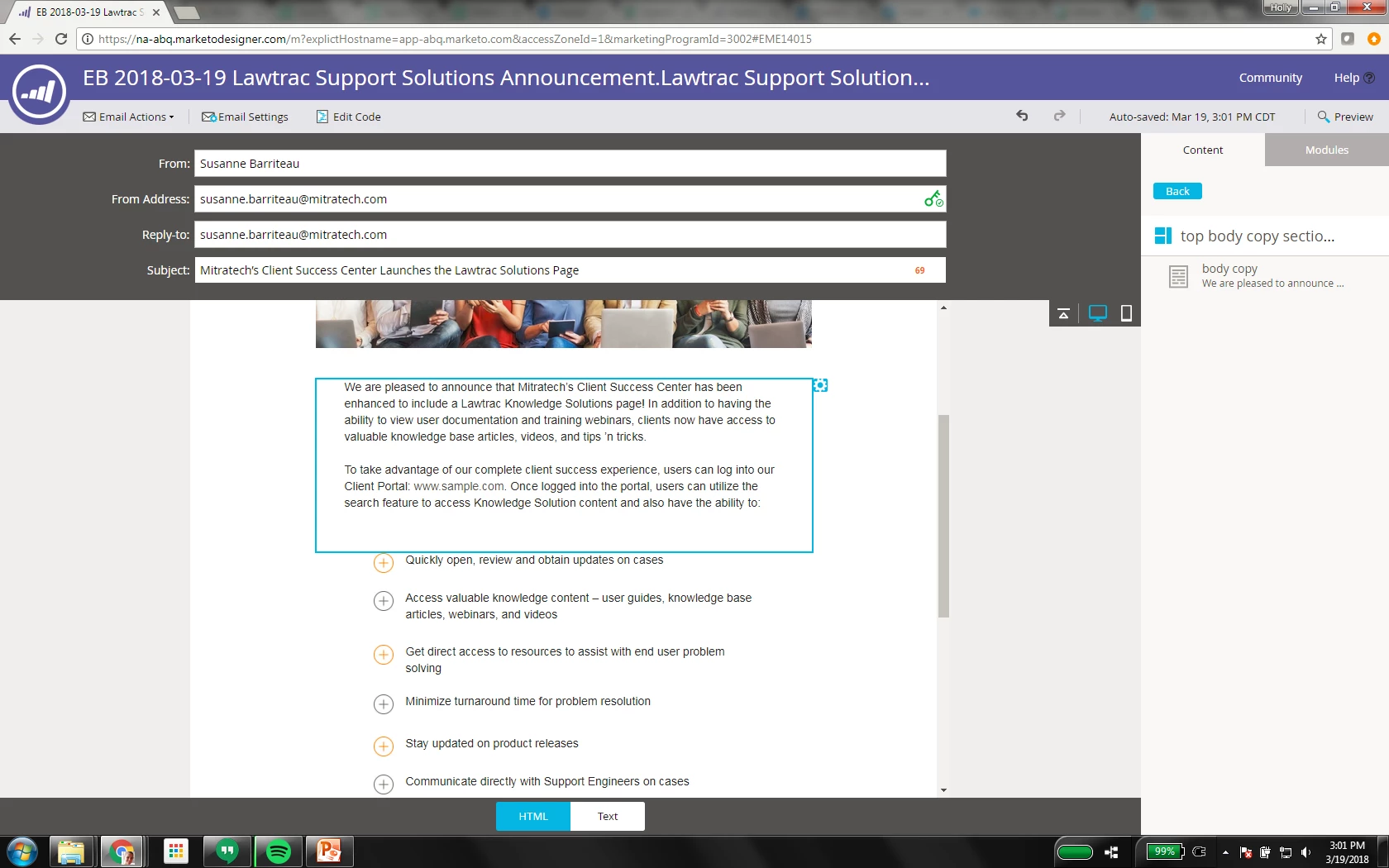
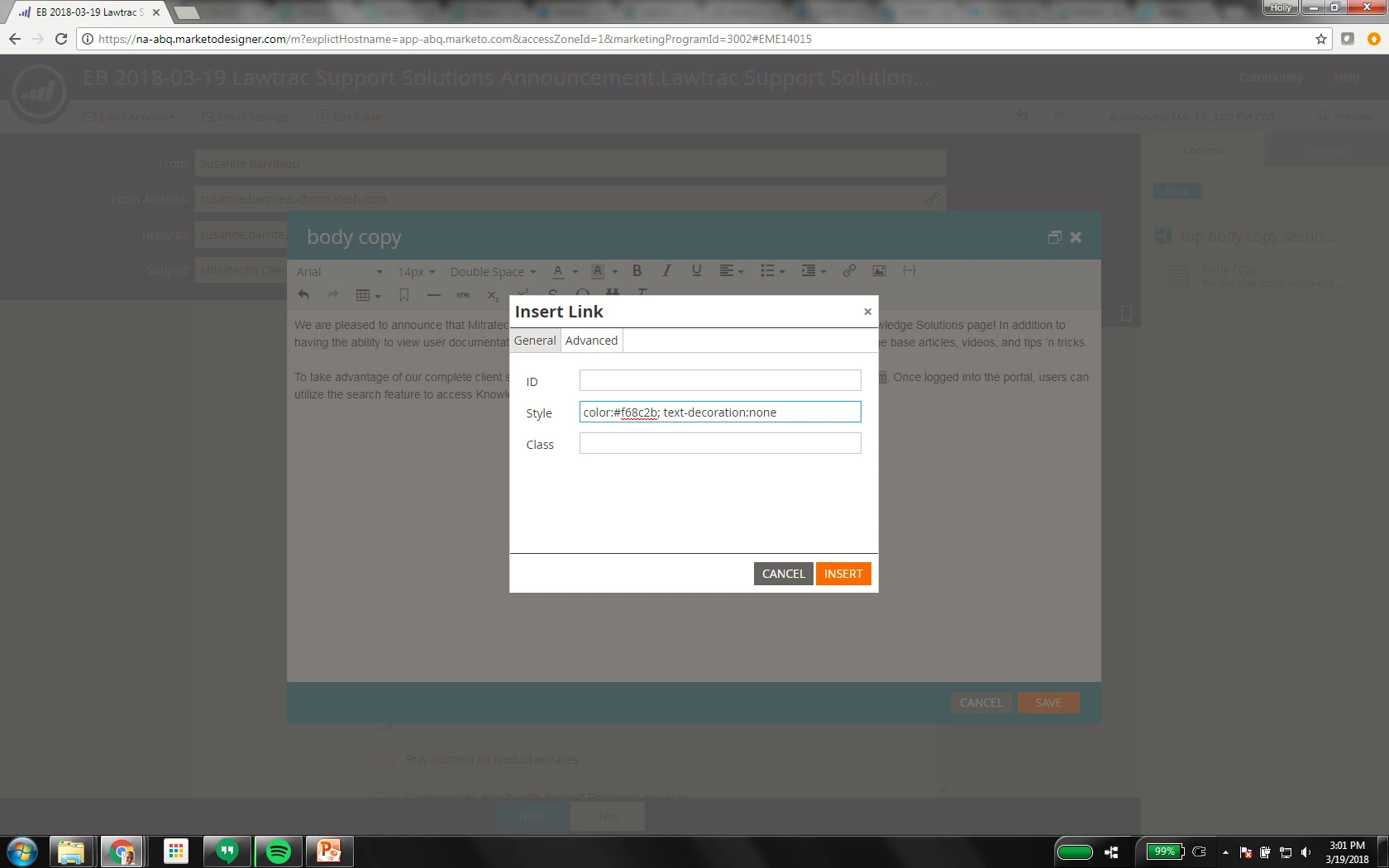
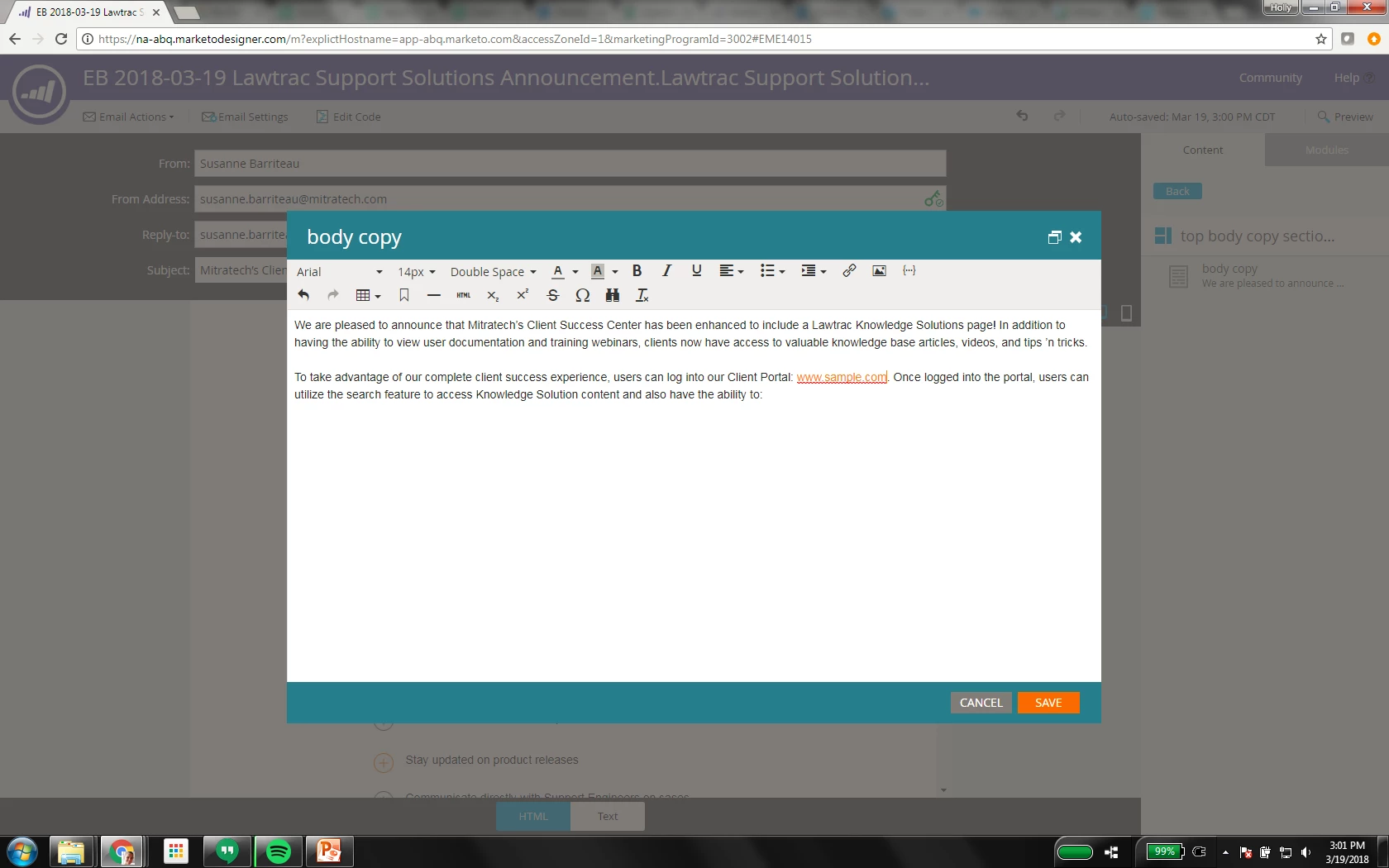
Hello! We've been having a persistent problem that I can't figure out why it's happening. Whenever we have a hyperlink in an email, we change the color and remove the underline. I know how to do that in the Advanced tab. When I click Apply, you see the changes in the editor box, exactly how I want it to look. But when I save the copy and it takes me back to the email, the color isn't there. It's not underlined, but it's the same color as the rest of my text. And even when I send sample emails, it's not the color I want. Any insight? Screenshots below show what I'm talking about.
This post is no longer active and is closed to new replies. Need help? Start a new post to ask your question.

2 replies

Frank_Breen2
Level 8
March 20, 2018

It sounds like you have the style defined in the CSS in the Head that probably has an !important setting, please share the Head section of the template so we can identify the issue, you can get this in the Edit Code section.

March 20, 2018

I think you're right! Which one do I edit? Do I just delete it, or should I put the color I want?

Dave_Roberts
Level 10
March 21, 2018

Hey Holly-

If you look on line 42 of the screenshot of your header CSS, you'll see

.em_defaultlink a {

color:inherit !important;

text-decoration: none !important;

}

in CSS, this reads "a link inside of an element with a class of 'em-defaultlink'". I can't be sure from what I've seen of your code, but Im willing to bet that your text here is inside a container with the .em_defaultlink class. When you add a link to the text, it picks up that !important rule (which basically means override all the other CSS styles) and "inherits" the color from the paragraph (that's why it's the same color, I betcha).

As a short-stop solution here, you can "override the override" and show that style who's boss by adding the !important tag to your inline style. In the Advanced editor, you can change --

color:#f68c2b; text-decoration: none;

to:

color:#f68c2b !important; text-decoration: none;

and that should force that link to be the color you've set in the Advanced Editor.

For the long-term, you'd need to look thru the rest of the CSS on your template to try and tease out what might be causing this issue (it might be in more than one place).

Another potential solution would be to wrap the link in a <span> tag with the color of the link you'd like it to "inherit". So in this case, something like:

<span style="color:#f68c2b;"><a herf="#" target="_blank"> your link here</a></span>

I'm not sure this will work with a span element, but it might be worth a try to get it to work 'with' the template styles rather than overriding/replacing them.

Good luck, let me know if any of that works for you!

Frank_Breen2
Level 8
March 20, 2018

Please share the full CSS, screen grab content doesn't show the element in error here. Please note, any edits here will break the email away from the template, so if it's an issue, you're best making the edit at the template level.

March 21, 2018

Thanks for your help, Frank! I got a quick fix below that worked