
How to Manage Your Marketo Database for Deliverability
*Updated in September 2024
Identifying Unsuccessful Email Addresses
- Option 1: Import Marketo’s Deliverability Program
- Option 2: Creating your own Smart Lists
- Reviewing Specific Bounce Types
- Email Performance Report
- Retargeting Failed Addresses
Identifying Unsuccessful Email Addresses
Identifying email addresses with recurring technical failures enables you to update these leads as Marketing Suspended is TRUE in your database.
If there are recurring failures over time, it is likely that email will never be delivered to those addresses. Mailing to them can be risky because domains that have expired are sometimes turned into spamtraps. Sending to a spamtrap can have varying impacts from individual content being fingerprinted and blocked by filtering systems or the sending infrastructure being blocked.
We suggest creating a Folder in Lead Database to house your Deliverability Smart Lists. From there, you can either import our Deliverability Program, or you can create your own Smart Lists to monitor for recurring bounces.
Option 1: Import Marketo’s Deliverability Program
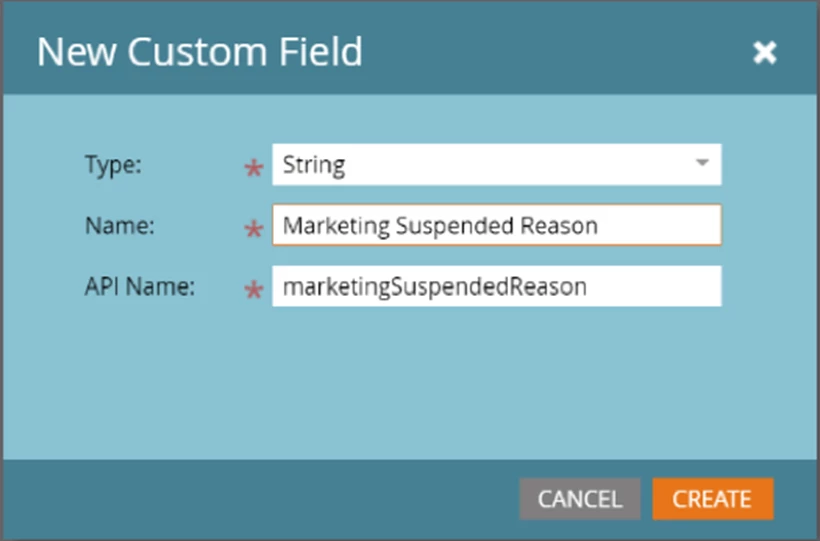
You will need to create a field within your subscription called “marketingSuspendedReason” using the instructions here.
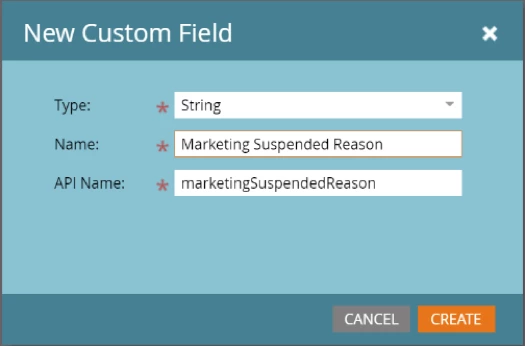
For “Type,” select “String” and for “Name,” enter “Marketing Suspended Reason.” This will automatically fill in the “API Name” field:
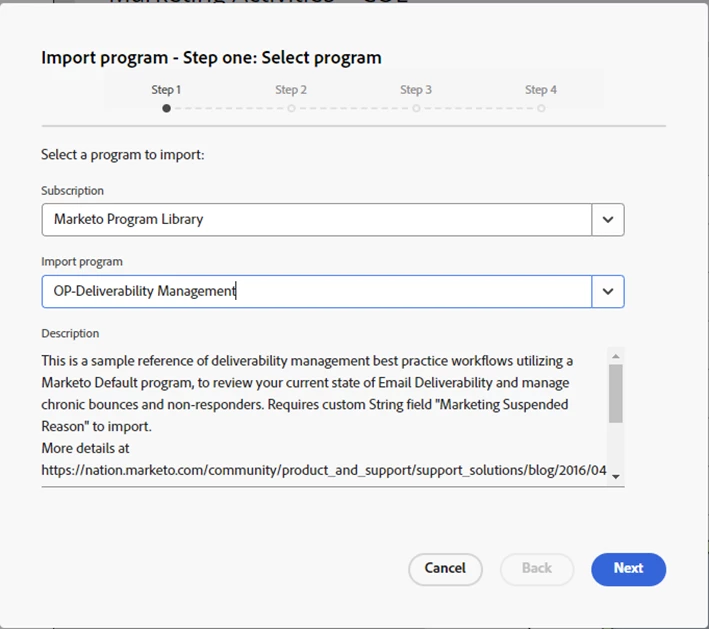
Once your custom field is created, you are ready to import our program. To do so, follow the instructions here. For “Subscription,” pick “Marketo Program Library,” and for “Import Program,” select “OP-Deliverability Management”:
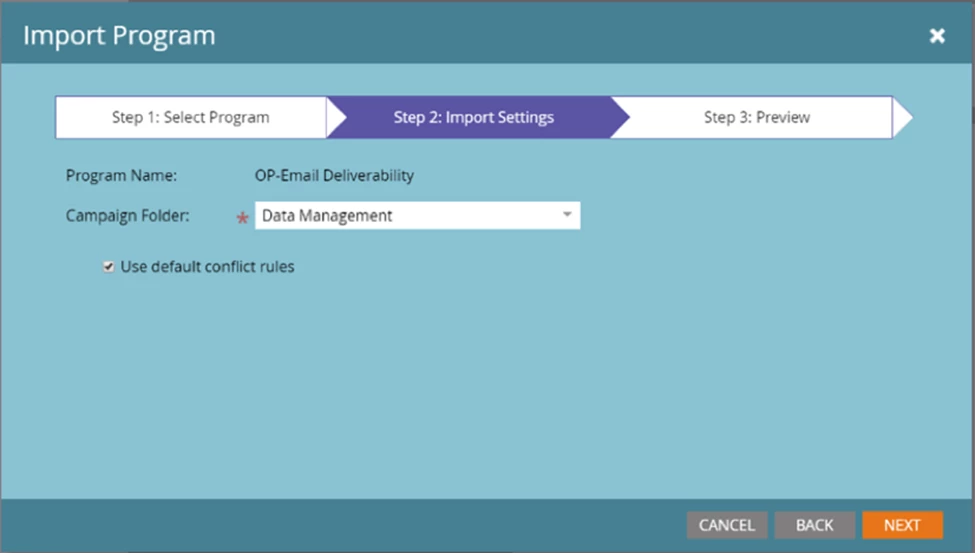
For “Campaign Folder,” we recommend “Data Management,” but you can select any folder that makes the most sense for you and your business needs.
Option 2: Creating your own Smart Lists
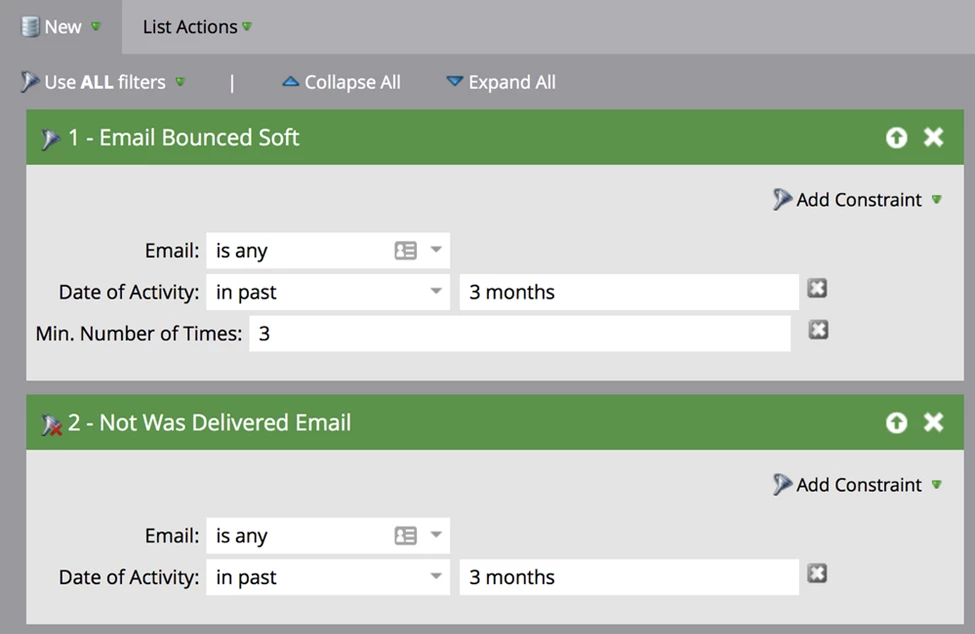
Smart List: Chronically Bouncing Addresses
You’ll need to use Advanced filtering: 1 and 2
- Email Bounced Soft filter (Note: It is not recommended to manually mark Hard Bounces as invalid. Marketo already sets Invalid Addresses invalid, and they are not mailed again. Spam Blocks are the other type of Hard Bounces, and it is recommended that you retry mailing to those addresses in subsequent campaigns.)
- Constraint – Time:
- Set time constraints to reflect the SAME range of time depending on your email frequency.
- You will have wanted to have sent more than two or three emails to the leads you are reviewing to determine if the technical bounce issues are chronic.
- A three-month window is a good standard window of time to review in this situation if you are sending at least monthly.
- Constraint – Minimum number of times: Three (variable depending on your campaign frequency)
- Constraint – Time:
- Was Not Delivered Email Smart List filter
- Constraint – Time:
- Set time constraints to reflect the SAME range of time depending on your email frequency.
- You will have wanted to have sent more than two or three emails to the leads you are reviewing to determine if the technical bounce issues are chronic.
- A three-month window is a good standard window of time to review in this situation if you are sending at least monthly.
- Constraint – Time:
Identifying Chronic Non-Responders/Unengaged
Identify chronic non-responders or those unengaged with your email marketing to:
- Target for a re-engagement program
- Changes status to Marketing Suspended to remove them from active campaigns