How to fix email rendering issues in Outlook 2010? | Community
Skip to main content
June 13, 2013
Solved

How to fix email rendering issues in Outlook 2010?

  • June 13, 2013
  • 5 replies
  • 2242 views
My issue is with rendering of emails in Outlook 2010. The email previews fine in the Marketo Design Studio but displays like this in Outlook when I do a test send to myself:
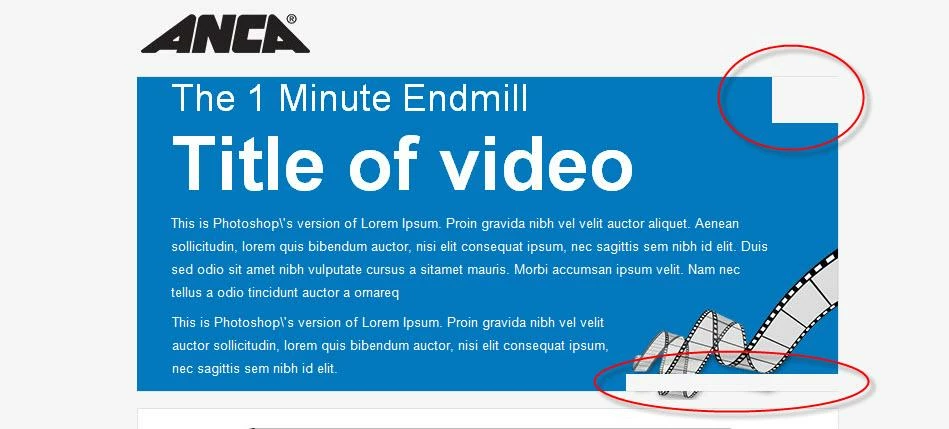


Note the white spaces (circled in red) that Outlook has added.
 
I understand that this is because Outlook 2007-2013 uses Word as its rendering engine, and isn't an uncommon problem for HTML emails. What's the best way to fix this?

Any help is much appreciated!
This post is no longer active and is closed to new replies. Need help? Start a new post to ask your question.
Best answer by
Hi Jacey, thanks for the HTML. I was looking through it, and the first thing I would recommend is setting height and width on your images, and the table cells that contain them. Sometimes if those elements aren't explicity stated Outlook will take certain "liberties" with them... Unfortunately I can't duplicate your issue to test--I'm running Outlook 11 on a Mac. Good luck!

5 replies

June 13, 2013
From you question, you've probably seen the following page.
emailonacid.com/blog/details/C13/horizontal_spacing_issues_in_outlook_2007_and_2010

Y
ou'll be able to try the solutions provided by selecting the "HTML" icon ("Edit HTML Source")  and editing the HTML source directly.


June 13, 2013
Hi Jacey,

If the tips in that article don't fix it, maybe you could share your HTML? It's hard to diagnose without seeing the code, and there are about a gazillion and one things that Outlook can do to ruin formatting.
June 13, 2013
@Hitoshi - thanks for that article! I did try editing the HTML source but still encountered the same issue with each test send to Outlook 2010.

@74687 - certainly, here is the link with the HTML: docs.google.com/file/d/0BwKlik8uulcKS293RldwNFc1bGM/edit?usp=sharing
Accepted solution
June 17, 2013
Hi Jacey, thanks for the HTML. I was looking through it, and the first thing I would recommend is setting height and width on your images, and the table cells that contain them. Sometimes if those elements aren't explicity stated Outlook will take certain "liberties" with them... Unfortunately I can't duplicate your issue to test--I'm running Outlook 11 on a Mac. Good luck!
June 19, 2013
@Kate - I've finally managed to fix this - as you suggested, I set height and width to every image and table cell and that helped in closing the gaps that Outlook was creating. Thanks for your help! :)