How can I take out italics from guided landing page template 2-D? | Community
Skip to main content
Kelly_Chang
Level 2
December 12, 2017
Solved

How can I take out italics from guided landing page template 2-D?

  • December 12, 2017
  • 2 replies
  • 4862 views

I've been combing through the code to try and take out the italics and decrease the line spacing where it says "You'll be glad to know our name."

Template 2-D - Marketo Docs - Product Documentation

I took out the italic options here on line 32:

However, it still shows that section in all italics and makes the paragraph double spaced (which I want to be single spaced).

Any ideas on how to change these? TIA! Kelly

This post is no longer active and is closed to new replies. Need help? Start a new post to ask your question.
Best answer by Gerard_Donnell4

Hi @Kelly Chang​,

Although you might not have access to the css file directly you can remove the italics by adding styles directly inline to the <p> element, or adding overriding styles to the <style> section that is located at the top of the template file.  If you don't want to edit the template or don't have access to it you can change the style on a page by page basis by adding the overriding styles to the custom html section located in the editing window of each landing page.  See my screen shots below:

This is the style you want to change:

I added "!important" to the font style to make sure it definitely takes priority over the italic style.  It probably isnt required as page level styles will trump externally inherited styles but it is just a good way to be sure.  I also think it is the padding that you will want to reduce rather than the line spacing but I haven't touched that in the example below.

<style>

#heroText  {

    position: relative;

    font-size: 20px;

    line-height: inherit;

    font-style: normal !important;

    font-weight: normal;

    padding: 10px 0 25px;

}

</style>

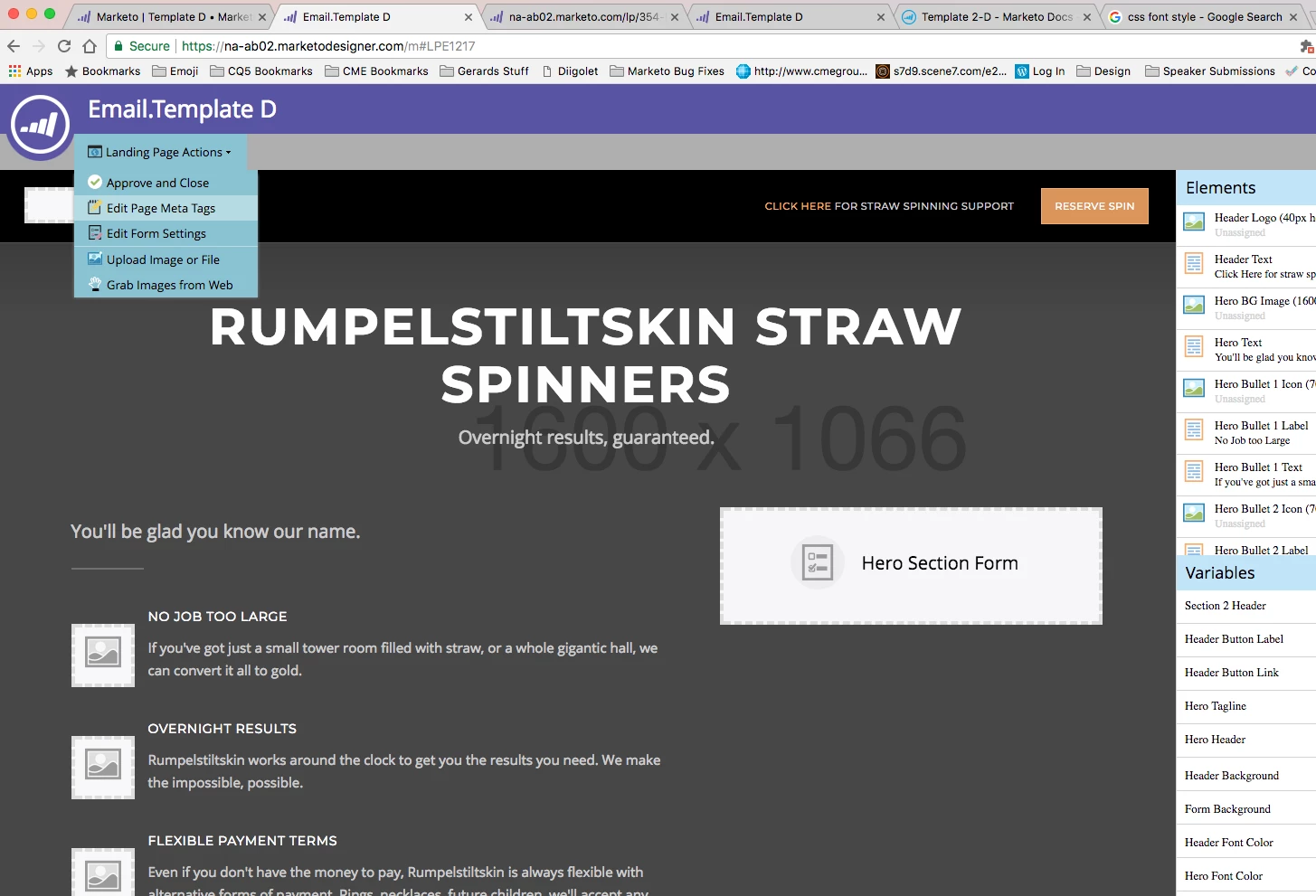
Go to the Edit Page Meta Tags Section:
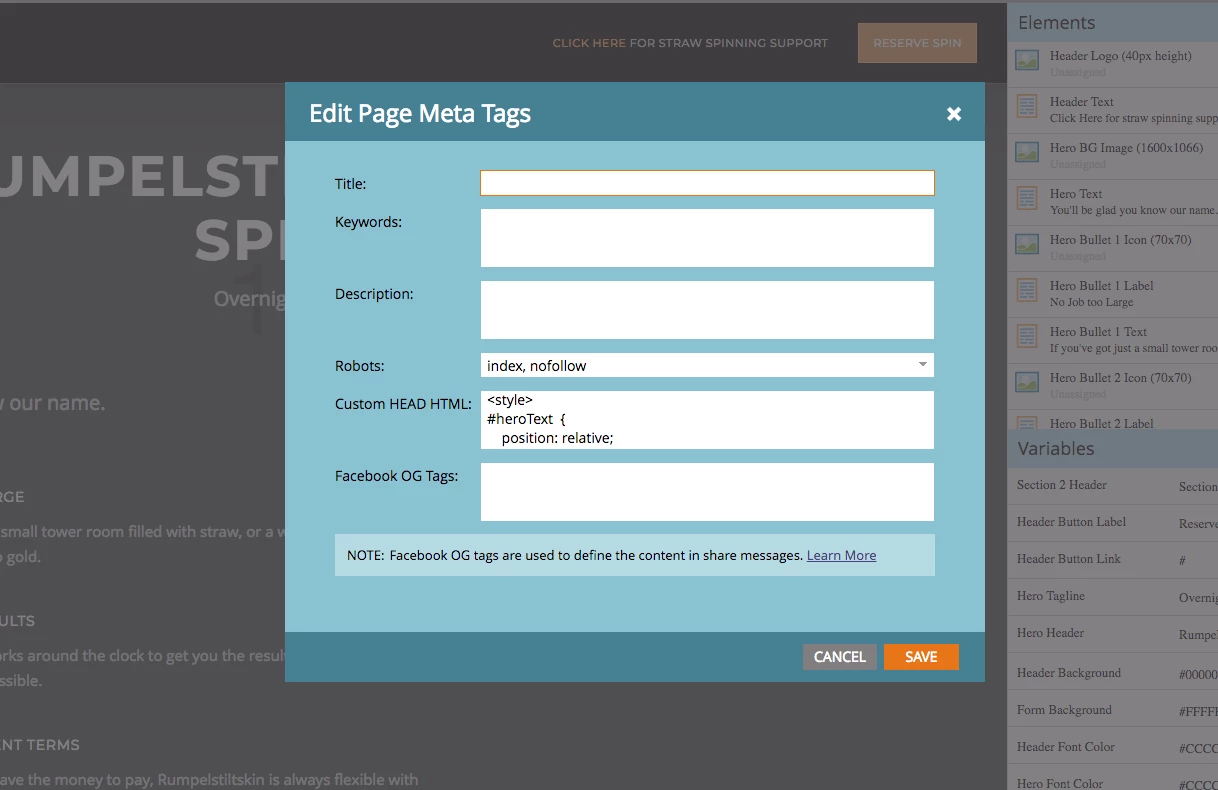
In Custom Head HTML section, paste the style I have added above.
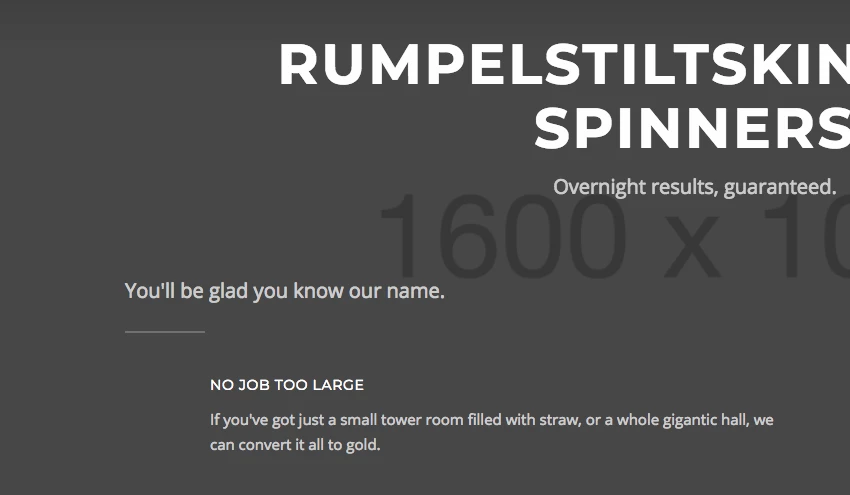
Now preview your page and you should be golden

Let me know how you get on.

Thanks,

Gerard

2 replies

Grace_Brebner3
Level 10
December 12, 2017

Hi Kelly,

The italics styling on that bit of text is coming from the CSS stylesheet being applied to the template (http://templates.marketo.net/template2/css/style.css), specifically the class applied to that line is the lead class, which has the following CSS:

.lead {

     position: relative;

     font-size: 20px;

     line-height: inherit;

     font-style: italic;

     font-weight: normal;

     padding: 10px 0 25px;

}

You'll need to either remove that class from that section in the template, or you'll need to override it. Depending on how many changes you want to make and how comfortable you are working in css, you may even want to create your own edited version of the stylesheet.

Kelly_Chang
Level 2
December 12, 2017

Thanks for the link and instructions!

When I clicked on it, it took me to an uneditable page of CSS:

Do you know how to access the CSS so that I am able to make the necessary changes? If not, can you suggest a way to do an inline style override? Thanks!

Grace_Brebner3
Level 10
December 12, 2017

Yeah, that page is controlled by Marketo to ensure consistency across the landing pages, if you want to make changes to it you'll need to either rehost that code yourself (e.g. on your website) or replace the link to the CSS in the template with the whole CSS code in that uneditable page.

The benefit of hosting it yourself is that you'll (like Marketo is doing now) be able to have better control of the styling of multiple templates, without having to update the CSS in every template.

Gerard_Donnell4
Gerard_Donnell4Accepted solution
Level 9
December 21, 2017

Hi @Kelly Chang​,

Although you might not have access to the css file directly you can remove the italics by adding styles directly inline to the <p> element, or adding overriding styles to the <style> section that is located at the top of the template file.  If you don't want to edit the template or don't have access to it you can change the style on a page by page basis by adding the overriding styles to the custom html section located in the editing window of each landing page.  See my screen shots below:

This is the style you want to change:

I added "!important" to the font style to make sure it definitely takes priority over the italic style.  It probably isnt required as page level styles will trump externally inherited styles but it is just a good way to be sure.  I also think it is the padding that you will want to reduce rather than the line spacing but I haven't touched that in the example below.

<style>

#heroText  {

    position: relative;

    font-size: 20px;

    line-height: inherit;

    font-style: normal !important;

    font-weight: normal;

    padding: 10px 0 25px;

}

</style>

Go to the Edit Page Meta Tags Section:

In Custom Head HTML section, paste the style I have added above.

Now preview your page and you should be golden
Let me know how you get on.

Thanks,

Gerard