Form Styling: Need field to span multiple rows in second column | Community
Skip to main content
Michelle_Stunka
Level 2
August 14, 2018
Solved

Form Styling: Need field to span multiple rows in second column

  • August 14, 2018
  • 7 replies
  • 10000 views

Hello,

I've been combing through threads and haven't managed to find this scenario. I'm trying to create an embed form to replace this form:

Contact M-Files for Enterprise Information Management (EIM) Solutions

And I've gotten this far:

m-files.com/en/marketo-test-form

Is this style possible with Marketo's forms? Did I miss this thread somewhere?

Thanks!

Best answer by Dave_Roberts

Hey Michelle-

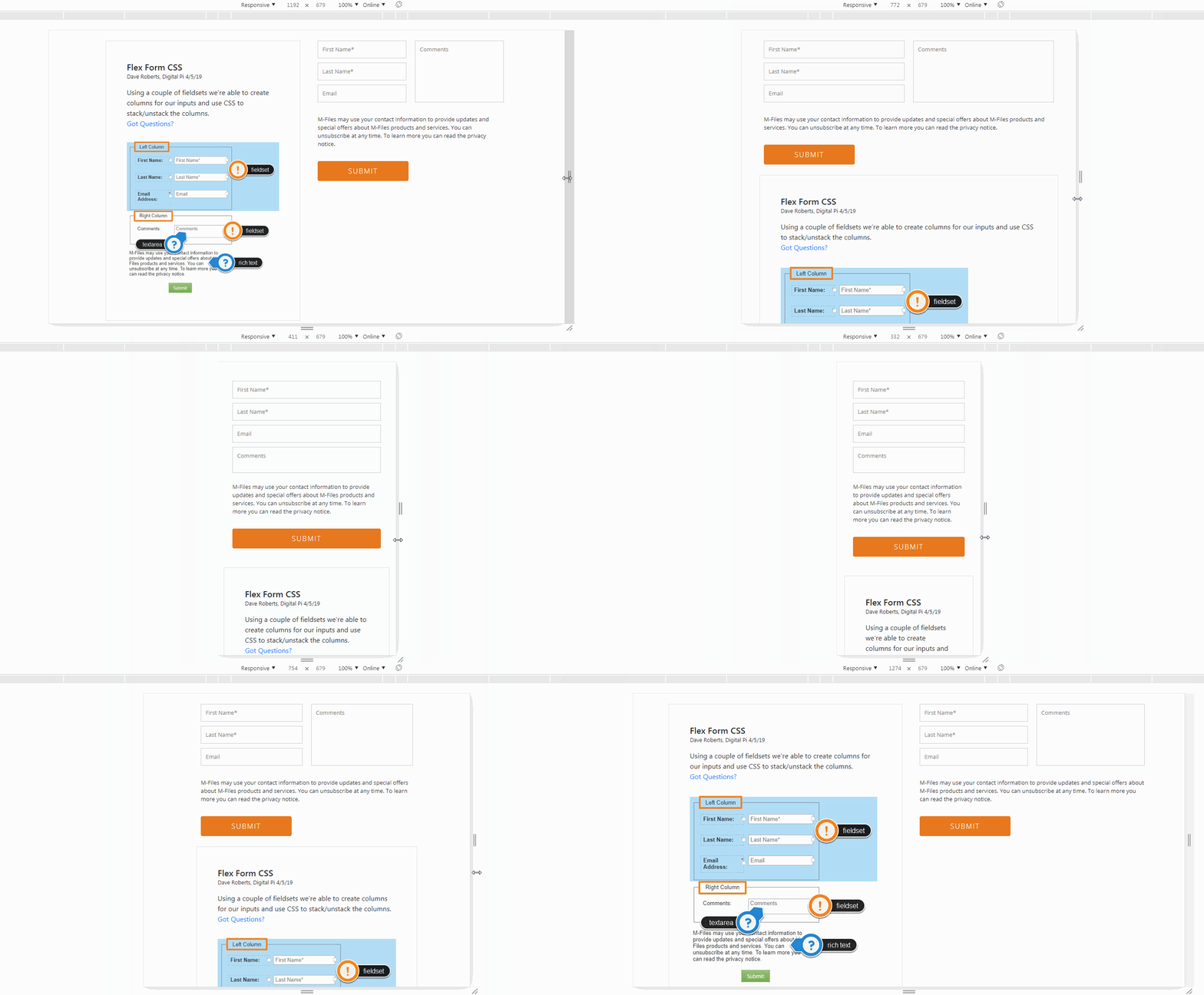
I've setup a basic template to house an example of the form here: FLEX Form CSS - Digital Pi

The CSS for this form is included below, you should be able to copy/paste this into the Custom CSS on your form to put it into play on your end.

It'd probably be best to clone your live form and apply these changes to the clone to test before you implement it. You can also copy/paste the existing Custom CSS into a word doc or simple text editor to save as a backup.

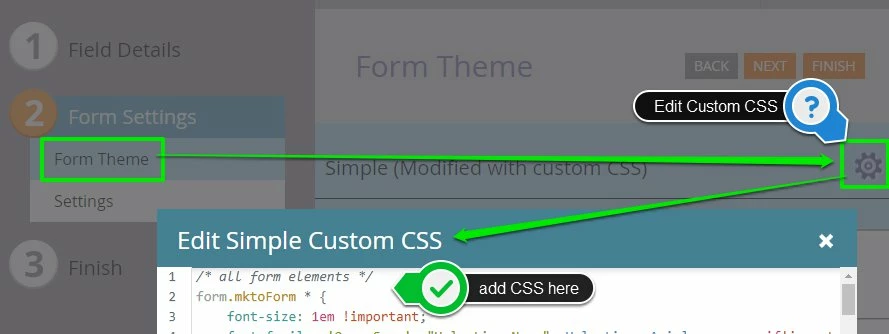
Here's a quick look at where to find the Custom CSS on your form:

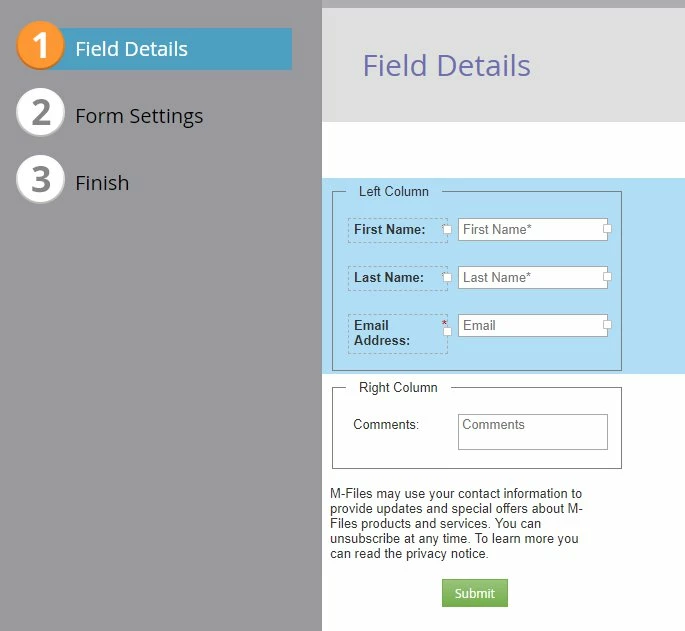
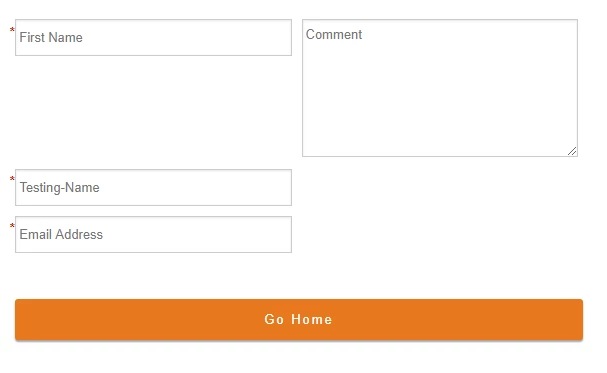
You'll also need to do a little work in the Field Details tab to create the fieldsets and place your fields into them. I've included a shot below of what the setup looks like on my end (and there's also an annotated copy of this on the live example linked above). You can create a new fieldset the same way you'd add a new field/rich text to the form and then drag-and-drop the fields into the middle of the fieldset. I've labeled each fieldset in the editor so it makes a little more sense to anyone coming along in the future who isn't as familiar with the setup. These labels (legends) are hidden in the live view, so they can be used to hold comments/info as you see fit.

*NOTE: For the sake of keeping this inline with this example, this form IS NOT styled to accommodate other inputs like a checkbox or radio (anything that doesn't currently exist on the form). Those will need a more specific set of styles, maybe something to tackle or add-on down the road. I've tested on Chrome, Firefox, IE 11 and Safari (mobile and desktop) to be sure this'll work out without a hitch, please let me know if you come across anything that's acting weird.

/* all form elements */

form.mktoForm * {

font-size: 1em !important;

font-family: 'Open Sans', "Helvetica Neue", Helvetica, Arial, sans-serif!important;

-webkit-box-sizing: border-box;

box-sizing: border-box;

}

/* color outline and border for active elements */

form.mktoForm * {outline-color: #e7781e !important;}

form.mktoForm *:focus {border-color: #e7781e !important;}

/* full-width (fluid) elements */

form.mktoForm,

form.mktoForm .mktoButtonRow,

form.mktoForm fieldset .mktoFormRow,

form.mktoForm fieldset .mktoFormCol,

form.mktoForm fieldset .mktoFieldWrap,

form.mktoForm fieldset .mktoFormRow input,

form.mktoForm fieldset .mktoFormRow select,

form.mktoForm fieldset .mktoFormRow textarea {

width: 100% !important;

}

}

/* fixed width element reset */

form.mktoForm .mktoHasWidth {

width: auto !important;

}

/* hide these elements (spacers, legend, labels) */

.mktoOffset,

.mktoGutter,

form.mktoForm fieldset legend,

form.mktoForm label.mktoLabel {

display: none !important;

}

/* ----------------------------------- */

/* ==========[Form Elements]========== */

/* ----------------------------------- */

/* fieldset (all) */

form.mktoForm fieldset {

width: 100% !important;

padding: 0px !important;

margin: 0px !important;

border: none !important;

}

/* inputs, textarea, select */

.mktoForm input[type=url],

.mktoForm input[type=text],

.mktoForm input[type=date],

.mktoForm input[type=tel],

.mktoForm input[type=email],

.mktoForm input[type=number],

.mktoForm textarea.mktoField,

.mktoForm select.mktoField {

height: auto !important;

line-height: inherit !important;

font-size: inherit !important;

-webkit-appearance: none!important;

background-color: #fff;

background: #fff;

color: #333!important;

border: 1px solid #ccc;

-webkit-box-shadow: 0 1px 2px rgba(0, 0, 0, 0.1) inset;

box-shadow: 0 1px 2px rgba(0, 0, 0, 0.1) inset;

border-radius: 0px!important;

padding: 10px!important;

-webkit-box-shadow: none!important;

box-shadow: none!important;

-webkit-transition: all 250ms ease-out!important;

-o-transition: all 250ms ease-out!important;

transition: all 250ms ease-out!important;

width: 100%!important;

}

/* invalid fields */

.mktoForm input.mktoField.mktoInvalid, .mktoForm select.mktoField.mktoInvalid, .mktoForm textarea.mktoField.mktoInvalid, .mktoForm div.mktoLogicalField.mktoInvalid {

border: 1px solid #c00;

}

/* rich text */

form.mktoForm .mktoHtmlText {

padding: 0.5rem 0px 1.25rem 0px !important;

width: 100% !important;

text-align: left !important;

font-family: "Open Sans", "Helvetica", Helvetica, Arial, sans-serif;

font-size: 16px;

}

/* button */

form.mktoForm .mktoButtonWrap {

margin-left: 0px !important;

}

form.mktoForm .mktoButtonWrap .mktoButton {

background-image: -webkit-gradient(linear, left top, left bottom, from(#e7781e), to(#e7781e))!important;

background-image: -webkit-linear-gradient(top, #e7781e, #e7781e)!important;

background-image: -o-linear-gradient(top, #e7781e, #e7781e)!important;

background-image: linear-gradient(to bottom, #e7781e, #e7781e)!important;

border: 1px solid #e7781e!important;

border-radius: 4px!important;

background-color: #e7781e!important;

padding: 10px!important;

width: 100% !important;

text-transform: uppercase!important;

font-family: 'Open Sans', "Helvetica Neue", Helvetica, Arial, sans-serif !important;

font-size: 16px !important;

font-weight: 300 !important;

letter-spacing: 2px !important;

color: #ffffff !important;

min-height: 35px !important;

margin: 0 auto !important;

}

/* ------------------------------------ */

/* ==========[Responsive CSS]========== */

/* ------------------------------------ */

/* for landscape mobile and up */

@media screen and (min-width:576px) {

/* unstack form */

form.mktoForm {

display: -webkit-box !important;

display: -ms-flexbox !important;

display: flex !important;

-ms-flex-wrap: wrap;

flex-wrap: wrap;

}

/* Row 1 & 2 (filedset rows) to columns */

form.mktoForm>.mktoFormRow:nth-of-type(1),

form.mktoForm>.mktoFormRow:nth-of-type(2) {

width: 50% !important;

float: left !important;

clear: none !important;

}

/* column padding */

form.mktoForm fieldset .mktoFormCol .mktoFieldWrap {

padding: 0 10px !important;

}

/* fieldset (all) */

form.mktoForm .mktoFormRow fieldset {

-webkit-box-flex: 1;

-ms-flex-positive: 1;

flex-grow: 1;

height: 100%;

}

/* 2nd Column - fieldset 2 */

form.mktoForm .mktoFormRow:nth-of-type(2) fieldset .mktoFormRow,

form.mktoForm .mktoFormRow:nth-of-type(2) fieldset .mktoFormRow .mktoFormCol,

form.mktoForm .mktoFormRow:nth-of-type(2) fieldset .mktoFormRow .mktoFormCol .mktoFieldWrap {

display: -webkit-box !important;

display: -ms-flexbox !important;

display: flex !important;

height: 100% !important;

}

/* textarea | SPECIFIC ELEMENT CSS: grow textarea in 2nd column */

form.mktoForm textarea.mktoField {

margin-bottom: 10px;

height: calc(100% - 10px);

}

/* rich text */

form.mktoForm .mktoHtmlText {

font-weight: 400 !important;

padding: 1.25rem 10px !important;

}

/* button */

form.mktoForm .mktoButtonRow {

clear: both;

}

form.mktoForm .mktoButtonWrap {

margin-left: 10px !important;

}

form.mktoForm .mktoButtonWrap .mktoButton {

min-width: 210px !important;

width: auto !important;

}

}

Quick Walkthru:

1. Clone Form, backup current CSS, apply new CSS - You can copy/paste the CSS above into the Custom CSS on your new form once that's setup.

2. Create a test LP to host the embedded form in your CMS - Maybe you can just clone this landing page and add the embded code for your new form into the page for testing/review. *Note: If you're already using a test page for this, you can just use the new embed code in place of the old code - the idea is that you'll want to test this in a staging environment instead of on the live page.

3. Apply styles to live form - Once everything looks good / is tested, you can simply copy/paste the CSS above in place of the existing CSS on your form and approve the form to see the updates on your live page.

Let me know if you run into anything you've got questions on, and I hope this ends up helping you accomplish what you were after.

High Five! and Happy Friday

p.s. this should still work if you were to add more fields to the left column, just in case

7 replies

SanfordWhiteman
Level 10
August 14, 2018

Please provide the URL of a page with your form so we can touch it up.

Michelle_Stunka
Level 2
August 14, 2018

Thanks Sanford! This is the one with my test embed form I'm working with: m-files.com/en/marketo-test-form

Michelle_Stunka
Level 2
August 21, 2018

I'm guessing this isn't possible? Should I try a Marketo focused design firm for help with the CSS?

Michelle_Stunka
Level 2
August 22, 2018

This was solved by adding the following CSS in case anyone runs into this in the future:

.mktoForm textarea.mktoField {
position: absolute!important;
resize: vertical !important;
}


Then add this media query so it aligns in mobile

@media only screen and (max-width: 480px) {
.mktoForm textarea.mktoField {
resize: vertical !important;
position: inherit!important;
}
}

SanfordWhiteman
Level 10
August 22, 2018

CSS resize isn't supported in IE, Edge, or iOS Safari. So that feature is definitely not what you lean on for this.

Level 2
April 1, 2019

Which form did you start with?

How did you get the labels inside the fields? Did you use css?

Thanks!

SanfordWhiteman
Level 10
April 2, 2019

Megan, please open a new thread with your question and an example URL w/your form. The answer above can't be used cross-browser so you will need a better fix.

Dave_Roberts
Dave_RobertsAccepted solution
Level 10
April 5, 2019

Hey Michelle-

I've setup a basic template to house an example of the form here: FLEX Form CSS - Digital Pi

The CSS for this form is included below, you should be able to copy/paste this into the Custom CSS on your form to put it into play on your end.

It'd probably be best to clone your live form and apply these changes to the clone to test before you implement it. You can also copy/paste the existing Custom CSS into a word doc or simple text editor to save as a backup.

Here's a quick look at where to find the Custom CSS on your form:

You'll also need to do a little work in the Field Details tab to create the fieldsets and place your fields into them. I've included a shot below of what the setup looks like on my end (and there's also an annotated copy of this on the live example linked above). You can create a new fieldset the same way you'd add a new field/rich text to the form and then drag-and-drop the fields into the middle of the fieldset. I've labeled each fieldset in the editor so it makes a little more sense to anyone coming along in the future who isn't as familiar with the setup. These labels (legends) are hidden in the live view, so they can be used to hold comments/info as you see fit.

*NOTE: For the sake of keeping this inline with this example, this form IS NOT styled to accommodate other inputs like a checkbox or radio (anything that doesn't currently exist on the form). Those will need a more specific set of styles, maybe something to tackle or add-on down the road. I've tested on Chrome, Firefox, IE 11 and Safari (mobile and desktop) to be sure this'll work out without a hitch, please let me know if you come across anything that's acting weird.

/* all form elements */

form.mktoForm * {

font-size: 1em !important;

font-family: 'Open Sans', "Helvetica Neue", Helvetica, Arial, sans-serif!important;

-webkit-box-sizing: border-box;

box-sizing: border-box;

}

/* color outline and border for active elements */

form.mktoForm * {outline-color: #e7781e !important;}

form.mktoForm *:focus {border-color: #e7781e !important;}

/* full-width (fluid) elements */

form.mktoForm,

form.mktoForm .mktoButtonRow,

form.mktoForm fieldset .mktoFormRow,

form.mktoForm fieldset .mktoFormCol,

form.mktoForm fieldset .mktoFieldWrap,

form.mktoForm fieldset .mktoFormRow input,

form.mktoForm fieldset .mktoFormRow select,

form.mktoForm fieldset .mktoFormRow textarea {

width: 100% !important;

}

}

/* fixed width element reset */

form.mktoForm .mktoHasWidth {

width: auto !important;

}

/* hide these elements (spacers, legend, labels) */

.mktoOffset,

.mktoGutter,

form.mktoForm fieldset legend,

form.mktoForm label.mktoLabel {

display: none !important;

}

/* ----------------------------------- */

/* ==========[Form Elements]========== */

/* ----------------------------------- */

/* fieldset (all) */

form.mktoForm fieldset {

width: 100% !important;

padding: 0px !important;

margin: 0px !important;

border: none !important;

}

/* inputs, textarea, select */

.mktoForm input[type=url],

.mktoForm input[type=text],

.mktoForm input[type=date],

.mktoForm input[type=tel],

.mktoForm input[type=email],

.mktoForm input[type=number],

.mktoForm textarea.mktoField,

.mktoForm select.mktoField {

height: auto !important;

line-height: inherit !important;

font-size: inherit !important;

-webkit-appearance: none!important;

background-color: #fff;

background: #fff;

color: #333!important;

border: 1px solid #ccc;

-webkit-box-shadow: 0 1px 2px rgba(0, 0, 0, 0.1) inset;

box-shadow: 0 1px 2px rgba(0, 0, 0, 0.1) inset;

border-radius: 0px!important;

padding: 10px!important;

-webkit-box-shadow: none!important;

box-shadow: none!important;

-webkit-transition: all 250ms ease-out!important;

-o-transition: all 250ms ease-out!important;

transition: all 250ms ease-out!important;

width: 100%!important;

}

/* invalid fields */

.mktoForm input.mktoField.mktoInvalid, .mktoForm select.mktoField.mktoInvalid, .mktoForm textarea.mktoField.mktoInvalid, .mktoForm div.mktoLogicalField.mktoInvalid {

border: 1px solid #c00;

}

/* rich text */

form.mktoForm .mktoHtmlText {

padding: 0.5rem 0px 1.25rem 0px !important;

width: 100% !important;

text-align: left !important;

font-family: "Open Sans", "Helvetica", Helvetica, Arial, sans-serif;

font-size: 16px;

}

/* button */

form.mktoForm .mktoButtonWrap {

margin-left: 0px !important;

}

form.mktoForm .mktoButtonWrap .mktoButton {

background-image: -webkit-gradient(linear, left top, left bottom, from(#e7781e), to(#e7781e))!important;

background-image: -webkit-linear-gradient(top, #e7781e, #e7781e)!important;

background-image: -o-linear-gradient(top, #e7781e, #e7781e)!important;

background-image: linear-gradient(to bottom, #e7781e, #e7781e)!important;

border: 1px solid #e7781e!important;

border-radius: 4px!important;

background-color: #e7781e!important;

padding: 10px!important;

width: 100% !important;

text-transform: uppercase!important;

font-family: 'Open Sans', "Helvetica Neue", Helvetica, Arial, sans-serif !important;

font-size: 16px !important;

font-weight: 300 !important;

letter-spacing: 2px !important;

color: #ffffff !important;

min-height: 35px !important;

margin: 0 auto !important;

}

/* ------------------------------------ */

/* ==========[Responsive CSS]========== */

/* ------------------------------------ */

/* for landscape mobile and up */

@media screen and (min-width:576px) {

/* unstack form */

form.mktoForm {

display: -webkit-box !important;

display: -ms-flexbox !important;

display: flex !important;

-ms-flex-wrap: wrap;

flex-wrap: wrap;

}

/* Row 1 & 2 (filedset rows) to columns */

form.mktoForm>.mktoFormRow:nth-of-type(1),

form.mktoForm>.mktoFormRow:nth-of-type(2) {

width: 50% !important;

float: left !important;

clear: none !important;

}

/* column padding */

form.mktoForm fieldset .mktoFormCol .mktoFieldWrap {

padding: 0 10px !important;

}

/* fieldset (all) */

form.mktoForm .mktoFormRow fieldset {

-webkit-box-flex: 1;

-ms-flex-positive: 1;

flex-grow: 1;

height: 100%;

}

/* 2nd Column - fieldset 2 */

form.mktoForm .mktoFormRow:nth-of-type(2) fieldset .mktoFormRow,

form.mktoForm .mktoFormRow:nth-of-type(2) fieldset .mktoFormRow .mktoFormCol,

form.mktoForm .mktoFormRow:nth-of-type(2) fieldset .mktoFormRow .mktoFormCol .mktoFieldWrap {

display: -webkit-box !important;

display: -ms-flexbox !important;

display: flex !important;

height: 100% !important;

}

/* textarea | SPECIFIC ELEMENT CSS: grow textarea in 2nd column */

form.mktoForm textarea.mktoField {

margin-bottom: 10px;

height: calc(100% - 10px);

}

/* rich text */

form.mktoForm .mktoHtmlText {

font-weight: 400 !important;

padding: 1.25rem 10px !important;

}

/* button */

form.mktoForm .mktoButtonRow {

clear: both;

}

form.mktoForm .mktoButtonWrap {

margin-left: 10px !important;

}

form.mktoForm .mktoButtonWrap .mktoButton {

min-width: 210px !important;

width: auto !important;

}

}

Quick Walkthru:

1. Clone Form, backup current CSS, apply new CSS - You can copy/paste the CSS above into the Custom CSS on your new form once that's setup.

2. Create a test LP to host the embedded form in your CMS - Maybe you can just clone this landing page and add the embded code for your new form into the page for testing/review. *Note: If you're already using a test page for this, you can just use the new embed code in place of the old code - the idea is that you'll want to test this in a staging environment instead of on the live page.

3. Apply styles to live form - Once everything looks good / is tested, you can simply copy/paste the CSS above in place of the existing CSS on your form and approve the form to see the updates on your live page.

Let me know if you run into anything you've got questions on, and I hope this ends up helping you accomplish what you were after.
High Five! and Happy Friday

p.s. this should still work if you were to add more fields to the left column, just in case

Dave_Roberts
Level 10
April 11, 2019

Hey Michelle,

Just wanted to follow up and see if you had any questions / were able to get this into play? Let me know if you've got any questions or if there is anything that'd be helpful to explain in greater detail.

Thanks,

Dave

Michelle_Stunka
Level 2
July 26, 2019

Hey Dave!

First of all, I am so sorry for taking so long to test this. Projects this year have been back to back. However, I have put this up on a test page and only had to make a simple tweak to the column width and it looks really great! Esp in mobile. 

m-files.com/en/marketo-test-form

Thank you so much for your generous help! Very much appreciated!

Michelle

Cindy_Coutre
Level 1
November 19, 2019

Your code has helped me tremendously!  Thank you!  Can you tell me what part of the code controls the spacing between the form fields when I have more than one in a row?

Dave_Roberts
Level 10
November 19, 2019
/* column padding */  
form.mktoForm fieldset .mktoFormCol .mktoFieldWrap {
padding: 0 10px !important;
} ‍‍‍‍

You'll find this on line 139 in the most recent (bottom) set of code in this thread.

This rule reads something like:

Find the form element, then find all the fieldsets inside that, then find all the columns inside those fieldsets, and then find the field wrappers inside those columns (fieldsets go around inputs you add in the form editor) {

    add 0 padding to the top and bottom and 10px of padding to the left and right side of those field wrappers

}

The "padding: 0 10px !important" is shorthand CSS for:

padding top and bottom = 0 and padding left and right = 10px. 

The !important tag is there so that it'll override the Marketo-native CSS that loads after these custom styles.

You should be able to adjust the 10px value to add more space around each of the fields which'll make for bigger gutters between the columns.