Facebook title | Community
Skip to main content
February 7, 2013
Solved

Facebook title

  • February 7, 2013
  • 9 replies
  • 2231 views
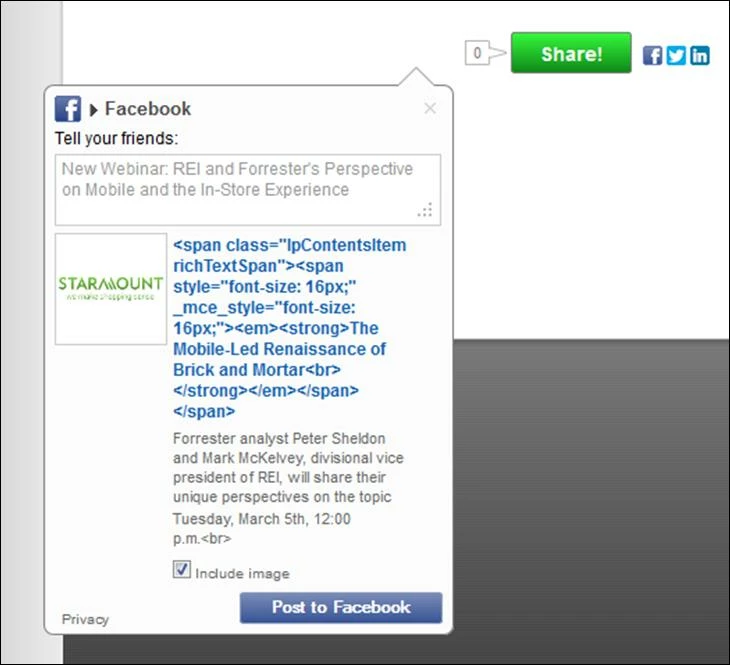
Have just been able to start playing with the new Social Buttons tonight... I think I've got it all sorted out however:  when I use the "Add static content (that I specify)" option, save it, place the button on a test landing page, and click on the FB button, everything looks decent except for the blue title (see below)... obviously the coding is appearing, along with the title itself.

I see that I can choose the other option, and link that title field to meta-tags, etc. I can play with that route too (and probably will, just to learn how it works) however, is there a way to get the "static" option to work, without the code to appear?

I tried saving the copy as plain text first, just to strip any formatting out of it first, but no success.

Look forward to learning how to use these a bit more for upcoming campaigns. - Jen

This post is no longer active and is closed to new replies. Need help? Start a new post to ask your question.
Best answer by
Jen,
We have fixed this issue through a patch.  You will not see this problem if you create a new social button.  If you wish to use the older button that you created, please edit the fields (add a whitespace or delete the text, let Marketo autosave and put the text back in again) and the html code will go away

Raj

9 replies

February 8, 2013
Hi Jen,
Steps to fix:
1.Go to the Editor screen of the Social App and turn on Developer tool.
2. Now on the Share message of Facebook, highlight the Title text and then Right click "Inspect the Element".
3. Once you open the code in the Developer tool you can delete all the extra characters
4. Wait for it to get saved.
5. After Approving the app. You should not see the html text in the title.

Please repeat the same with every field you see this. Let me know if this works. Hope its helps.
February 8, 2013
Jen,
We will fix this issue through a patch very soon.  Please use the workaround described by Ekta until then

Raj
February 8, 2013
Thanks Guys.  Question: Can you offer a bit more detail on Step 1 (a screen shot perhaps)? I may be looking in the wrong location, because I'm not seeing a way to turn on a Developer tool (I'm using Spark, if that makes a difference at all?) If I click on the Social button inside my Marketing Activity program, and go to "edit draft" on the social button - should I see a way to turn on the developer tool there?

Thanks! - J

February 8, 2013
Hi Jen,
In Chrome browser, Attaching screen shot of how to enable developer tool bar.


Also then Highlight the text and do Inspect Element and once u see code down, just deleted the <br> part from it.


In Firefox, you cna install Firebug and do the same. Attaching its screen shot too.
February 8, 2013
Hmmm, I'm working in Firefox. I installed Firebug, highlighted the text, inspected the element... hit the + sign to expose the <br> line... selected that and deleted it. Then did "Approve/Finish... re-placed it on a Landing Page... tested... didn't change anything.

When I'm in the Firebug code screen, is there something I have to do after I delete the <br> code? Do I need to somehow apply/save that edit to the code? You'll see the line in question is partially highlighted, at the narrow part of the code "v"... the <br> is gone? Sorry if this is code-fixing for dummies! Determined to make this look correct! :)

February 8, 2013
Jen,
Just to be sure, Before you try to delete the html code please click 'Edit" in the firebug window, which is on left part of the screen and once editting is done click "Edit" again.
But our code edit doesn't trigger the auto save feature.
So we need to do one for step after delete that br, go ahead and change something in the text box under the "Tell Your Friends" , that will definatley trigger auto save. After you see save happened then move forward and Approve/Finish. This should fix the issue for you.
We will roll the patch with this fix soon.

Ekta

February 8, 2013
Well, I'm getting much closer! I started a brand new social button, and put in new content... this time I'm getting ,<br> in my lower description. Went back and was able to successfully remove one (same methodology as above). But, the final one is being a stickler. :)

I JUST realized that these social buttons changed (was used to the "drag and drop" version before). I greatly prefer the flexibility and detail this offers us... just hoping patches can help dummy-proof the process so that it doesn't require as much time testing/fixing/testing before we can make it live on a landing page. We have a webinar launch happening on Monday that I'd like to make this work for... just needing to do some final tweaks.

Thanks for your help!

Accepted solution
February 11, 2013
Jen,
We have fixed this issue through a patch.  You will not see this problem if you create a new social button.  If you wish to use the older button that you created, please edit the fields (add a whitespace or delete the text, let Marketo autosave and put the text back in again) and the html code will go away

Raj
February 11, 2013
Terrific. Thanks Raj! Appreciate your work on that! - Jen