Email Template - Need help with button/ no button option for module | Community
Skip to main content
Level 2
May 3, 2022
Solved

Email Template - Need help with button/ no button option for module

  • May 3, 2022
  • 1 reply
  • 6303 views

Hello!

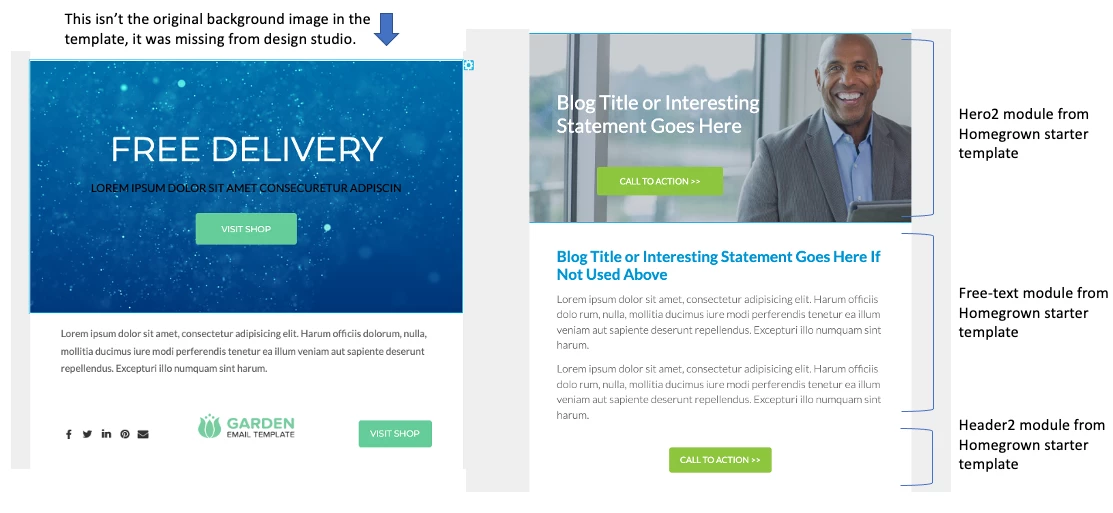
I am stumped and hoping someone with more Marketo skills (i.e. almost anyone) can help.  I started with the Homegrown Marketo Starter Template and I have been able to figure out enough - through trial and error - to customize it to our needs almost perfectly. (I have attached a screenshot of the original on left and my customized version on the right if that helps.)


This is a template we will use all the time, but not every instance will call for the CTA button in the top section. And the Homegrown template didn't have a module that fit the parameters. My troubleshooting has led me down these paths, unsuccessfully.


1. Use the Free-image module in the starter template, make it full width (like the Hero2) and add the ability to have text on top. (I want to avoid having the copy in the image itself.)


2. Duplicate the Hero2 module and remove the code that contains the button so with each email, we can just select the appropriate module - the Hero with or without the button.


3. Within the Hero2 module, have a way to remove the button when it isn't needed.  I am sure this wouldn't have been considered a best practice if I had gotten it to work, but I tried simply removing the link and call to action, but alas, a small empty button still shows up and I can't turn it transparent.


If anyone has any input or feedback, I'd be grateful. Keep in mind, I am not at all code fluent. 

Thank you very much! Also, apologies if i am posting this in the wrong space. 
 

This post is no longer active and is closed to new replies. Need help? Start a new post to ask your question.
Best answer by Jo_Pitts1

@hp43_X ,

so if I understand correctly, you want to hide/show the CTA button?

Is this something you need to do based on a persons data (i.e. do it programmatically), or based on a manual switch?

If it is the latter, you have two options:

  1. Have two modules, one with a CTA, and one without.
  2. Wrap the whole button code inside a <TR> or <DIV> (which it probably is already), and based on a Marketo Boolean in the module variables, alter the style of the surrounding element (e.g. something like 
    style="${showCTA} all your other styling goes here"​

    The setup of the variable would be something like this

    <meta class="mktoBoolean" mktoModuleScope="true" id="showCTA" mktoName="Show CTA" default="true" true_value="display:block;" false_value="display:none; mso-hide:all;" true_value_name="YES" false_value_name="NO" >

If it is the former, you'd adopt a very similar approach to the steps I've detailed above in point 2., but you'd use velocity script to control the displaying/hiding of the CTA.  Something along the lines of:


style="{{my.showCTA}} all your other styling goes here"​


and for the velocity script


#if (lead.myDataPoint.equals('sell them stuff') ) display:block; #else display:none; mso-hide:all; #end


Hopefully that helps (but sorry for all the code in there 🙂 )


Oh - and be very careful with background images with text, other images, buttons, etc etc etc. over the top of them.  It requires some careful coding to ensure it all works with Microsoft Outlook for Windows Desktop App.


Cheers

Jo

1 reply

Jo_Pitts1
Community Advisor
Jo_Pitts1Community AdvisorAccepted solution
Community Advisor
May 4, 2022

@hp43_X ,

so if I understand correctly, you want to hide/show the CTA button?

Is this something you need to do based on a persons data (i.e. do it programmatically), or based on a manual switch?

If it is the latter, you have two options:

  1. Have two modules, one with a CTA, and one without.
  2. Wrap the whole button code inside a <TR> or <DIV> (which it probably is already), and based on a Marketo Boolean in the module variables, alter the style of the surrounding element (e.g. something like 
    style="${showCTA} all your other styling goes here"​

    The setup of the variable would be something like this

    <meta class="mktoBoolean" mktoModuleScope="true" id="showCTA" mktoName="Show CTA" default="true" true_value="display:block;" false_value="display:none; mso-hide:all;" true_value_name="YES" false_value_name="NO" >

If it is the former, you'd adopt a very similar approach to the steps I've detailed above in point 2., but you'd use velocity script to control the displaying/hiding of the CTA.  Something along the lines of:


style="{{my.showCTA}} all your other styling goes here"​


and for the velocity script


#if (lead.myDataPoint.equals('sell them stuff') ) display:block; #else display:none; mso-hide:all; #end


Hopefully that helps (but sorry for all the code in there 🙂 )


Oh - and be very careful with background images with text, other images, buttons, etc etc etc. over the top of them.  It requires some careful coding to ensure it all works with Microsoft Outlook for Windows Desktop App.


Cheers

Jo

HP66_XAuthor
Level 2
May 4, 2022

First, thank you so much for responding! Was so happy to see a reply this morning!  😀


And yes, exactly - hide/show the CTA button manually (based on email content) on an email-by-email basis and not on a person's data or anything. 


Below, I am showing where I think I would insert what you shared in the template code - can you tell me if I am in the right ballpark? You might not be able to tell since it's only snippets of the code, but I thought I'd try!  


Thank you again!


Jo_Pitts1
Community Advisor
Community Advisor
May 4, 2022

@hp43_X,

you're doing well to get this far given you're not a coder - well done!


Where to insert the meta code for the variable - that's spot on!  Stick it in there!

Where to USE the variable.  Do it as far up the hierarchy as possible.  And you'll only need to do it once.

I've shown (based on what I can see of your code) two possible locations (in red)


Cheers

Jo