Email Analytics with an A/B tested Email Blast Issues | Community
Skip to main content
Level 2
April 23, 2019
Solved

Email Analytics with an A/B tested Email Blast Issues

  • April 23, 2019
  • 4 replies
  • 7444 views

Hi there,

I am trying to run an Email Link Performance report for an Email Blast that was A/B tested. The issue that I am running into is that I am only able to select the whole program, and not the individual emails tested within the program. I want to see where and what is being clicked on within each email but my report only give me stats for all emails combined in the program and I am unable to specify the individual emails.

Is there a workaround with this?

Thanks,

Jake
This post is no longer active and is closed to new replies. Need help? Start a new post to ask your question.
Best answer by Valerie_Whitin2

Hi @Jake Kalinoski​

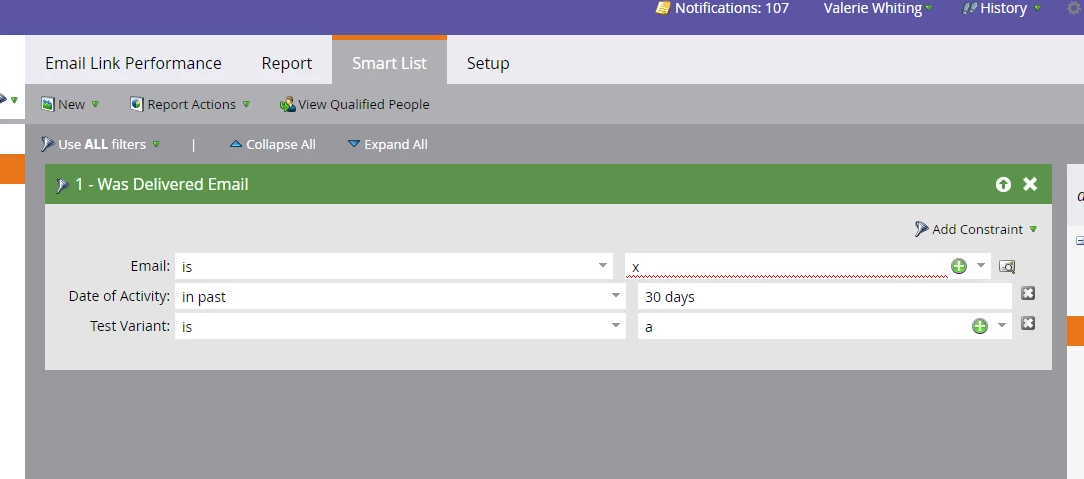
You will have to pull it for each version of the email you had. But in the email link performance report itself, select the email program in the set up. Then in the smart list add a filter called "delivered email" select the email you tested, then add the constraint "Test Variant" and select which version you want to look at. Then that will only give you the numbers for that specific version. This also works in the email performance report. Hope this helps!

4 replies

Level 6
April 23, 2019

Hi Jake,

If you have tested it via email send, you can view the email performance report just by changing the program view from Summary to Dashboard.

Level 2
April 23, 2019

Hi Ankit,

Thanks for your response. However, this only shows the email performance. I would like to see the email LINK performance with the individual emails and see which links are getting clicked on in the emails. My report shows these analytics, but it combines the stats for the program as a whole instead of each email that was in the a/b test.

Thanks,

Jake

Level 6
April 23, 2019

I am not sure why it is showing a the result as a whole but have you tried creating a smart list that says:

Clicked link in the email ( Link URL) and that gives you the number of people who have clicked that particular link in email. Though this looks like a longer process but I think this should help.

@Sanford Whiteman​ sir, do you have any recommendations here?

Thanks

Level 6
April 24, 2019

Hi Tashmeem,

As far as I know, if a report is created within a program it selects the all the emails created within a program by default. I am not sure if this can be an issue here.

Thanks

Tashmeem_Waqas1
Level 2
April 24, 2019

Hi Ankit

Yes by default, but in the set up tab of the report you can deselect/select emails you would like to see the stats for, thats the screenshot I shared.

Cheers

Tash

Valerie_Whitin2
Valerie_Whitin2Accepted solution
Level 4
April 24, 2019

Hi @Jake Kalinoski​

You will have to pull it for each version of the email you had. But in the email link performance report itself, select the email program in the set up. Then in the smart list add a filter called "delivered email" select the email you tested, then add the constraint "Test Variant" and select which version you want to look at. Then that will only give you the numbers for that specific version. This also works in the email performance report. Hope this helps!

Level 9
April 25, 2019

This is the correct answer and the only way to do it, really. Smart Lister filter with "Variant". Cumbersome.

Valerie_Whitin2
Level 4
April 25, 2019

This doesn't work when you run an A/B test on an email program. Especially when you are testing something like a subject line or time of day send where there is no separate email asset.

Tashmeem_Waqas1
Level 2
April 25, 2019

Yes, correct! Not sure why I thought we are talking multiple emails.