Best solution to fix image rendering issue in MSO Outlook? | Community
Skip to main content
Level 6
February 17, 2022
Solved

Best solution to fix image rendering issue in MSO Outlook?

  • February 17, 2022
  • 1 reply
  • 3734 views

Hello Community,


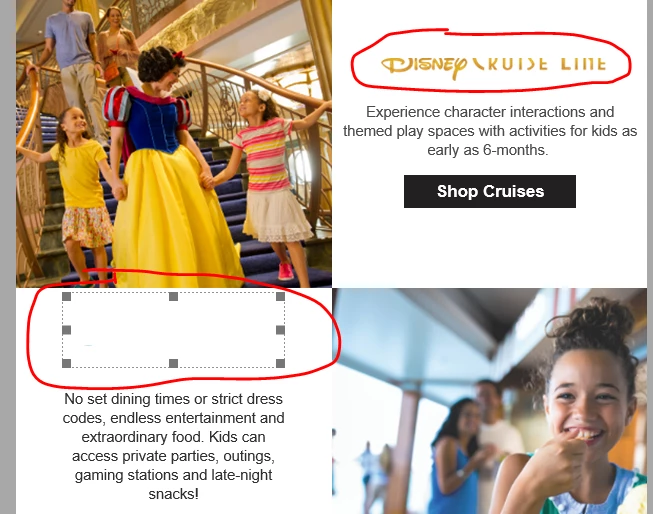
I have added code that appears to have fixed an issue with images appearing cut off or not appearing at all in my desktop MSO 365 Outlook inbox (Version 2201 Build 16.0.14827.20186).


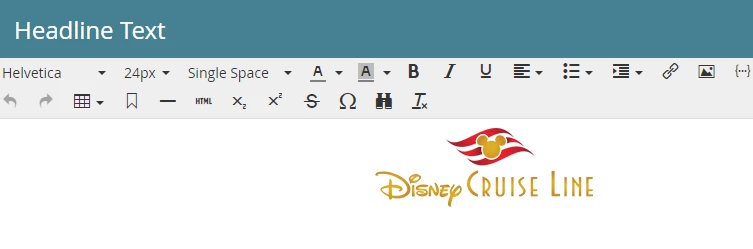
As you can see, the images have been uploaded in a RTE that is contained in a Module:


The fix I applied was to add the following code to the <head> section:


<!--[if mso]> <style> td, th { line-height: 0px !important; } </style> <![endif]-->


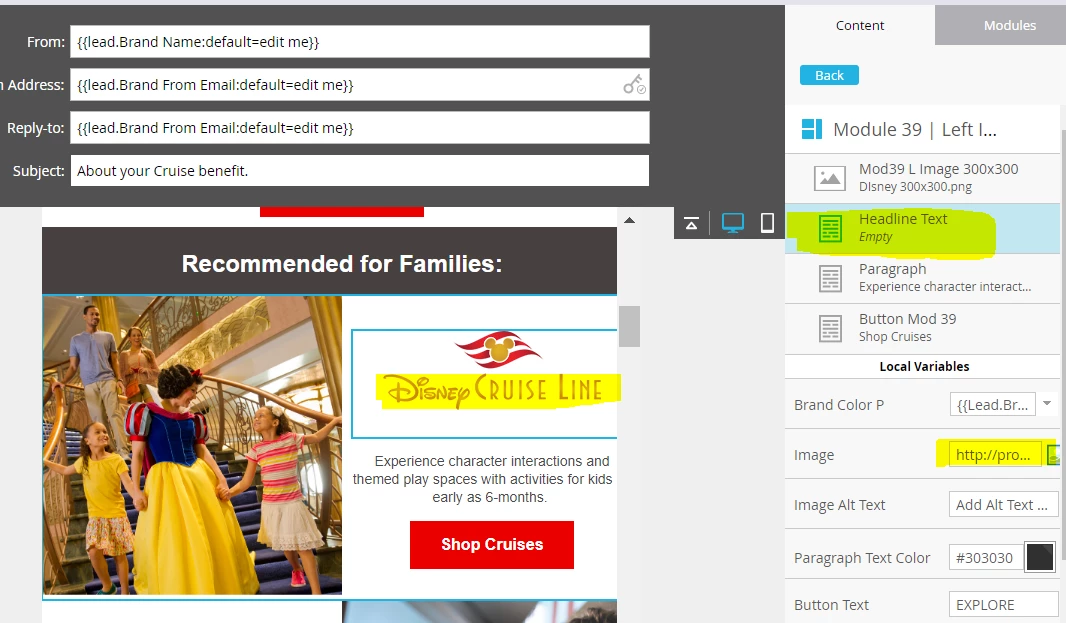
The images are now rendering perfectly:



My question is whether there's any chance the code I added to the <head> section could adversely impact anything in the template. I don't believe it would, but I just want to be sure.


Thanks for your help!


LK


This post is no longer active and is closed to new replies. Need help? Start a new post to ask your question.
Best answer by SanfordWhiteman

You can add classes — that’s a better move when you know something works in a <style> to begin with.

1 reply

SanfordWhiteman
Level 10
February 17, 2022

Well, it’ll apply to all table columns and table headers anywhere in the email — only under Outlook, of course, but throughout the entire email. Impossible to say if that’ll break anything, since there’s a chance some other elements don’t expect this style.

Level 6
February 18, 2022

Thanks Sanford.


In that case, would it be better to apply the styling inline like below?

<!--[if mso]> <tr style="line-height:0px !important;"> <td align="center" valign="top" class="em_defaultlink" style="border-collapse: collapse; mso-line-height-rule: exactly; font-family:'Helvetica', Arial, sans-serif;font-size:24px;line-height:0px !important;color:${brand_colors_1};font-weight:bold;"> <![endif]-->


Or to perhaps add classes to the code?


This is the code for the "header text" where the image is being placed.

<tr> <td align="center" valign="top" class="em_defaultlink" style="border-collapse: collapse; mso-line-height-rule: exactly; font-family:'Helvetica', Arial, sans-serif;font-size:24px;line-height:27px;color:${brand_colors_1};font-weight:bold;"> <div class="mktoText" id="Mod_39_Text" mktoName="Headline Text">Headline Goes Here</div> </td> </tr>


Thank you,

LK


SanfordWhiteman
SanfordWhitemanAccepted solution
Level 10
February 19, 2022

You can add classes — that’s a better move when you know something works in a <style> to begin with.