Building a Decisioning rule or a ranking formula is only half the job. The harder question is always the same one: will it actually behave the way I think it will?
Until now, the honest answer was “let’s find out in production” — you’d wire the rule into a decisioning strategy or a campaign, push it out, and watch the results trickle in. That’s a slow, nervous way to work, and it’s an expensive one when a subtle logic error means the wrong offer reaches the wrong profile.
Simulation changes that. You can now test any rule or ranking formula against sample or AI-generated data before you put it to work — right inside the authoring experience, in a few clicks, with no hand-built data and no guesswork. This post walks through both: simulating a rule to confirm it qualifies the right profiles, and simulating a ranking formula to confirm it orders your offers the way you intend.
The Usecase
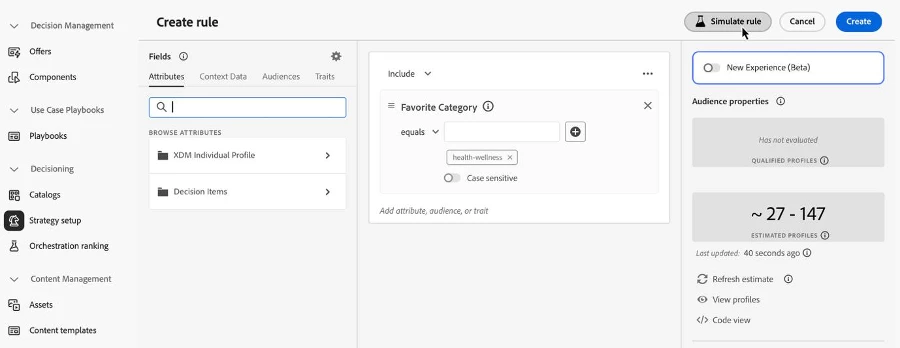
Consider a common scenario. You’ve authored a rule that should only apply to profiles whose favorite category is “health-wellness.” It looks correct in the builder.
But “looks correct” and “is correct” are different things — a case-sensitivity setting, a mis-selected attribute path, or an operator that doesn’t do quite what you assumed can all produce a rule that quietly excludes the very people it was meant to include. On the top of it production level rules can contain a lot of attributes and its difficult to get the exact set of test data that has all the required attributes and handles both positive and negative cases.
The same trap exists for ranking formulas, only worse. A ranking formula doesn’t just pass or fail — it produces an ordering. If your formula is meant to float a priority offer to the top when its name starts with “pop,” a small mistake won’t throw an error. It’ll just rank things in the wrong order, and you may not notice until conversion numbers look off weeks later.
In both cases the missing ingredient was the same: a fast, safe way to see what the logic does against realistic data before committing to it. That’s exactly what simulation provides.
The Solution
Simulation gives every rule and every ranking formula a dedicated test environment built on four simple ideas:
One-click entry. A Simulate button lives right next to your authoring canvas, so testing is never more than a click away from building.
Test variants, your way. You supply the data to test against — either by creating manual samples with the exact attribute values you want, or by letting AI generate realistic test variants for you.
The expression, always in view. The rule or ranking expression is displayed alongside your variants for reference, so you’re never guessing which logic is being evaluated.
Instant, readable results. For rules, you see a clear Pass or Fail with the evaluation outcome. For ranking formulas, you see the ordered list of offers with their computed scores.
Together these turn validation from a production experiment into a quick, low-risk step in your normal authoring flow.
How to simulate a rule
Before using a rule in your decisioning strategy or campaign, you can test it with sample or generated data to validate the rule logic and ensure it behaves as expected.
Open your rule and start the simulation. Open an existing rule or create a new one, then click the Simulate rule button.
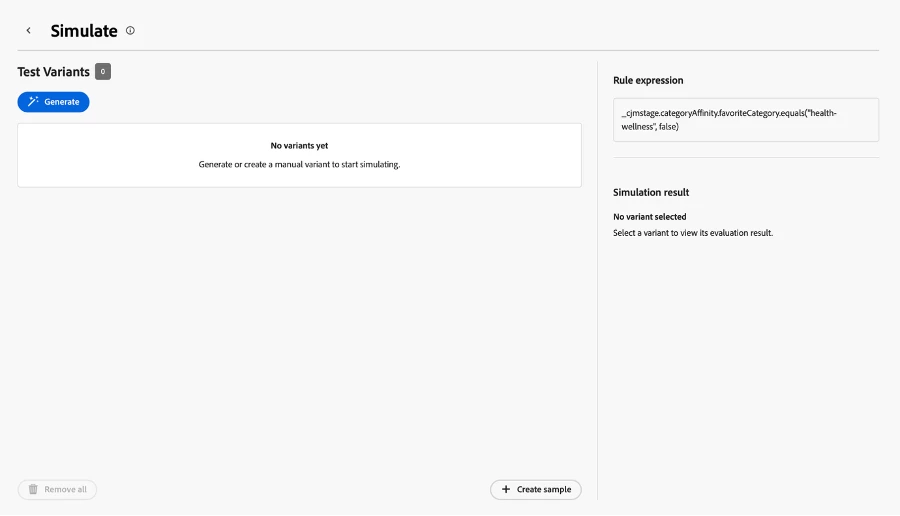
Get oriented in the simulation screen. The simulation screen opens with several sections:
Test Variants — where you generate or create manual test variants.
Rule expression — displays the rule definition for reference.
Simulation result — shows whether the variant matches the rule and the evaluation result.
Add test variants. Populate the simulation using one of two methods:
To create a manual sample, select the Create sample button.
To generate test variants using AI, click the Generate button.
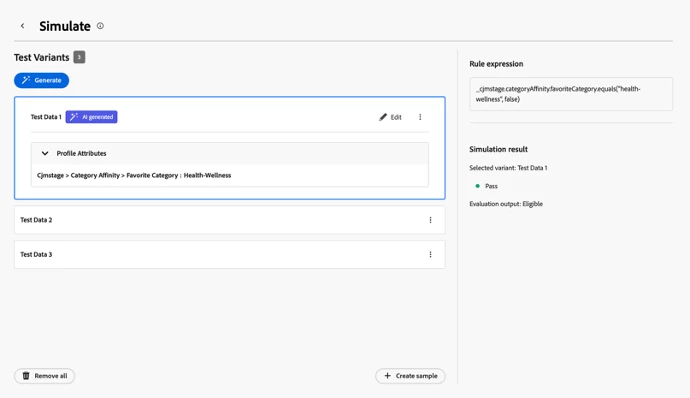
The Test Variants section is automatically populated with the created or generated samples. Each variant includes the attributes used in your rule, and you can edit the field values directly to simulate different scenarios — flip a category, change a tier, and re-test in seconds.
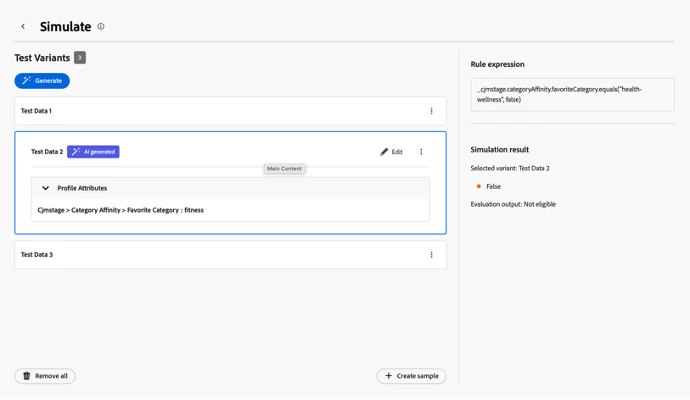
Read the results. To view the rule evaluation results, select a test variant from the list. The Simulation result area shows whether the variant matches your rule conditions and displays the evaluation outcome. In the example below, the first test variant shows a Pass result while the second shows a Failed result: Pass example — the variant data satisfies all rule conditions, so the profile qualifies for the rule.Failed example — one or more conditions are not met, so the profile does not qualify for the rule. That side-by-side is the whole point: you can see, concretely, which data makes your rule fire and which data it turns away — before a single live profile is ever evaluated.
How to simulate a ranking formula
Ranking formulas follow the same pattern, with results tuned to what a formula actually produces: an ordered list of offers.
Before applying a ranking formula to your selection strategy, you can test it with sample or generated data to validate the ranking results and ensure it delivers the expected behavior.
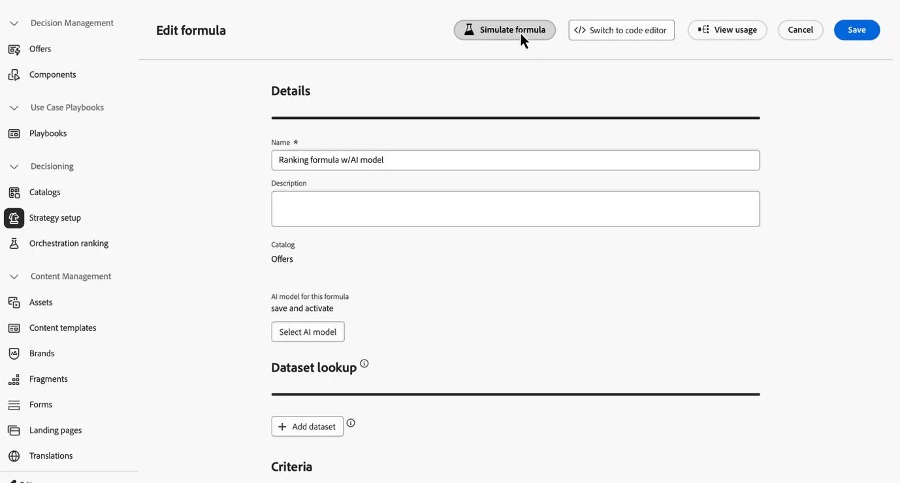
Open your formula and start the simulation. Open an existing formula or create a new one, then click the Simulate formula button.
The Edit formula screen (“Ranking formula w/ AI model”) with the Simulate formula button in the top toolbar
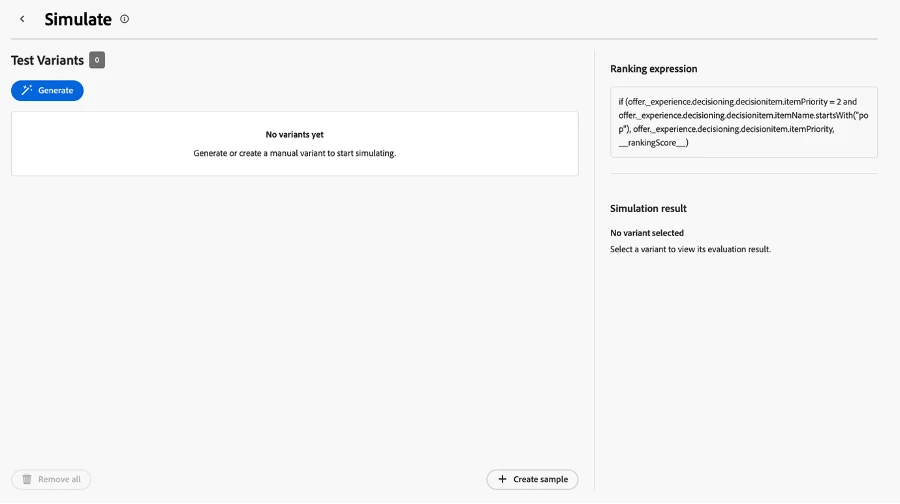
Get oriented in the simulation screen. As with rules, the screen opens with several sections:
Test Variants — where you generate or create manual test variants.
Ranking expression — displays the formula expression for reference.
Simulation result — shows the ranking results when a variant is selected
Simulate screen for a ranking formula, showing the Ranking expression panel on the right.
Add test variants. Populate the simulation using one of two methods:
To create a manual sample, select the Create sample button, then select the offer items you want to use for testing.
To generate test variants using AI, click the Generate button.
The Test Variants section is automatically populated with the selected items or generated samples. Each variant includes the attributes used in your expression, and you can edit the field values directly to simulate different scenarios.
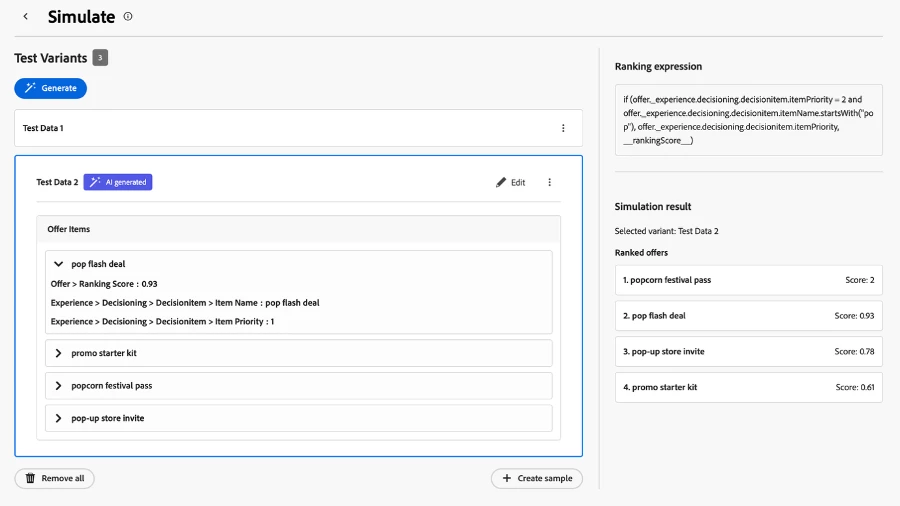
Read the ranked results. To view the ranking result of your simulation, select a test variant from the list. The Simulation result area displays the ranked offers with their scores, showing how your formula ranks the items based on the variant data.
For each selected variant, the simulation returns an ordered result: 1. The top-ranked offers are those with the highest computed scores for that variant. 2. Lower-ranked offers remain eligible but are ordered after higher-scoring offers.
A selected AI-generated variant with several offer items; the Simulation result shows the ranked offers with their computed scores.
Because the scores are shown alongside the ranking, you don’t just see that your formula reordered the offers — you see why. If a priority boost or a name-based rule isn’t producing the lift you expected, the scores make the cause obvious.
The payoff
Whether you’re validating a rule or a ranking formula, the workflow is the same three-part loop, and it lives entirely inside authoring:
Build your rule or formula as you normally would.
Simulate it against sample data you create by hand or generate with AI.
Summary
Test any rule or ranking formula with sample or AI-generated data before using it in a decisioning strategy or campaign.
Start simulation in one click with the Simulate rule or Simulate formula button, right from the authoring screen.
Create manual test variants with precise attribute values, or generate realistic variants with AI (available to organizations with Adobe AI capabilities).
Edit variant field values directly to explore different scenarios without leaving the simulation screen.
For rules, see a clear Pass or Fail with the evaluation outcome.
For ranking formulas, see the ordered list of offers with their computed scores.
Read the outcome — a clear Pass/Fail for rules, a scored ranking for formulas — and edit-and-retest until it’s exactly right.
Catch logic errors early — before they ever reach a live profile.
Next time you build a rule or a ranking formula, don’t ship it on faith. Hit Simulate, feed it a few variants, and watch exactly what it does.