

Just Describe It: Turn Plain Language into Decisioning Rules with the AI Assistant
Rules are the quiet workhorses of decisioning. They decide who’s eligible, who’s excluded, and which conditions have to line up before an offer, a message, or an experience is allowed through.
They’re also, historically, one of the more technical things a marketer is asked to build — a careful stack of attributes, operators, values, and logic that has to be exactly right to work at all.
The gap has always been the translation step. You know, in plain language, exactly who you want to target: “loyalty members in New York who haven’t opted out.” Turning that sentence into a valid rule expression — the right attribute paths, the right operators, the right nesting — is where the friction lives.
AI-assisted rule authoring closes that gap. You describe the rule you want in everyday language, and the AI Assistant generates a ready-to-use rule suggestion, complete with the underlying expression, that you can apply to the builder with a single click. This post walks through where to start, how it works, and the one thing to watch out for.
The usecase
There’s nothing wrong with the rule builder — it’s precise and powerful. But precision has a cost.
To express even a moderately specific audience, you have to know the exact attribute to reach for, remember whether the value is case-sensitive, choose between different operators, and nest your conditions so the AND/OR logic resolves the way you mean it to.
For a seasoned user that’s second nature. For everyone else, it’s a stop-and-look-it-up exercise, and it’s easy to build something that looks right but quietly targets the wrong set of profiles. Meanwhile, the intent behind the rule was never the hard part — you could say it out loud in one sentence. The hard part was the translation from that sentence into a formal expression.
That’s precisely the kind of translation AI is good at.
The solution
AI-assisted rule authoring lets you start from intent instead of syntax. The idea is built around three ideas:
- Describe, don’t construct. State the rule you want in plain language — the same way you’d explain it to a colleague.
- Get a complete suggestion. The AI Assistant returns a named rule, a readable description of what it does, and the exact expression behind it, so you can confirm the logic before you commit.
- Apply or discard, you decide. Nothing changes in your builder until you choose to apply the suggestion — and if it’s not what you wanted, you discard it and try a different description
You get the speed of natural language with the precision of the builder, and you stay in control of what actually lands on the canvas.
Where to start
You can start AI-assisted rule authoring from two places, depending on where you are in your workflow.
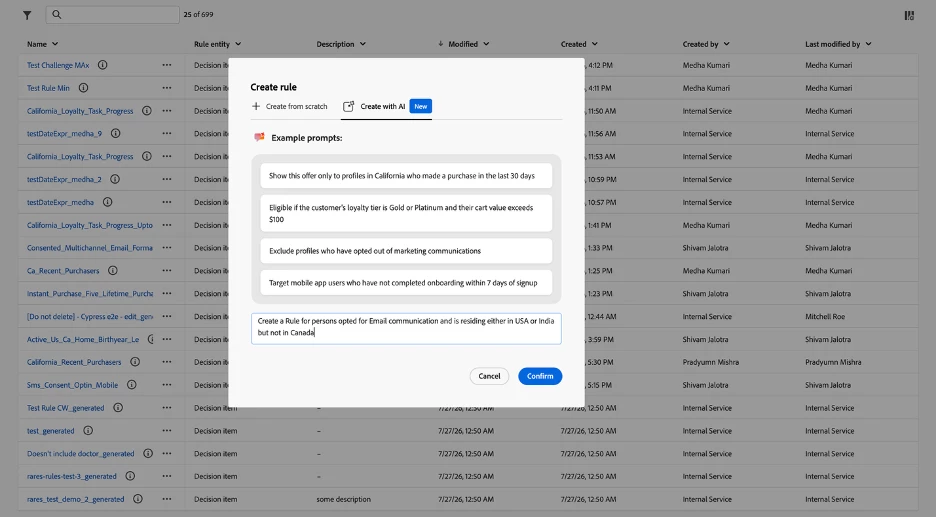
1. From the Create rule dialog — the “Create with AI” tab
When you create a new rule, choose the Create with AI tab. Rather than starting from a blank builder, you’re given a prompt box and a set of example prompts to show you the kind of thing you can ask for, such as:
- “Show this offer only to profiles in California who made a purchase in the last 30 days”
- “Eligible if the customer’s loyalty tier is Gold or Platinum and their cart value exceeds $100”
- “Exclude profiles who have opted out of marketing communications”
- “Target mobile app users who have not completed onboarding within 7 days of signup”
Type your own description — for example, “exclude profiles who have opted out of marketing communication, and target mobile app users with Gold or Platinum loyalty tier” — and click Confirm.
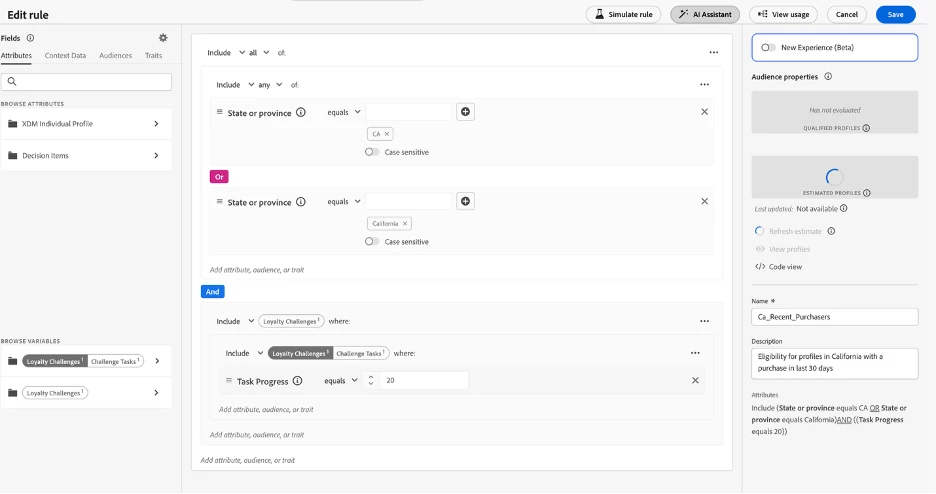
From the rule builder — the “AI Assistant” button
Already working in the rule builder and want a hand mid-build? Click the AI Assistant button in the top toolbar of the Edit rule screen to open the assistant alongside your canvas.
How it works
However you enter, the experience converges on the same simple loop.
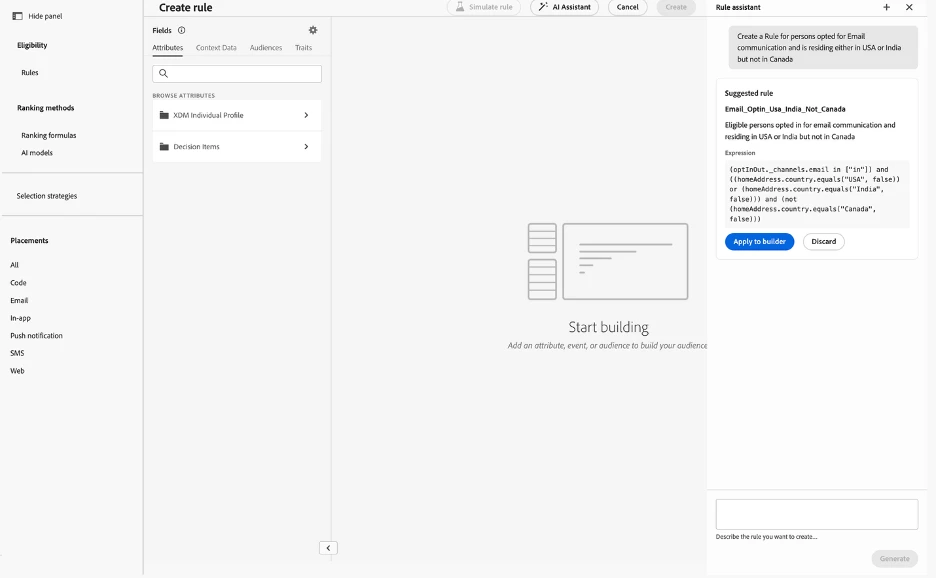
In the AI Assistant pane, describe the rule you want to build in plain language. The AI Assistant generates a rule suggestion that you can apply to the builder or discard.
Each suggestion includes everything you need to make a confident decision:
- A name for the rule (for example, New_York_Gold_Silver_Loyalty).
- A plain-language description of what the rule does — for example, “Eligible profiles live in New York and have the Gold or Silver loyalty tier.”
- The expression itself, so you can verify the exact attributes, operators, and values the AI chose.
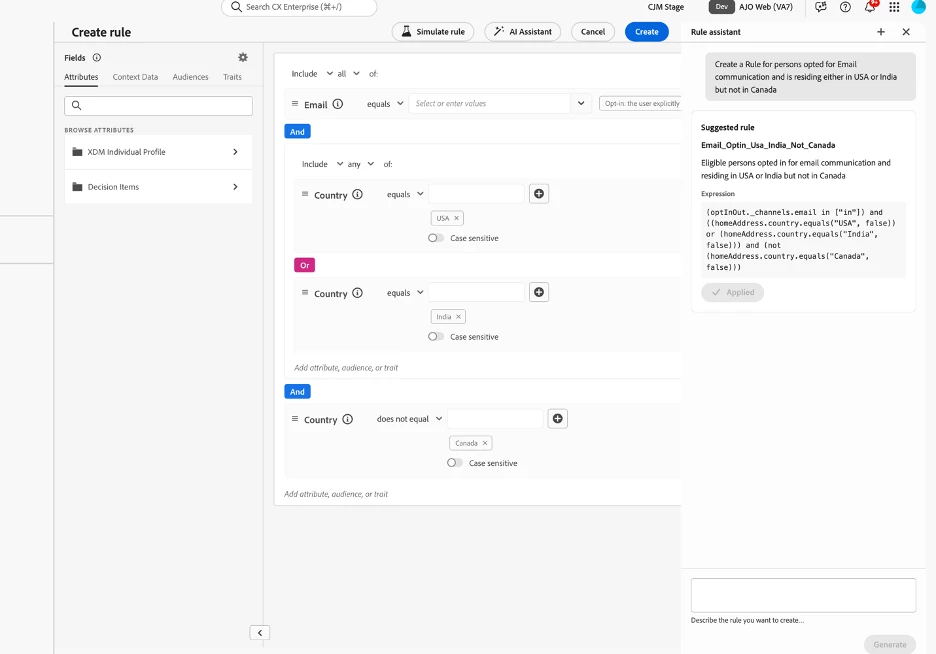
When the suggestion matches your intent, click Apply to builder and the generated logic populates the builder canvas, ready for you to review, fine-tune, or save. If it isn’t quite right, click Discard and refine your description — the more specific your language, the more precise the result.
A note on reviewing before you ship
Because the AI Assistant shows you the description and the full expression, treat that display as your checkpoint. Read the description first — it’s the fastest way to confirm the AI understood your intent — then glance at the expression to confirm the specifics: the right attribute paths, the right operators, and case sensitivity where it matters. And when you want to be completely sure, pair this with rule simulation: apply the suggestion to the builder, then run it against a few test variants(Simulate Flow) to see exactly which profiles it qualifies before it goes live.
The payoff
The whole flow comes down to a short, repeatable loop:
- Describe the rule you want in plain language, from the Create rule dialog or the rule builder.
- Review the suggested rule — its name, description, and expression.
- Apply or discard — apply it to the builder when it’s right, or refine your description and try again.
Intent goes in as a sentence; a working, editable rule comes out. The translation step that used to slow everyone down is handled for you.
Summary
- Author rules from plain-language descriptions instead of building expressions by hand.
- Start from two places: the Create with AI tab in the Create rule dialog, or the AI Assistant button in the rule builder.
- Use the built-in example prompts as a guide for what you can ask.
- Every suggestion includes a name, a plain-language description, and the full expression, so you can verify the logic before applying it.
- Click Apply to builder to populate the canvas, or Discard to refine your description and try again.
- Caution: Applying an AI-generated rule replaces any logic already in the builder canvas.
- Pair it with rule simulation to validate the generated rule against test data before going live.
Next time you’re about to hand-build a rule, try saying it in a sentence first. Open Create with AI or the AI Assistant, describe who you’re targeting, and let the assistant do the translation.