


How to Detach, Rejoin nodes in the New Journey Canvas?
Update (September 2026): Detach and Rejoin each now have a second(improved) way to trigger them — Detach edge is available directly from the "+" menu, and rejoining can be done with Select from canvas instead of searching a list. See the updated sections below.
What We're Hearing?
Since rolling out the new canvas experience, one piece of feedback has come up more than any other: connecting and rearranging nodes feels harder than it used to.
"I'm unable to select and move a branch." · "Once I disconnect the in-between node, I cannot connect it again." · "Joining nodes is harder in the new experience."
The common thread across these comments is drag-and-drop. In the previous canvas, you could grab a node and physically drag it onto a connection point to rewire your journey. The new canvas — rebuilt for better performance and a cleaner layout — replaces that single drag gesture with two explicit actions: Detach and Join.
They're not hidden, but they also don't look like what you're used to, so it's easy to miss them. Here's exactly where to find them and how to use them.

The Two Actions You Need
| Action | What it does | Where to find it |
|---|---|---|
| Detach | Disconnects a node (or an entire downstream branch) from the chain it's in, without deleting it | Click the edge (connecting line) feeding into the node → a toolbar appears with a Detach edge button |
| Rejoin (via the Join menu) | Reconnects a disconnected node/branch, or wires an existing branch into a different point in the journey | Click the "+" button on a tail edge (an edge that currently ends the chain) → open Join in the dropdown |
Once you know these two live in different places — Detach on the edge itself, Join inside the "+" insert menu — the workflow makes a lot more sense.
How to Detach a Node
Use this when you want to pull a node (or a whole branch hanging off it) out of the middle of a chain, without deleting your work.
Option 1: Click the edge directly
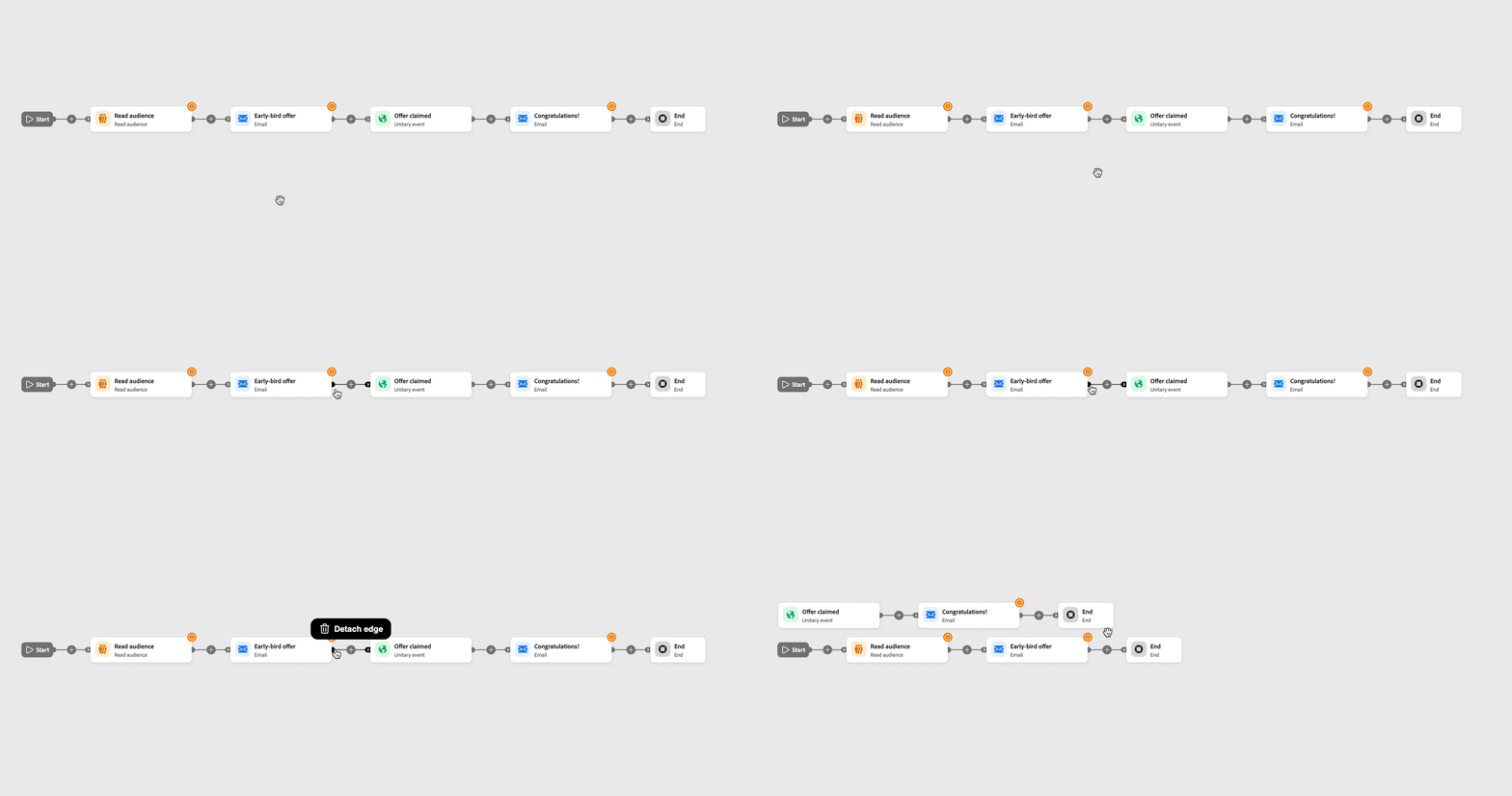
- Click directly on the connecting line (edge) leading into the node you want to detach. A single click is all it takes — no right-click or hover needed.
- A small contextual toolbar pops up right above the edge, with a Detach edge button.
- Click it.
Option 2: Use the "+" menu
- Click the "+" button on the edge leading into the node you want to detach.
- In the dropdown, choose Detach edge.
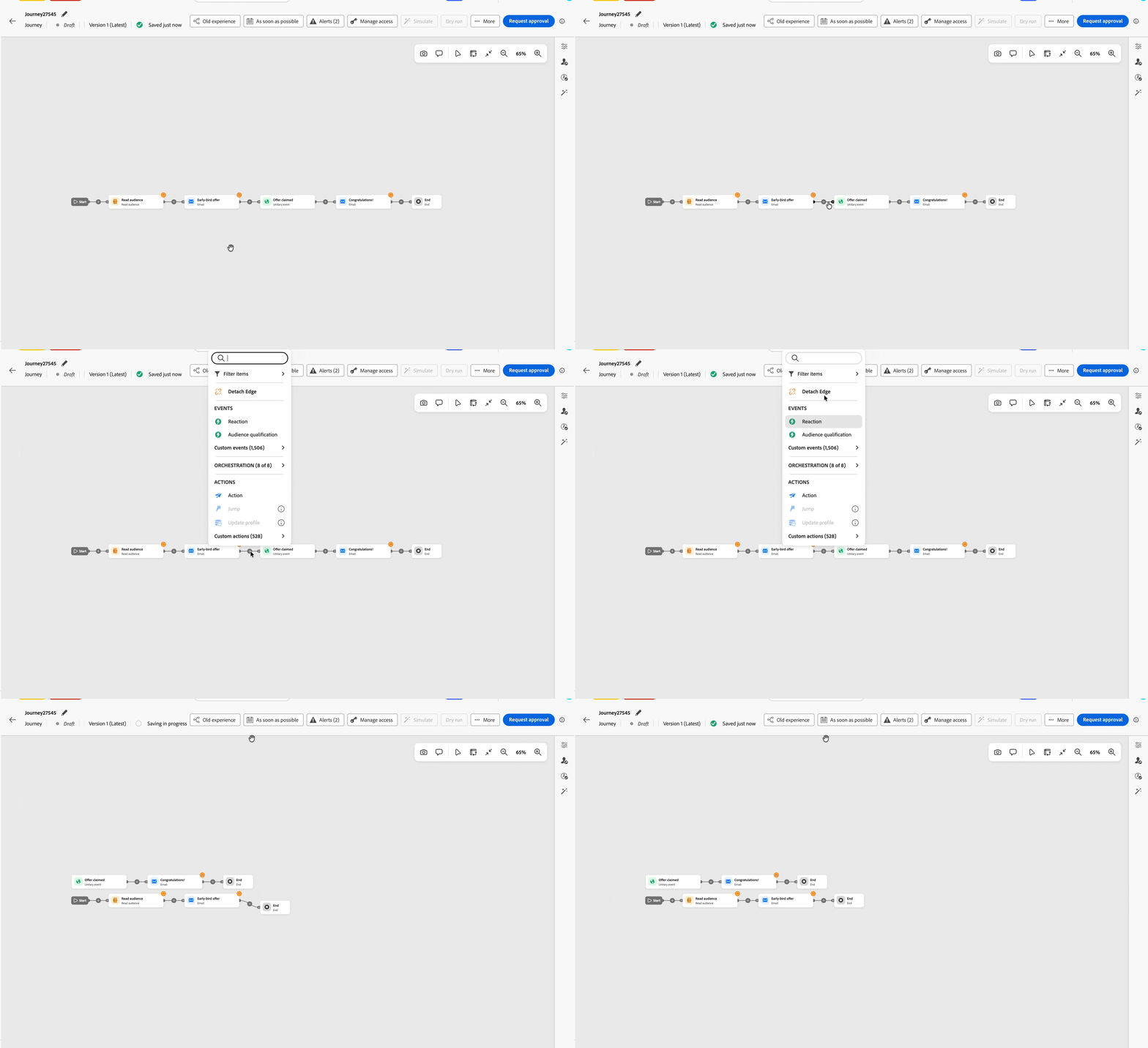
Both options do the same thing: the edge is re-pointed to a fresh End node, capping off the chain above the detach point. The node (and anything downstream of it) isn't deleted — it becomes its own disconnected chain, sitting on the canvas ready to be reused.
Note: Detach only appears where detaching makes sense — for example, you won't see it on an edge whose target is a shared End node used by more than one branch.
How to Rejoin a Node
This is the step people are missing. Once a node is detached (or if you've pasted in a new branch that isn't wired up yet), reconnecting it isn't a drag gesture — it's done through the "+" insert menu.
There are two ways to pick the target, depending on how you find it easiest to work:
Option 1: Search/select from the menu
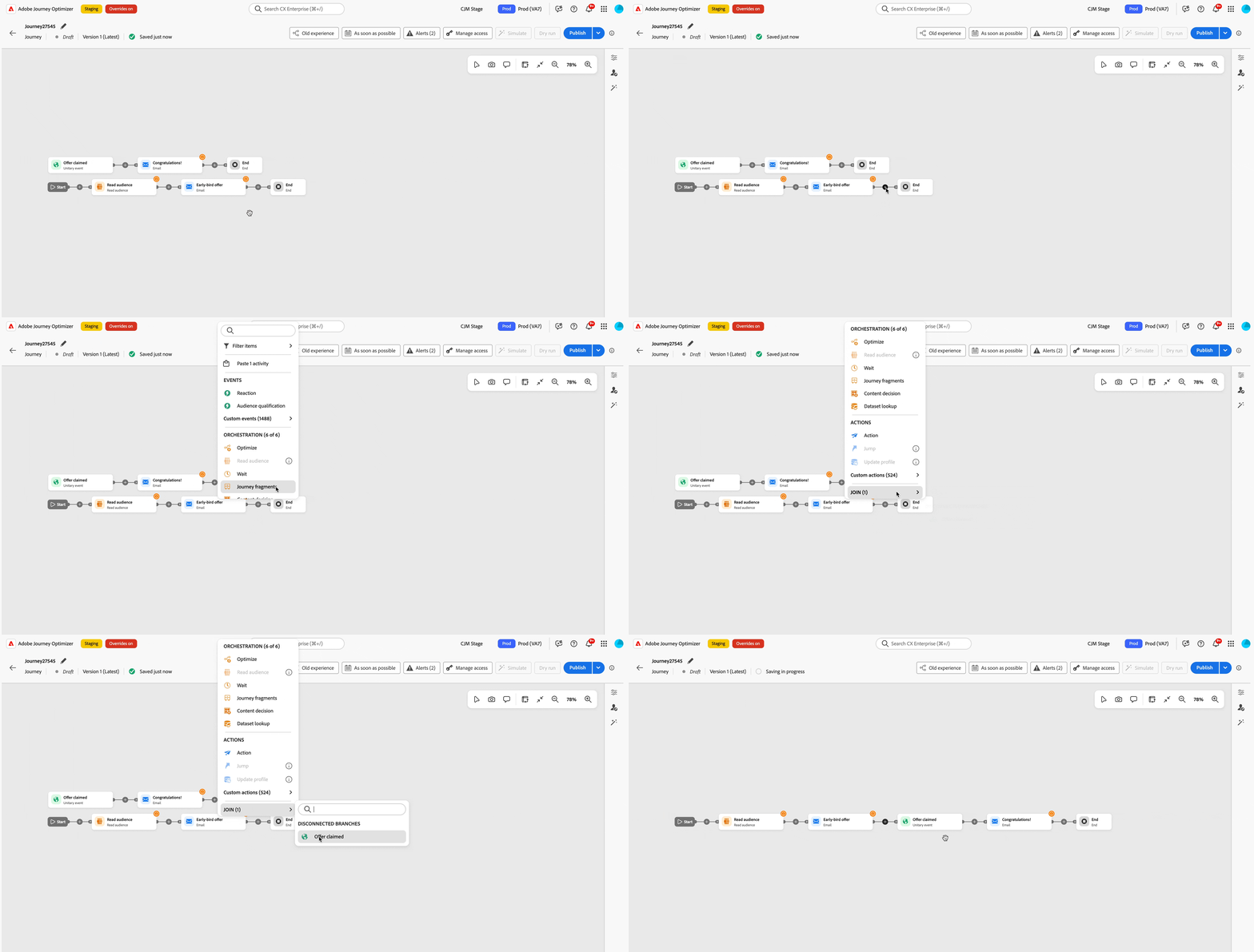
- Find the tail edge where you want the connection to continue — that's the edge/line ending in an End node.
- Click the "+" button on that edge.
- In the dropdown, scroll to the Join section (it shows a count, e.g. "Join (3)").
- Open it, and you'll see two groups: Disconnected (orphaned chains not wired into the journey yet) and Branches (other live branches already elsewhere in the same journey).
- Use the search field if you have a lot of nodes, then click the one you want to connect.

Option 2: Select from canvas
- With the Join section open, choose Select from canvas instead of browsing the list.
- Every eligible node on the canvas is highlighted.
- Click the highlighted node you want to connect to.
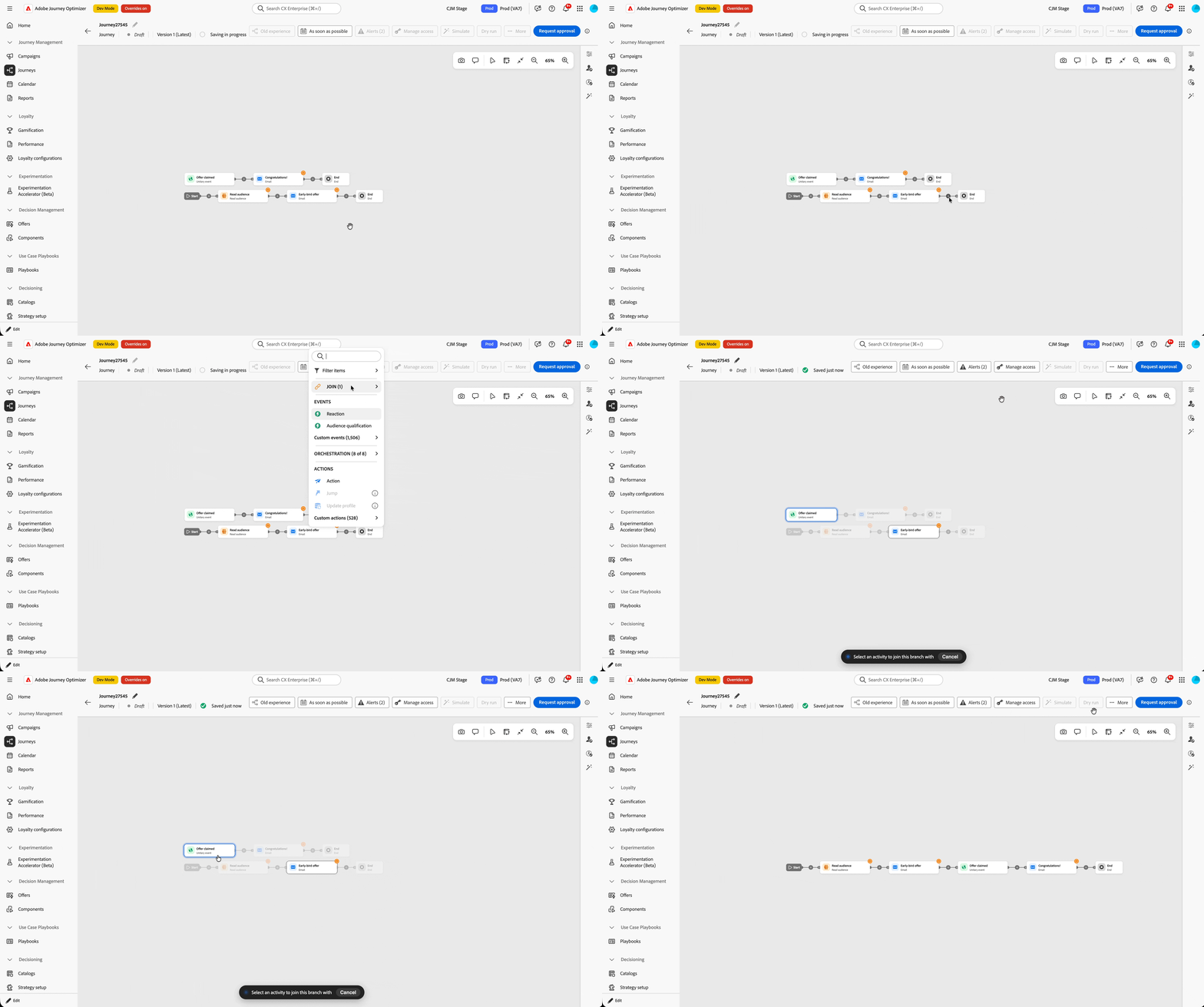
That's it — a new connection is created from the tail edge into the node or branch you picked.
Quick Reference
- To disconnect something: click its incoming edge → Detach edge
- To reconnect or attach something: click "+" on the edge where the chain should continue → Join → pick from Main or Disconnected branches.
Detach and Join are more explicit than the old drag-to-connect gesture, but they're also more predictable — you always know exactly which edge you're changing and where the new connection is going. Give it a try on your next journey, and let us know if you run into anything that doesn't match what's described here.