

How Simulation Mode Saved Me Hours When I Updated My Post-Purchase Journey
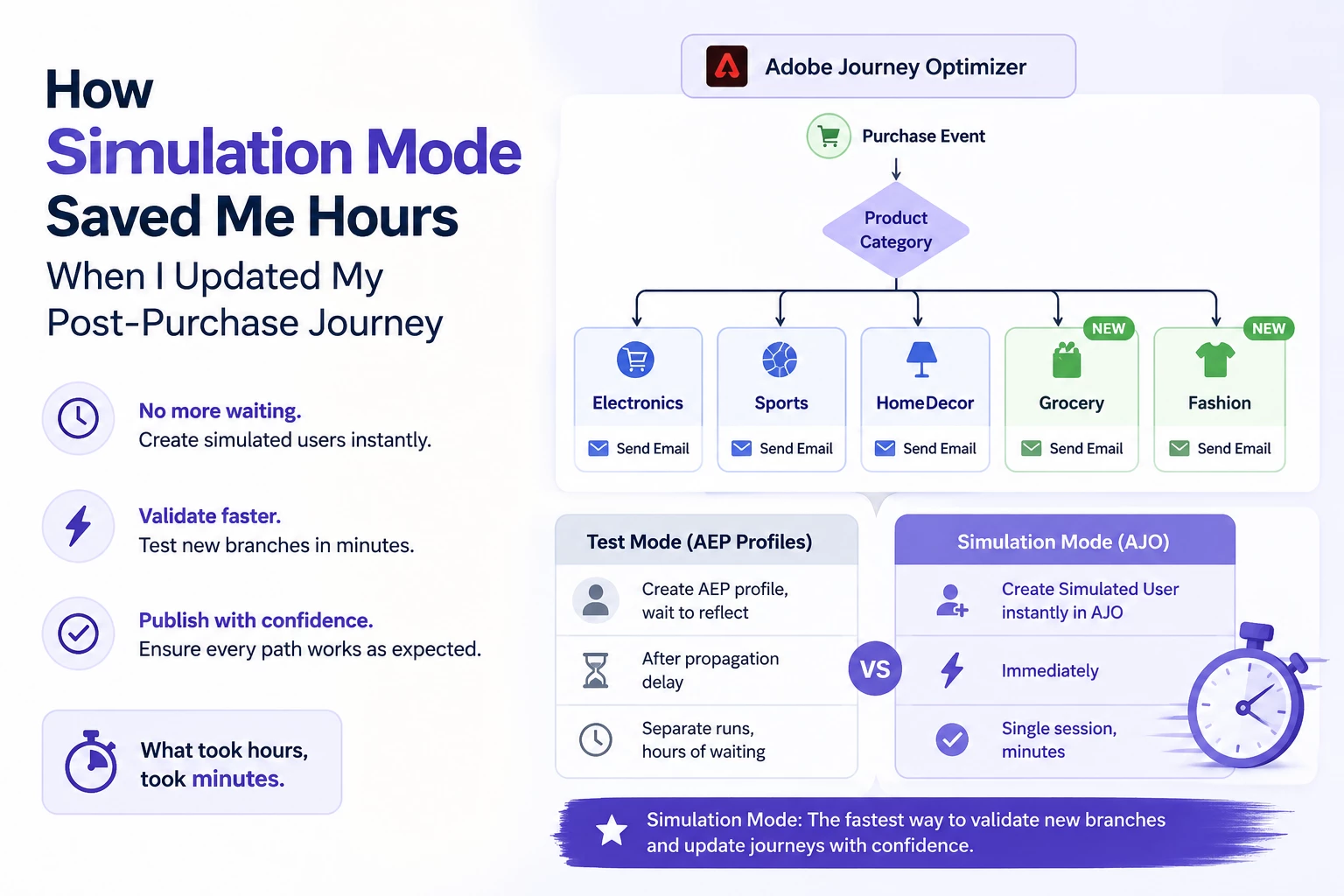
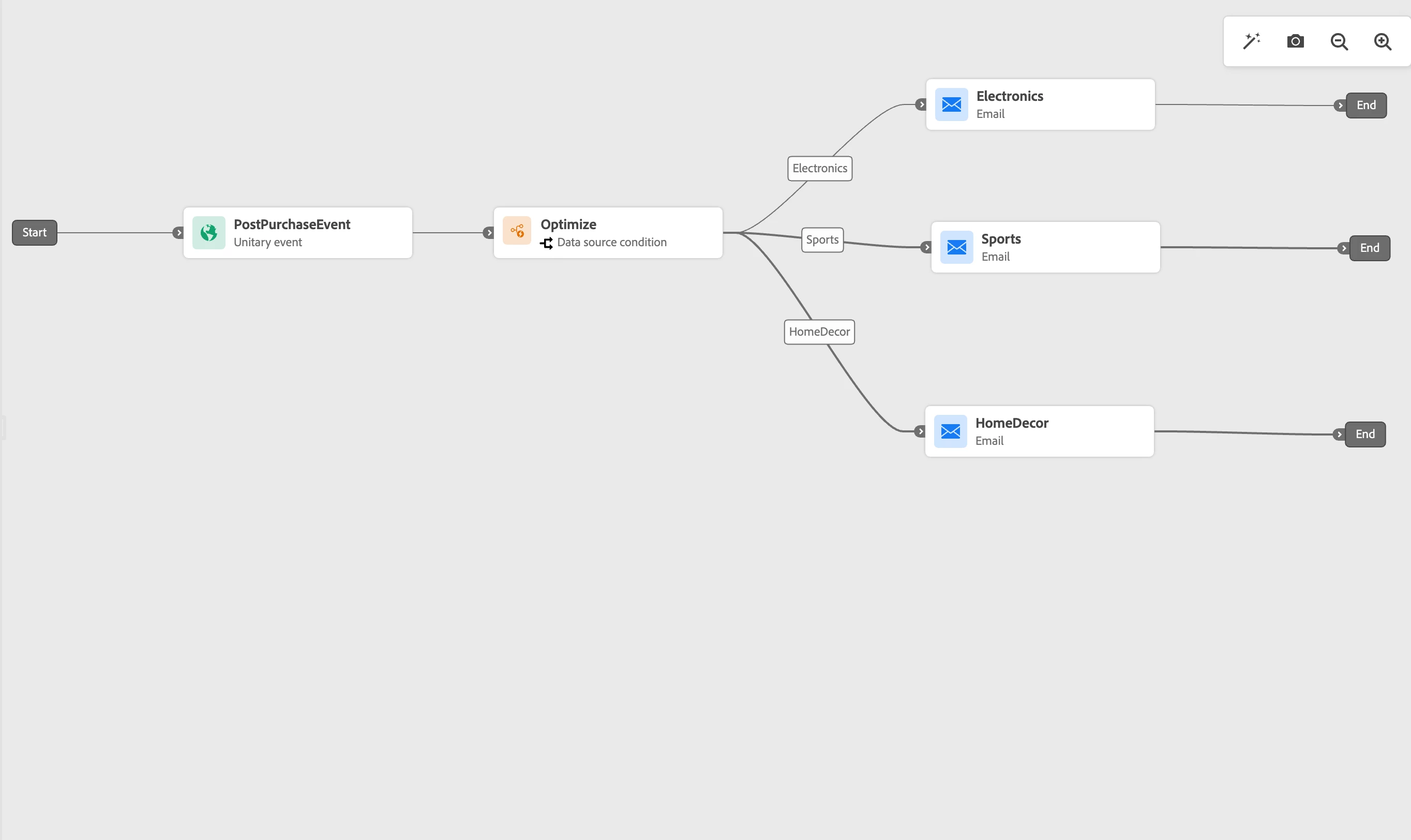
A few months ago I built a Post-Purchase journey in Adobe Journey Optimizer that sent a personalised follow-up email based on what the customer bought. The journey had three branches — one each for Electronics, Sports, and HomeDecor — all tested, validated, and live.
Then the business expanded into two new product categories: Grocery and Fashion. I updated the journey to add the two new branches and needed to validate them before re-publishing.

The Problem with Test Mode
To validate the Grocery and Fashion branches in Test Mode, I needed two new AEP test profiles — one with a Grocery purchase, one with a Fashion purchase. Creating new profiles in AEP is straightforward, but it takes time for them to reflect and become available for testing. I could not just create them and start immediately.
With a deadline to re-publish the updated journey, waiting for two new profiles to propagate was time I did not have.
Simulation Mode: New Users in Seconds
I switched to Simulation Mode instead. I created two new Simulated Users directly inside AJO — one representing a Grocery purchase, one representing a Fashion purchase — and they were available to test immediately. No waiting for anything to propagate.
I triggered both in the same simulation session and got step-by-step execution logs confirming that both new branches routed and sent the correct email.
What would have taken hours of waiting took minutes.
Whenever you are adding new branches to an existing journey, Simulation Mode is the fastest way to validate them. You do not need to wait for new AEP profiles to reflect — you define the simulated user you need right inside AJO and test immediately.
The existing branches (Electronics, Sports, HomeDecor) were already covered by my earlier test profiles. For the two new ones, Simulation Mode was the clear choice — and it saved me hours.
Have you run into a similar situation when updating a live journey? Share your experience in the comments.