

Generative Models & AI Image Generation in Journey Optimizer
Official references: Create and manage generative models, Generate images with AI Assistant.
When to use this pattern
- You need new or refreshed imagery for email, web, landing pages, or push inside Journey Optimizer’s content editor, not only static uploads.
- You want brand-aware generation: authors pick a Brand, tune the prompt, and optionally use reference content so outputs stay closer to your guidelines.
- Your organization needs governance: central admins expose only approved backends (Adobe, partner, or custom Firefly models) via Brands → Generative models.
- You are ready to follow Adobe’s guardrails and user agreement for generative features (see “Common pitfalls” below).
What you get: three model types (at a glance)
| Type | Role (per product documentation) |
|---|---|
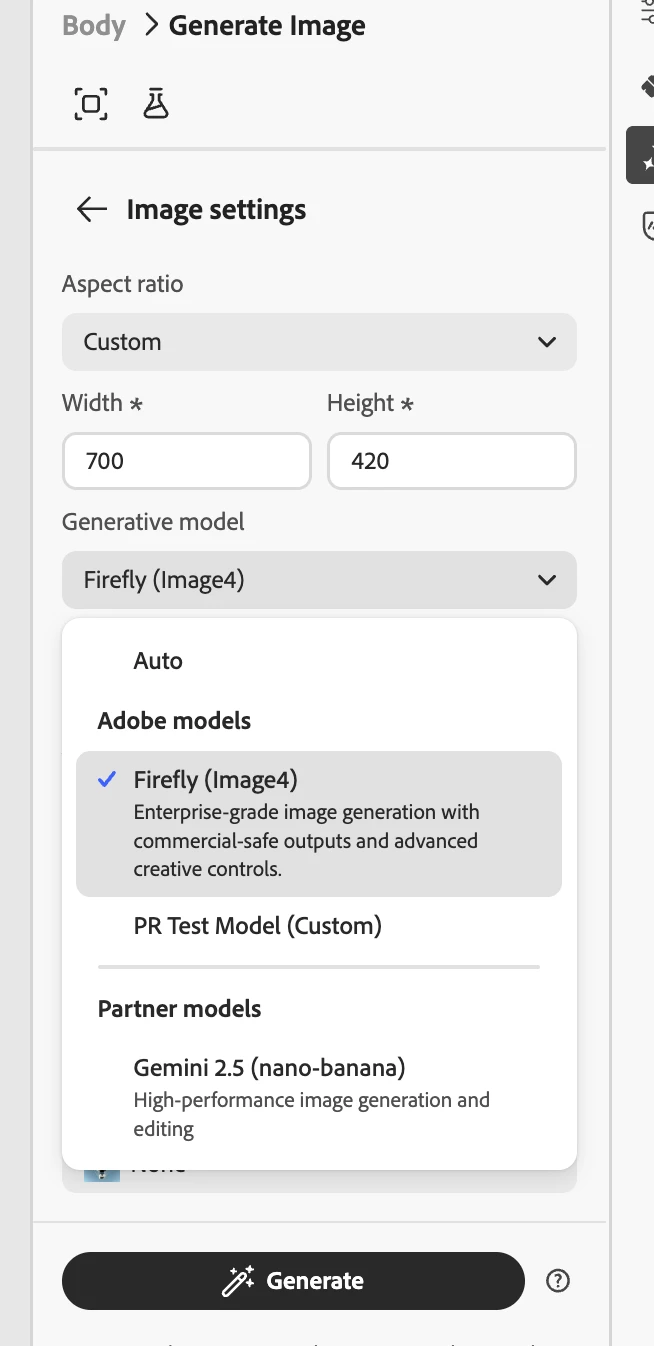
| Adobe model | Default Firefly Image Model 4—ready to use for general image generation without extra model setup. |
| Partner model | Gemini 2.5 Flash—positioned for specialized use cases. |
| Custom models | Brand-specific models trained on your assets in Firefly, then registered in AJO with a Model ID. |
Custom Firefly models require a Firefly ETLA agreement; see Adobe’s documentation for details.
Part A — Where administrators configure generative models
- In Journey Optimizer, open Brands.
- Open the Generative models tab.
- Use filters (e.g. by Type or Status) and search to manage the list.
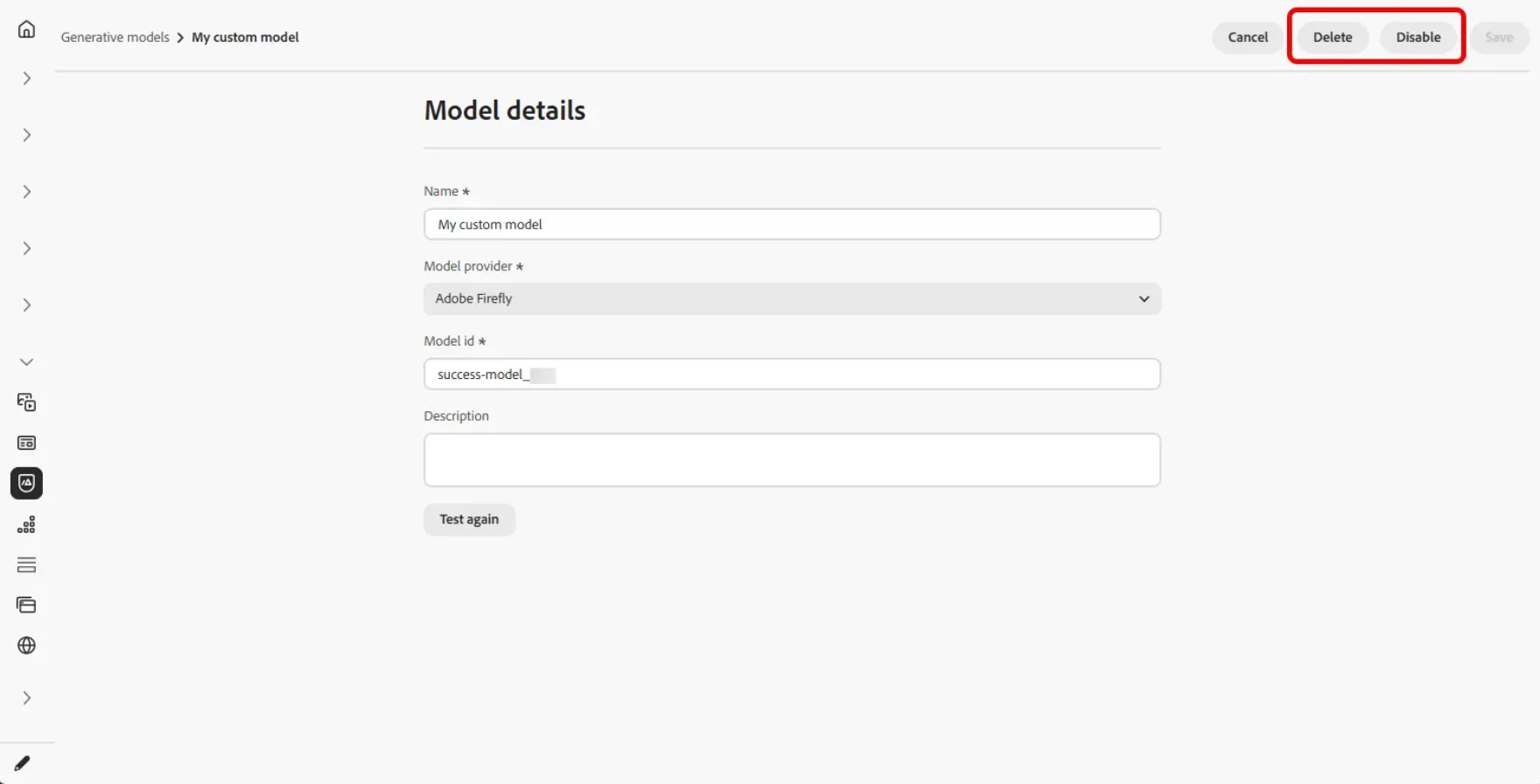
- To add a custom model: Add model → enter Name and Model ID (from Firefly—often from the Preview & test URL as customModelId=...) → optional Description → Test connection → Save.
- Use the advanced menu to enable or disable models as needed. Note: Only custom models can be deleted; built-in options are not removed the same way.
After this, authors can pick these models from Image settings → Generative model when generating images in content.
Part B — Where authors generate images (day-to-day)
- Create/configure your email, web page, landing page, or push delivery, then open the content or designer experience (e.g. Edit content, Edit web page, Open designer—see generative image for channel-specific steps).
- Select the asset or field you want to generate (for push, select Image as the field to generate).
- Open AI Assistant (or Show Content Assistant / Show AI Assistant depending on channel).
- Optionally enable Reference style and/or attach reference content (uploads or previously uploaded assets).
- Choose your Brand, write the Prompt, and expand Image settings—including Generative model, aspect ratio (where available), content type, visual intensity, color & tone, lighting, composition, etc.
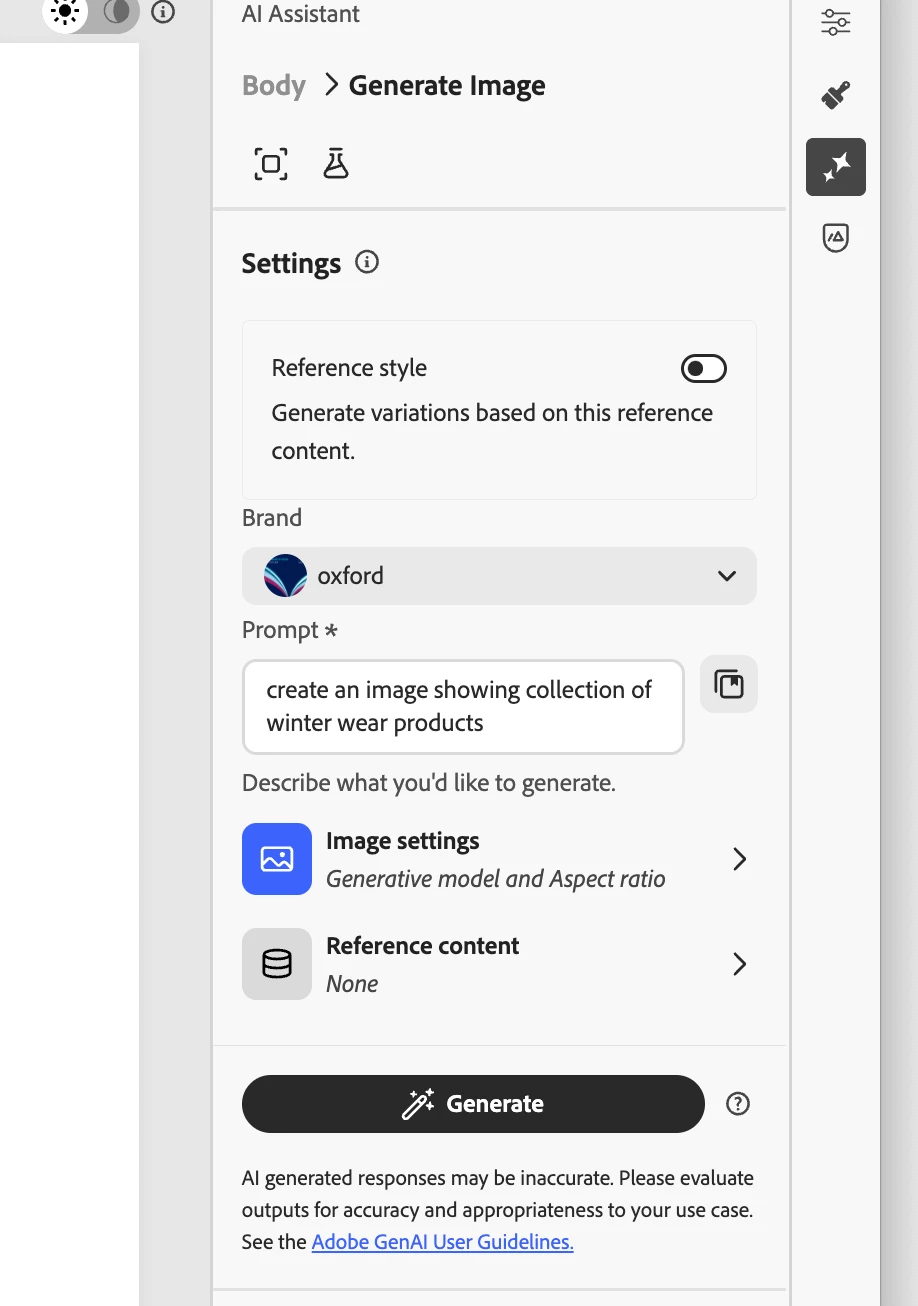
- Click Generate, review variations, check Brand Alignment Score where offered, then Preview / Apply / Select as appropriate.
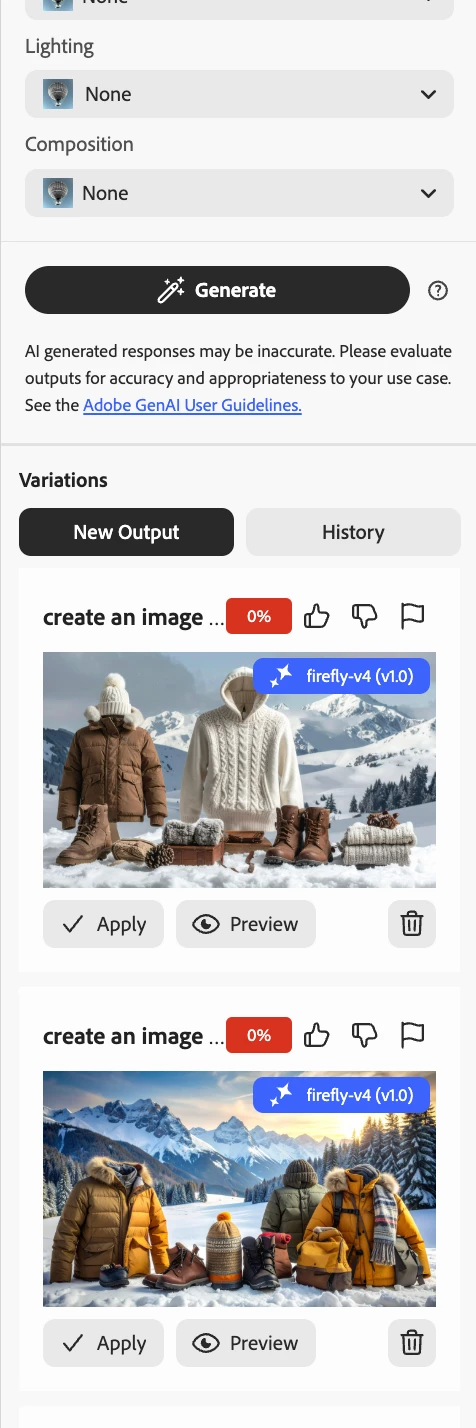
For refinement, use options such as Generate Similar, Edit in Adobe Express, or Save—then complete your usual simulate, test profile, and review/activate steps for the channel.
Example scenarios (quick)
Mobile team generates a push image field with the same prompt + Image settings pattern; Brands for push may be on a progressive rollout—confirm availability for your org.
Common pitfalls
| Pitfall | What to do |
|---|---|
| Skipping guardrails and legal | Read Guardrails and Limitations and the Adobe DX Gen AI user agreement; involve your Adobe contact if needed. |
| Expecting custom models without ETLA | Custom Firefly training/registration is tied to Firefly ETLA—align with procurement/legal before promising timelines. |
| Wrong Model ID | Copy Model ID from Firefly Preview & test URL (customModelId=) and always run Test connection before Save. |
| Assuming every channel is identical | Web may use Show Content Assistant; push uses Show AI Assistant and explicit Image field—follow the channel section in the doc. |
| Treating this as only “type text, get an image” | Brand, reference content, and Image settings materially change results—prompt alone is rarely the whole story for on-brand work. |
Closing
Generative models in Journey Optimizer are the administrative layer for which image engines your org uses; AI Assistant image generation is the authoring layer where prompts, brand, and settings become email, web, landing, and push visuals. Together they support faster, more governed creative workflows inside AJO—when your team is ready on policy, contracts, and training.