

Adobe Journey Optimizer: Journeys New Simulation Mode — From Zero to Your First Quick Run in Under 5 Minutes
Simulation Mode lets you test draft journeys with Simulated Users—AJO-native test profiles that are quick to create, easy to reuse, and separate from AEP test profiles. This guide walks you from access setup through your first end-to-end run.
GETTING ACCESS
Request your admin to grant the right permissions in Access control. Permissions can take a few minutes to appear on your account after they are saved.
Journeys resource
Request one of these high-level permissions on the Journeys resource:
- Approve And Publish Journeys
- Publish Journeys
- Simulate Journeys
To run simulations, Simulate Journeys is the permission you need. The publish-related permissions are listed because some orgs bundle journey testing with publish roles.
Simulated Users resource
Also request access to the Simulated Users resource:
- Manage Simulated Users
- View Simulated Users
For a full quick-start, ask for both Manage and View on Simulated Users, plus Simulate Journeys on Journeys.
Note for admins
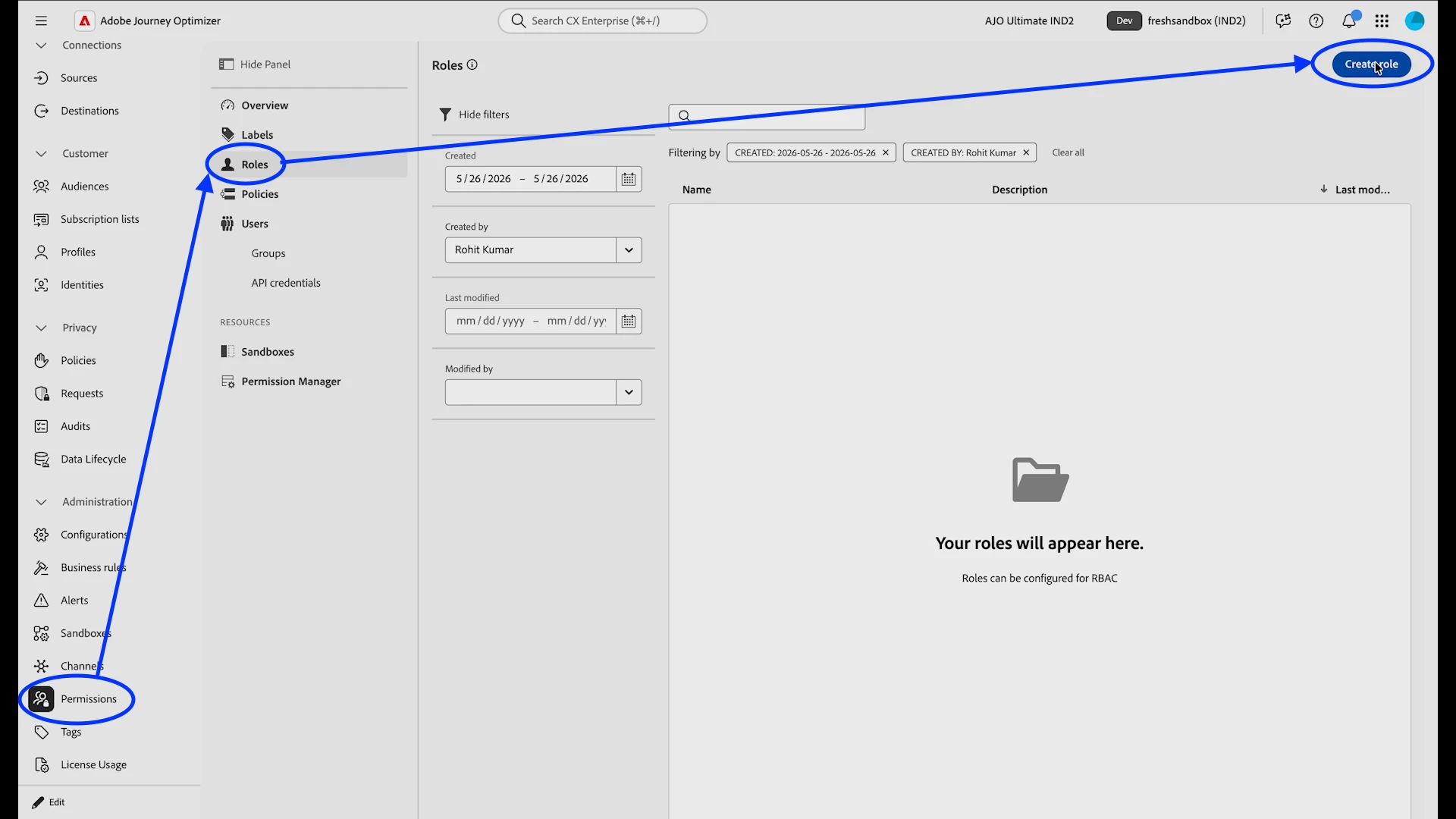
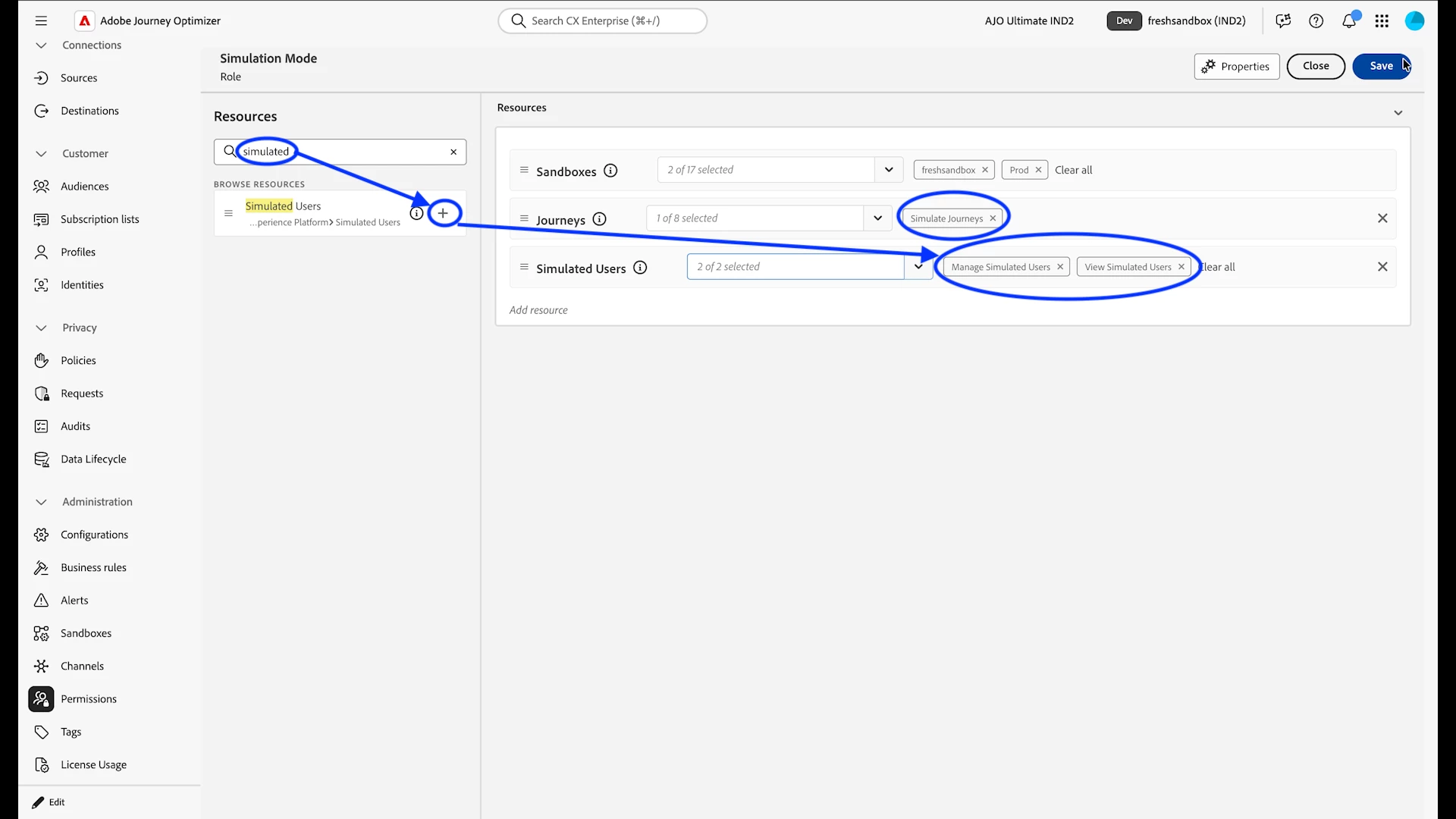
Use Administration → Permissions, open or create a role (for example, a role named Simulation Mode), and on the Resources tab assign:
- Journeys → Simulate Journeys
- Simulated Users → Manage Simulated Users and View Simulated Users
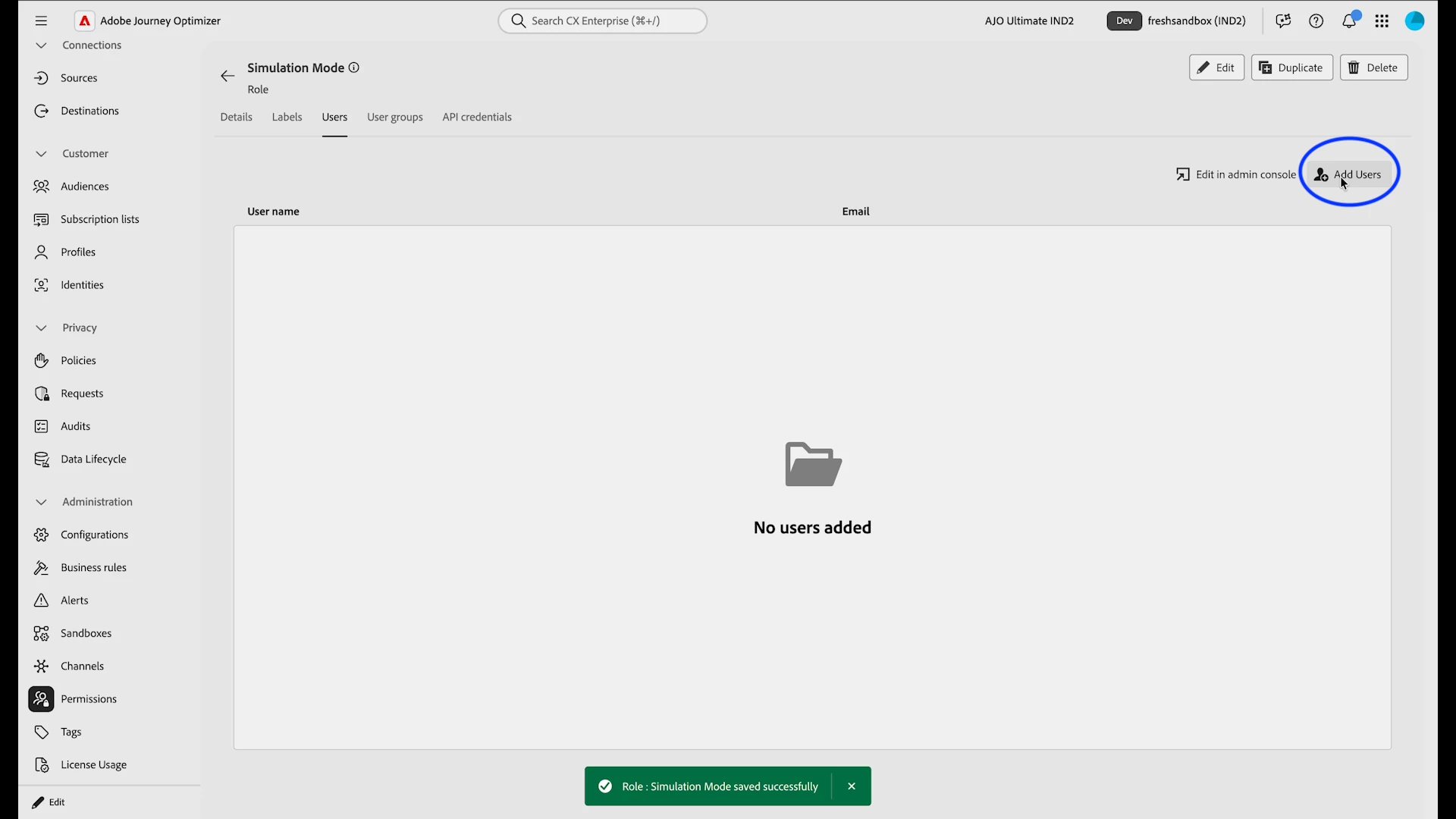
Apply the role to the appropriate sandboxes, then Save.
COMPLETE WALKTHROUGH (ADMINS)
- How to grant Simulation Mode access (Admin)
- Step-by-step in Access control to assign Journeys and Simulated Users permissions:
START SIMULATION MODE
-
Go to the Journeys page.
-
Open or create a simple journey to get familiar with the flow.
-
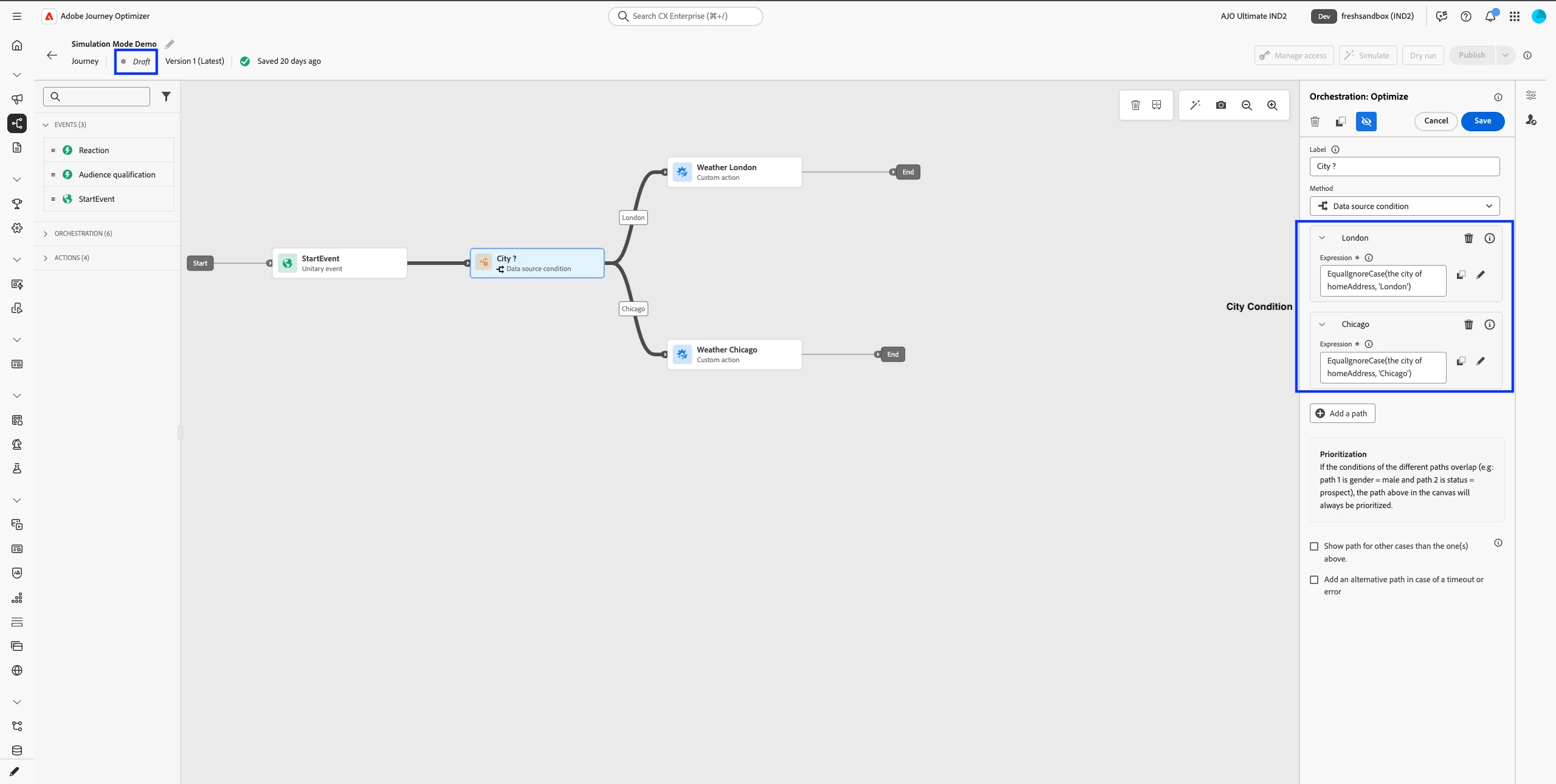
Example journey used in this guide:
-
An Optimize node with a Data source condition: two condition paths:
-
City == London
-
City == Chicago
-
-
The journey fetches weather based on the user's city.
-
-
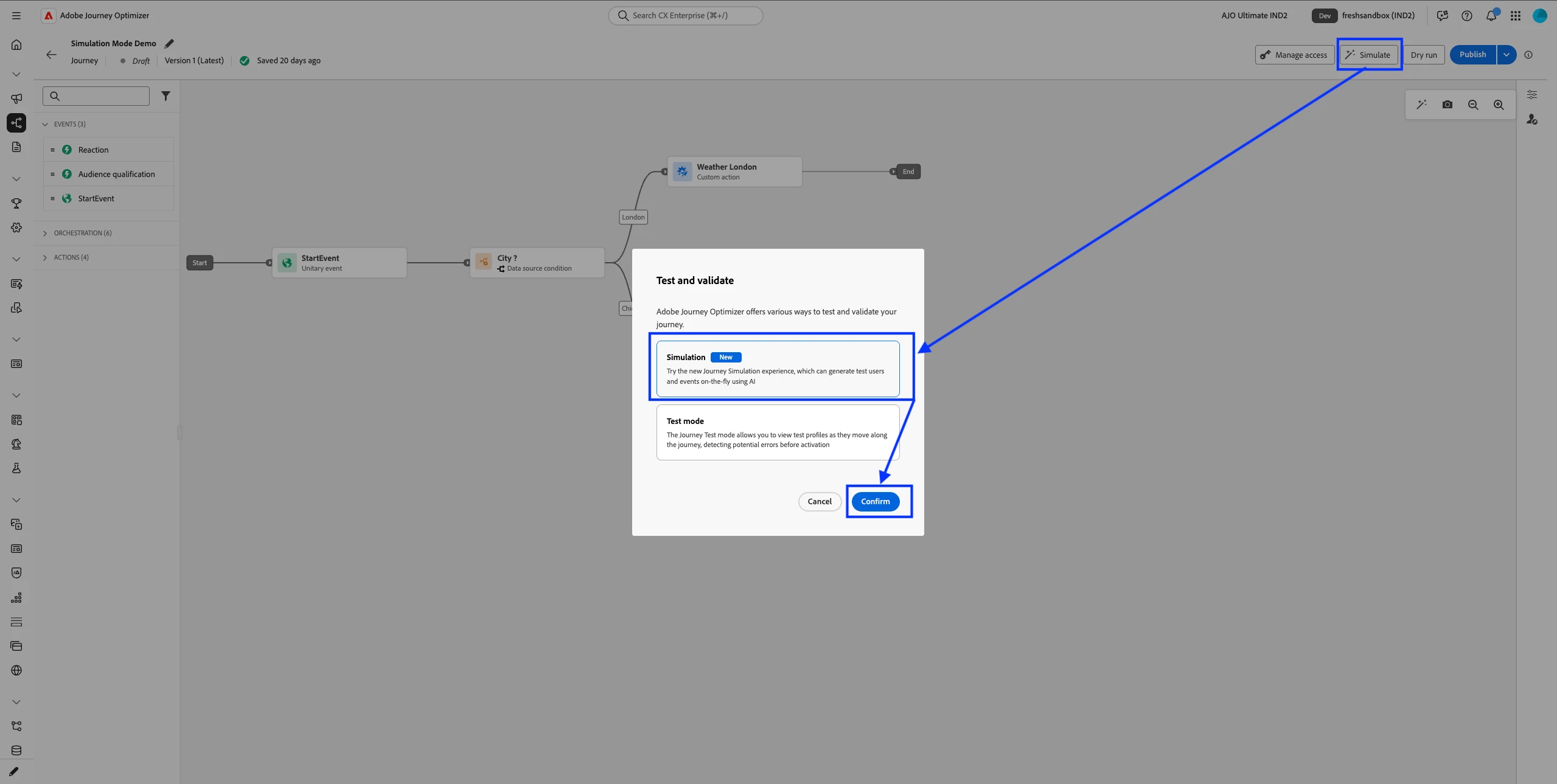
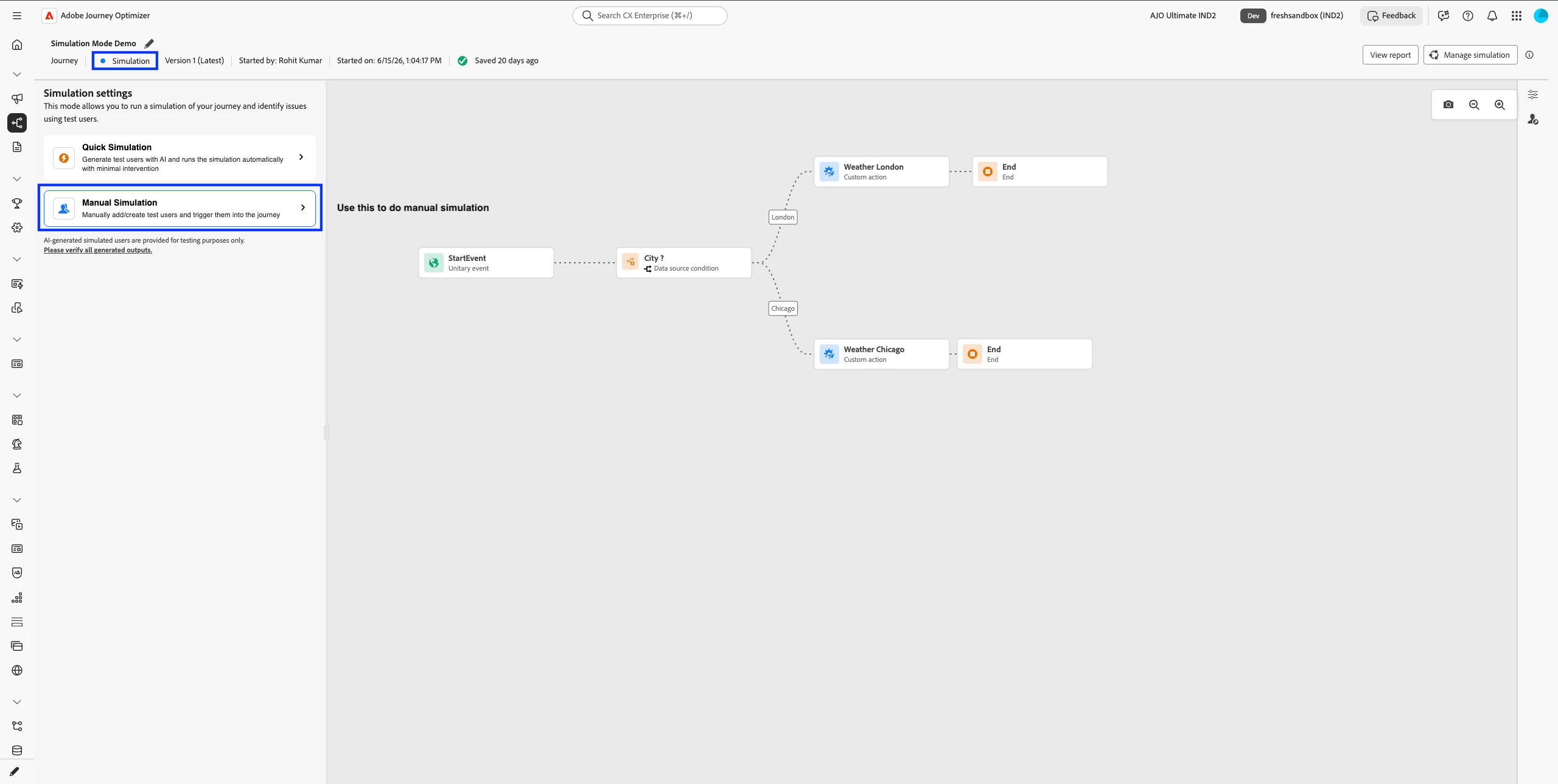
Click Simulate, then choose Simulation.
-
The journey moves to Draft (Test) status and Simulation Mode is active.
CREATE SIMULATED USERS
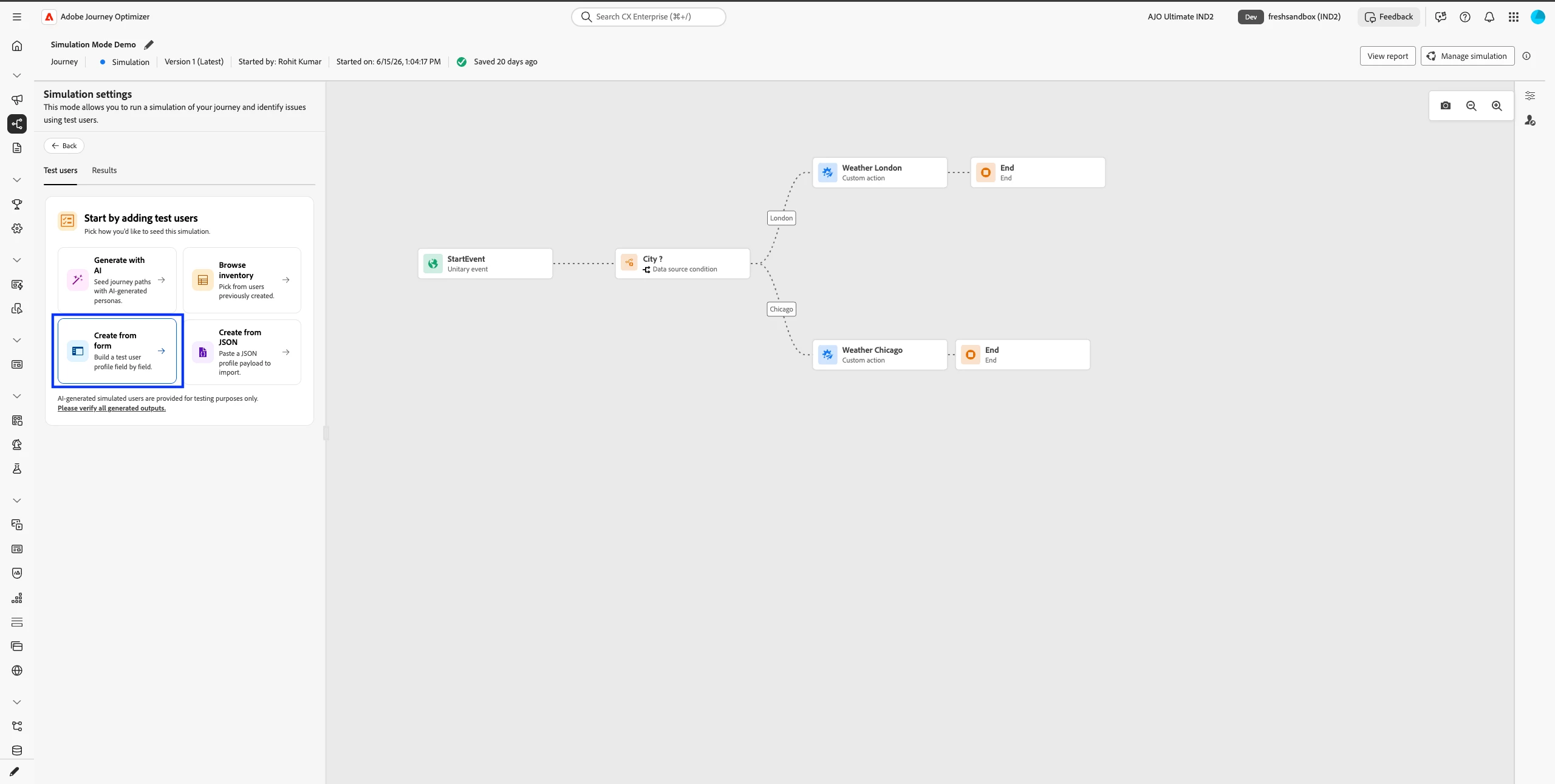
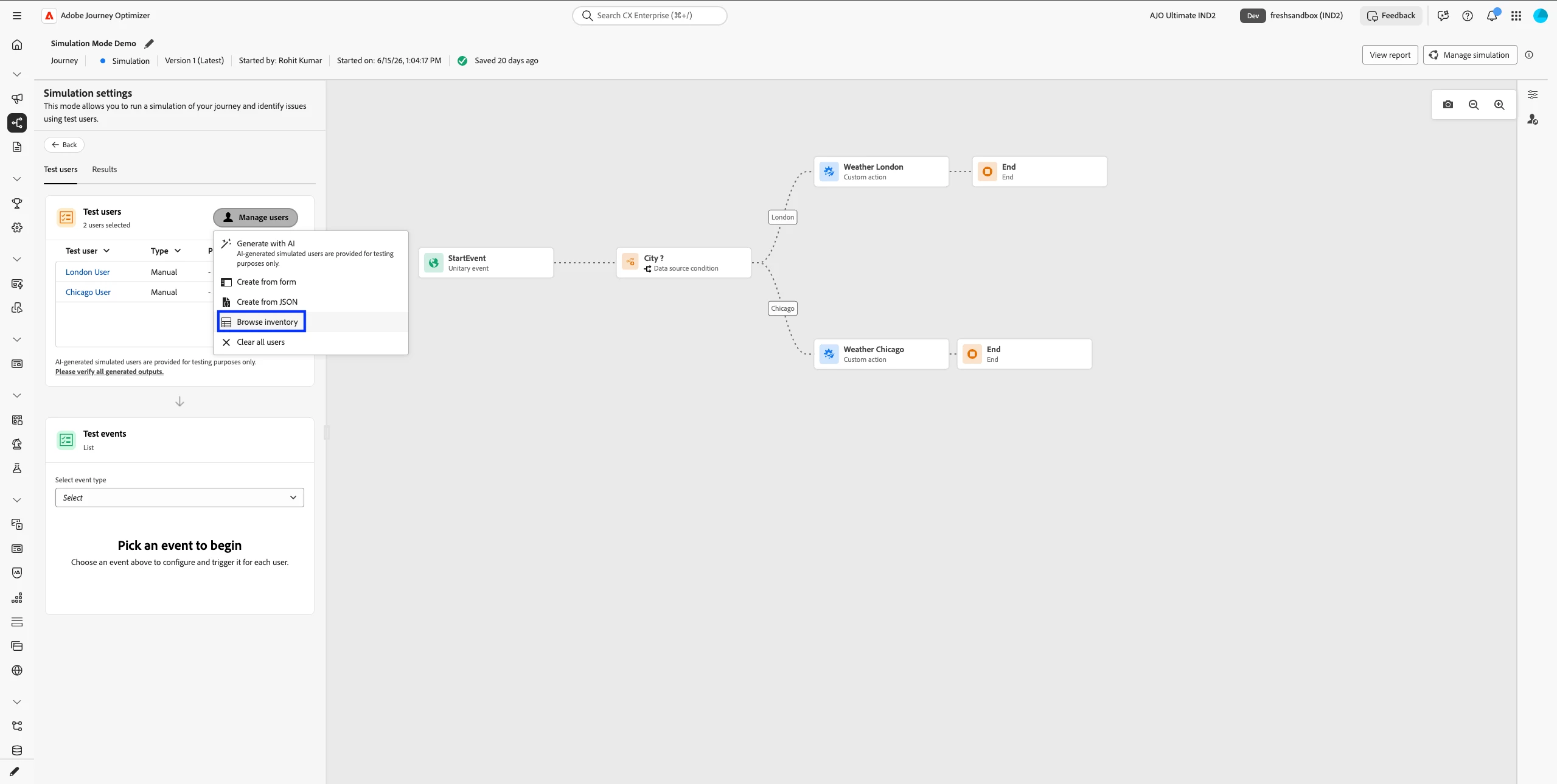
Before you can test, you need simulated users. They are not AEP profiles—they are created quickly in AJO and tailored to your journey.
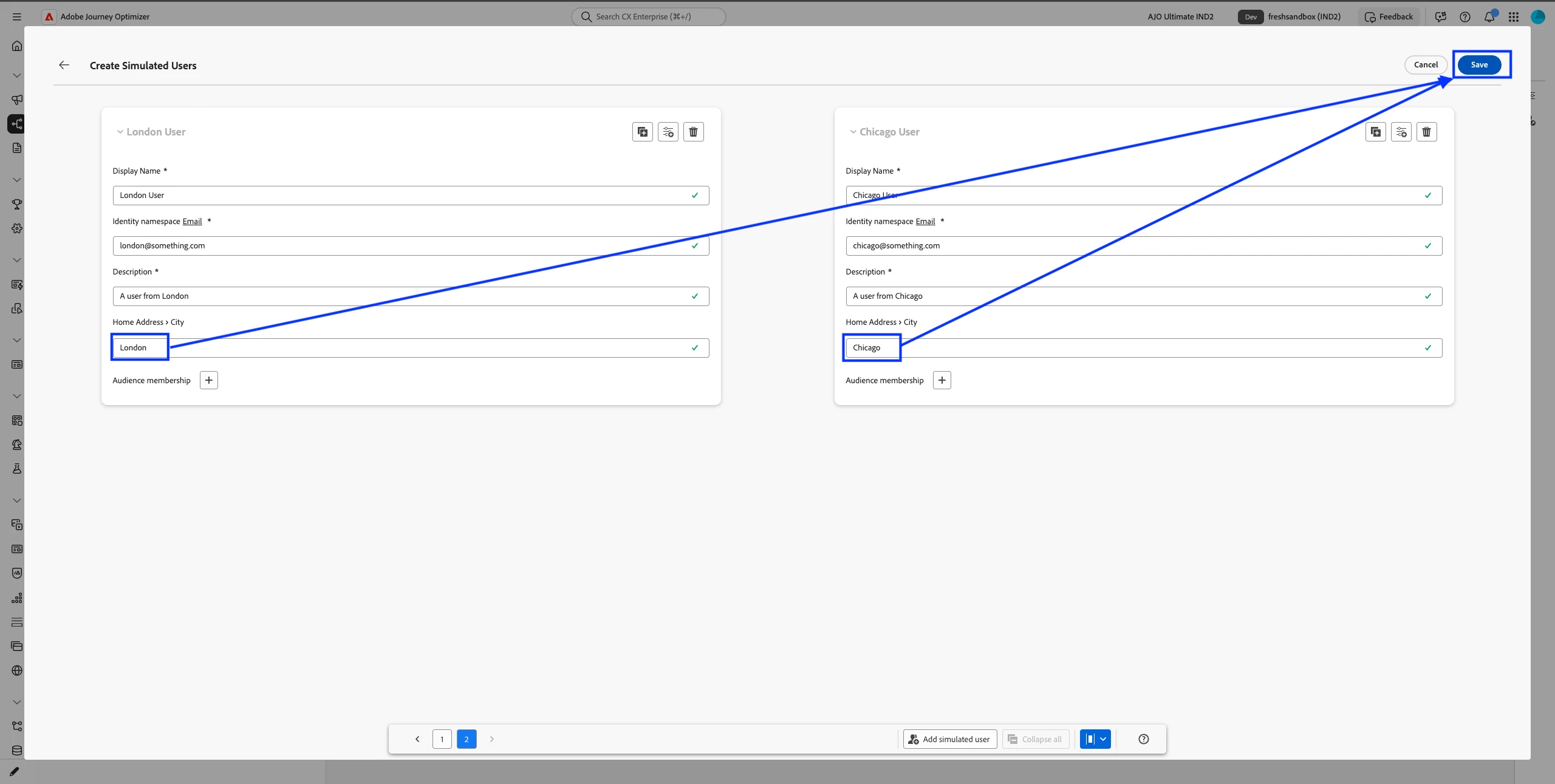
For the London / Chicago example, create two simulated users:
- User 1: City = London
- User 2: City = Chicago
Fill any other fields your journey's attribute template requires (identity, display name, and so on). Save both users so they are available for the simulation run.
EXECUTE AN END-TO-END WORKFLOW
With Simulation Mode running and your two users created:
-
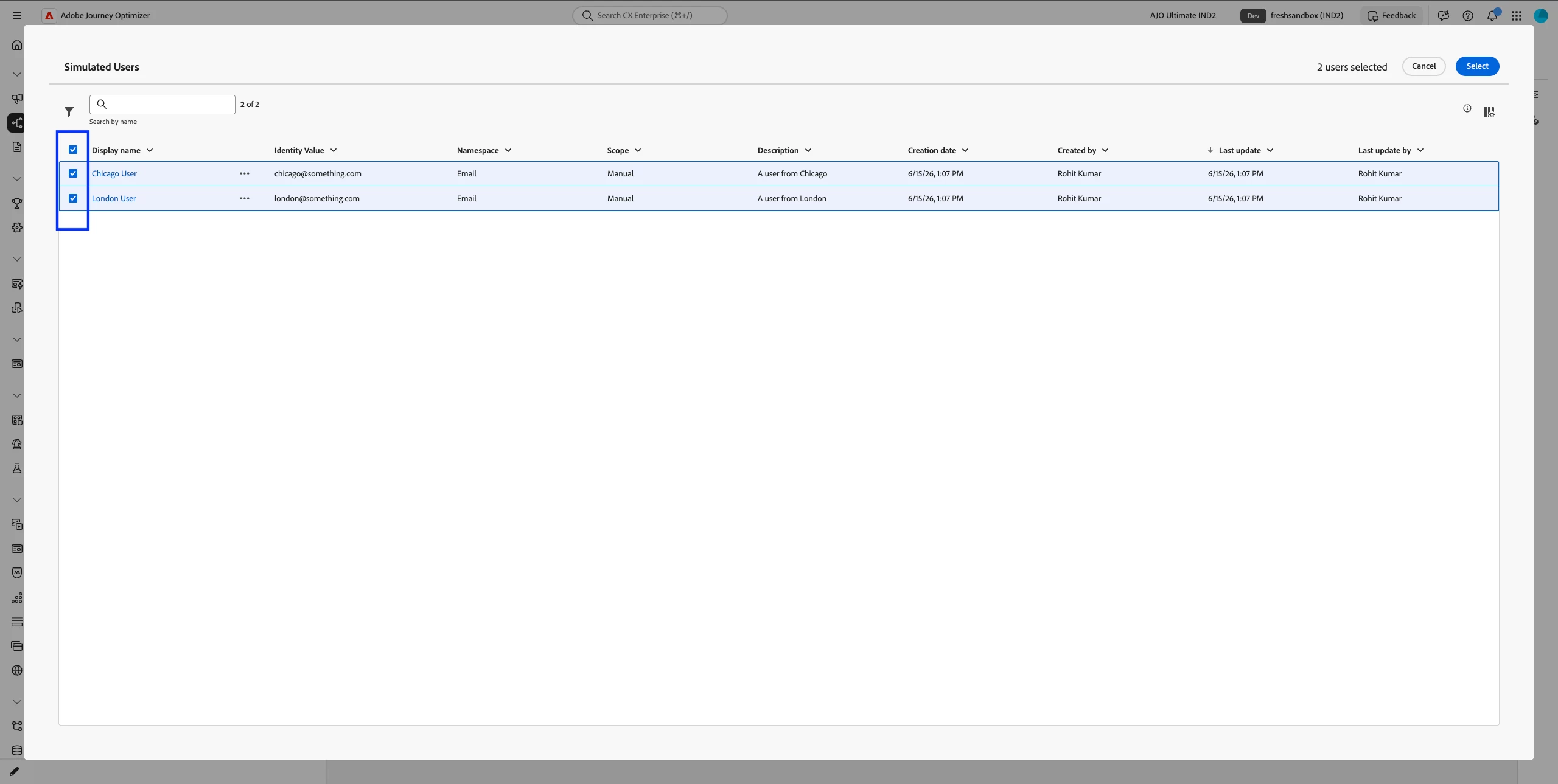
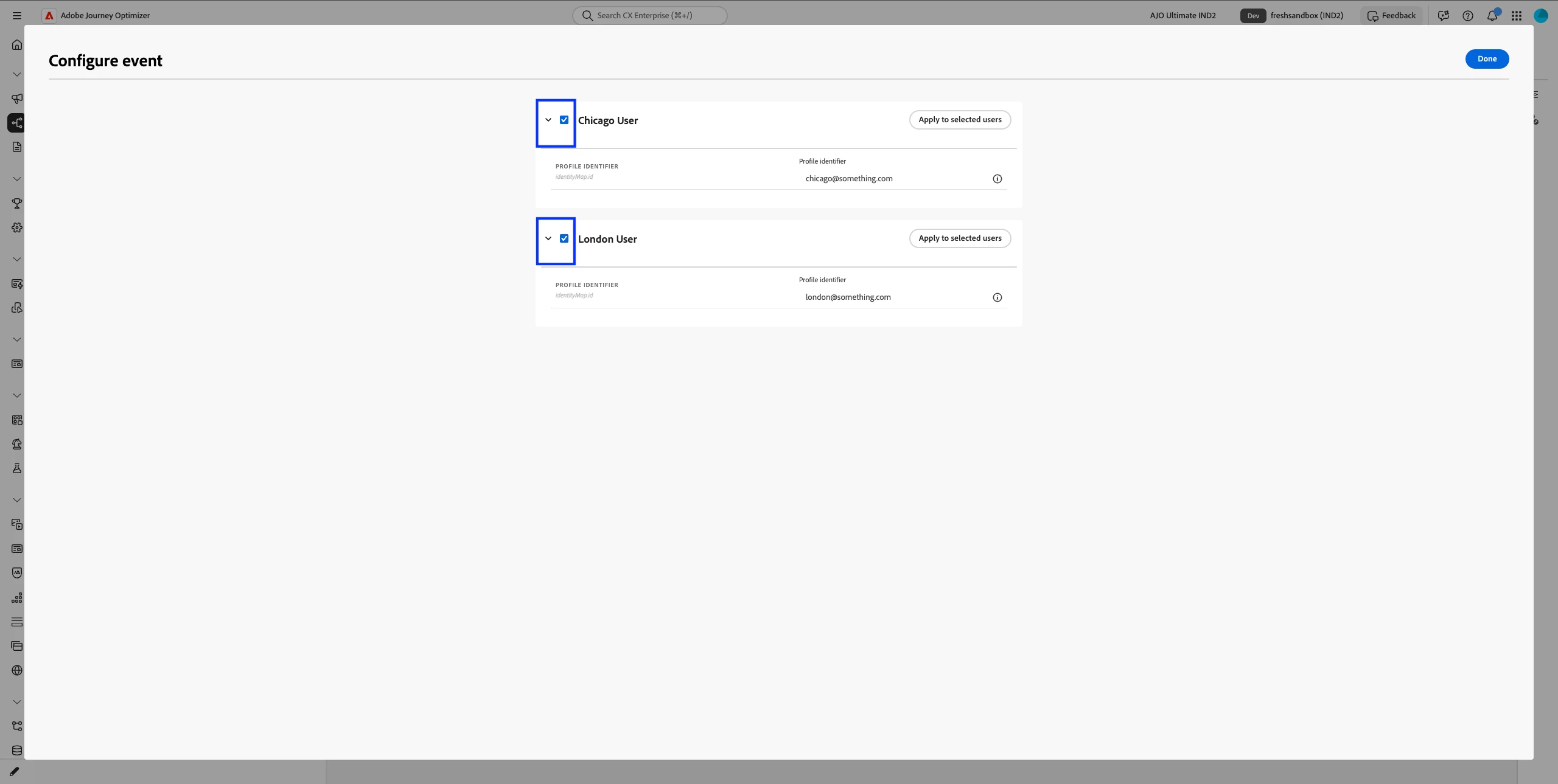
Selected users — Both created users appear in the panel and are auto-selected for you.
-
Many users later — When your inventory grows, use the expand icon to open the full list of simulated users and pick who should be part of the current run.
-
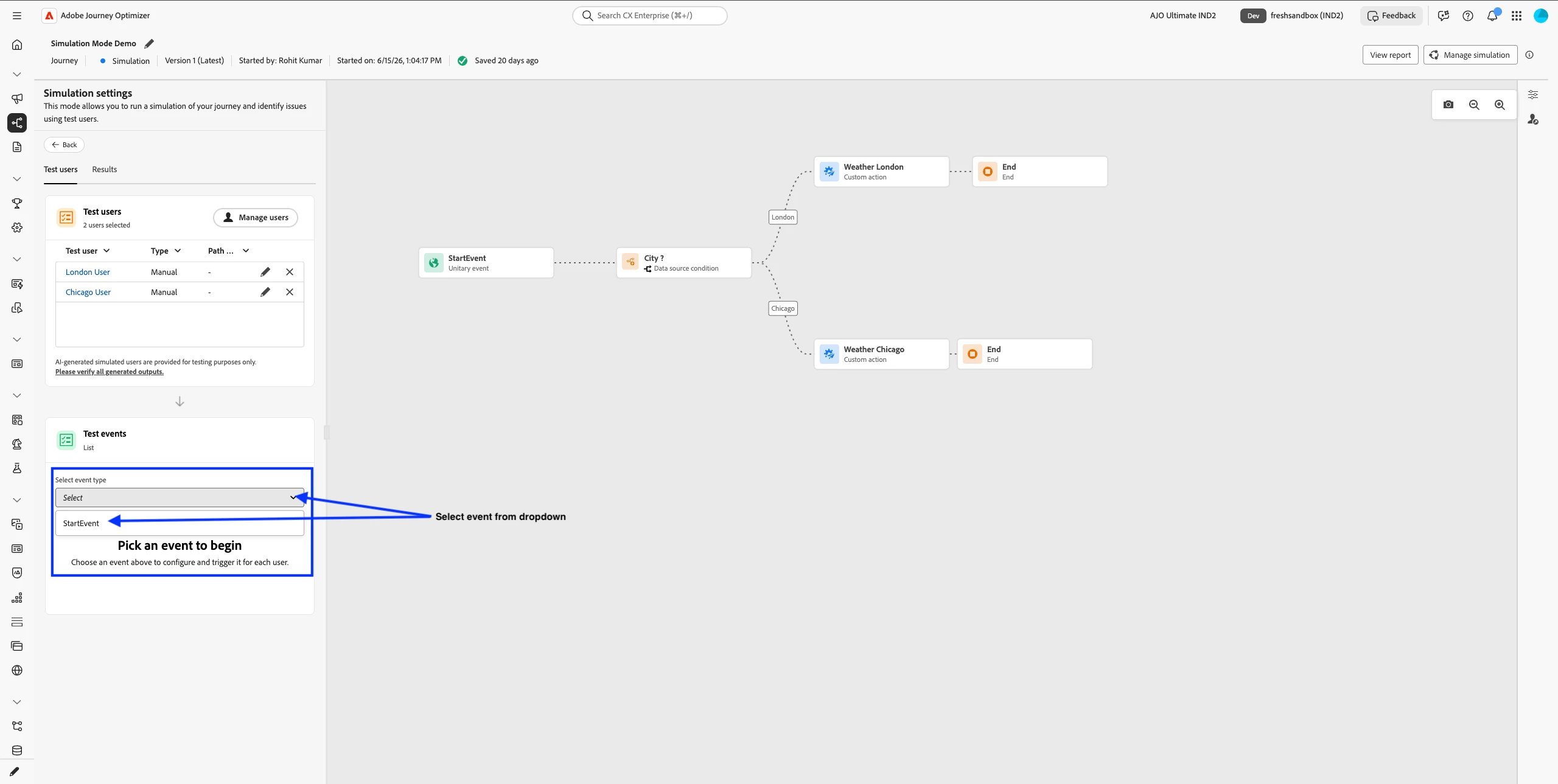
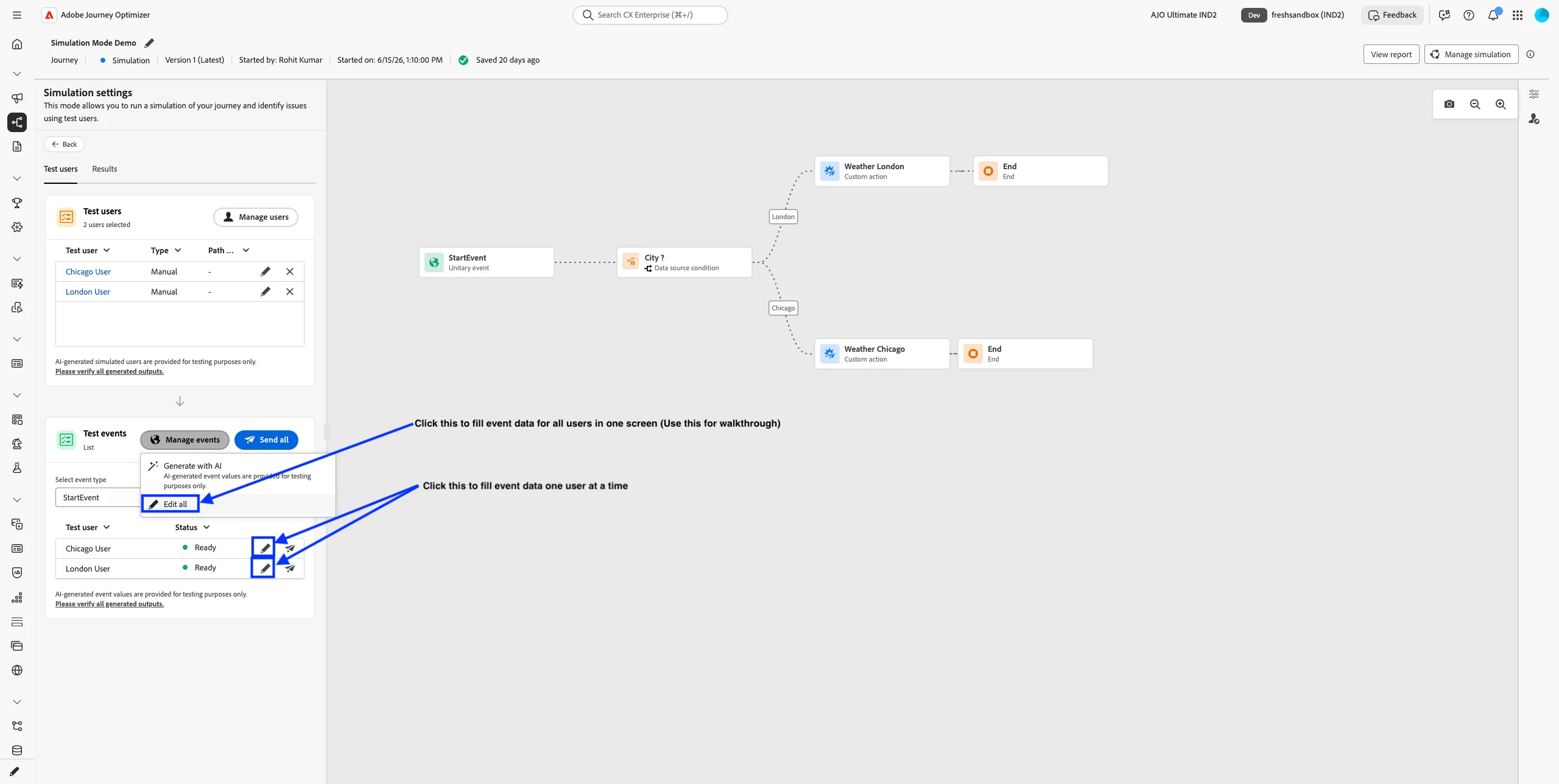
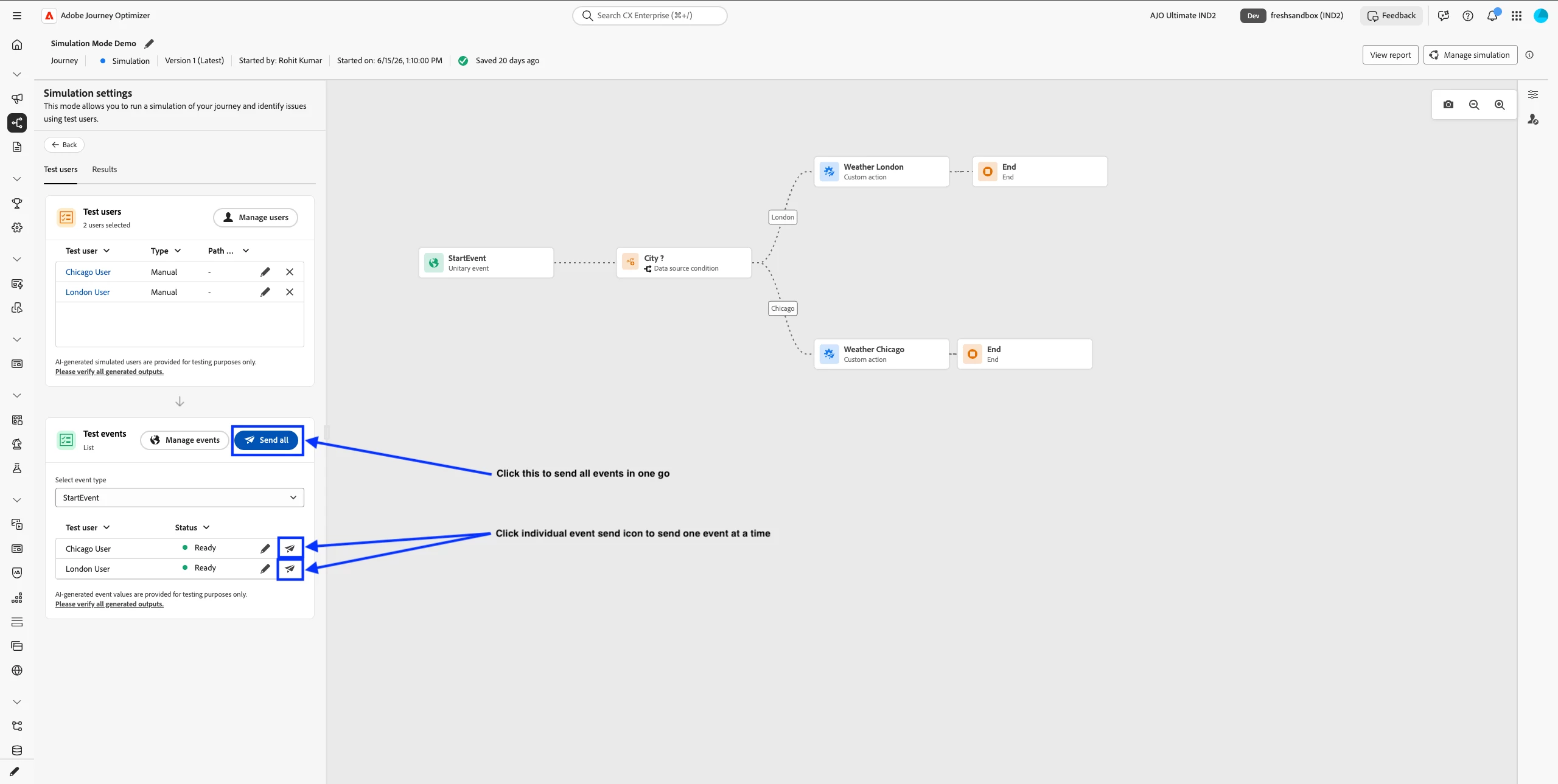
Configure the event — This example is a unitary event journey. Event setup is straightforward: no extra attributes are required beyond what you already defined on the users.
-
Scope who receives the event — You can select or deselect users in the simulation run. Only selected users receive the event when you send.
-
Send — Click the send icon for each user (or send per your UI flow) to trigger the journey for that profile.
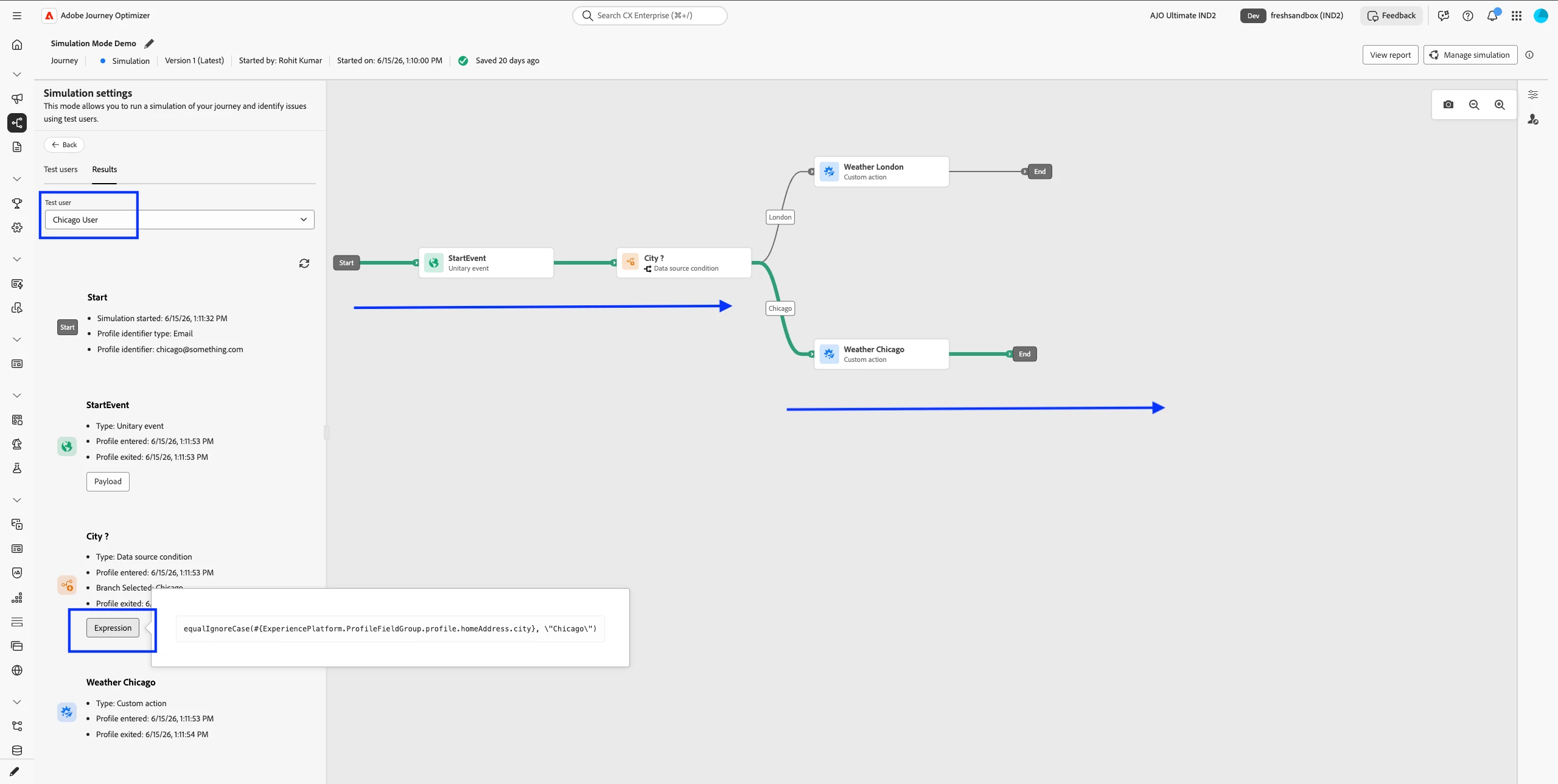
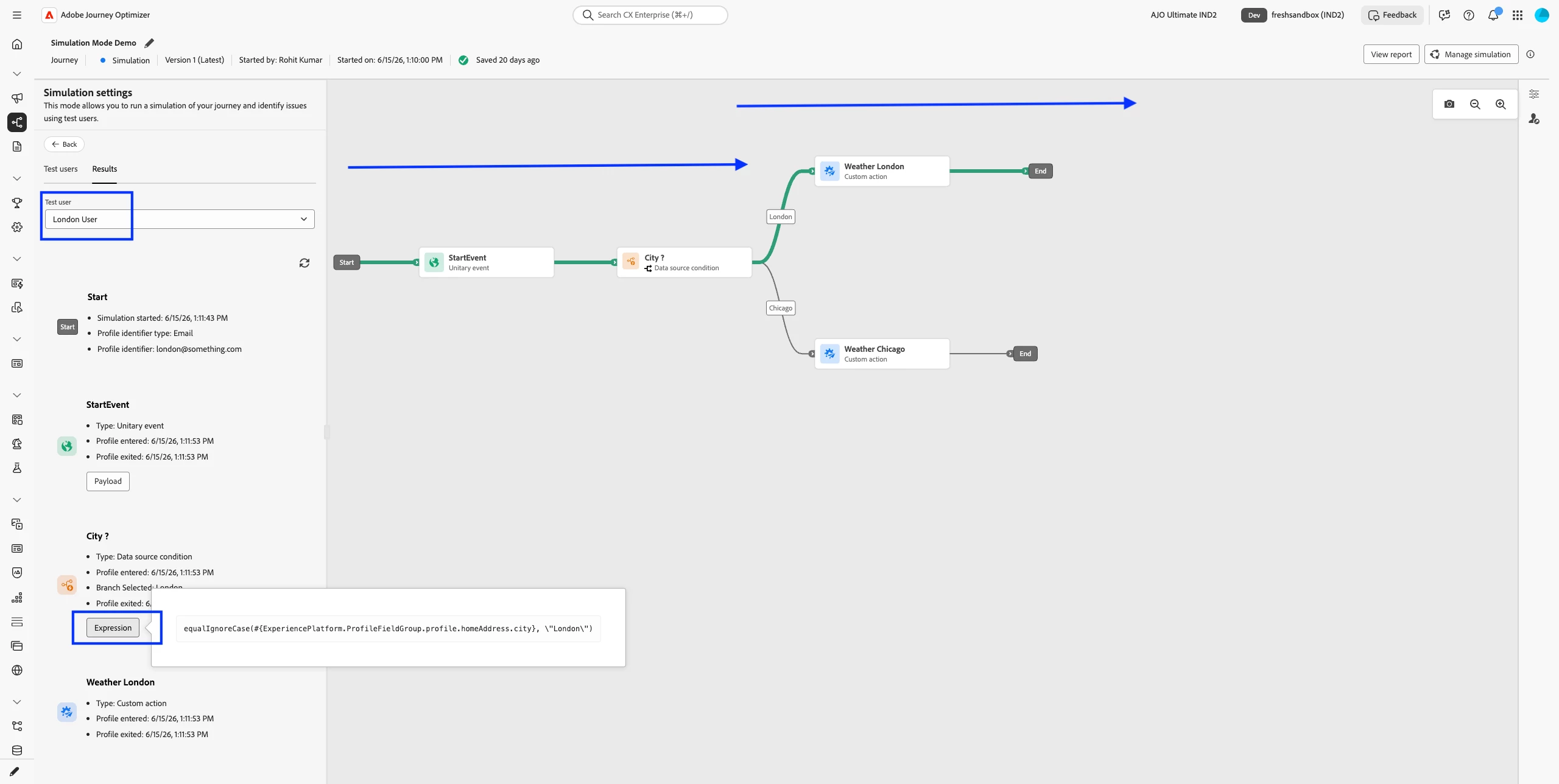
Each user should enter the path that matches their city (London vs Chicago).
RESULTS AND SIMULATION LOGS
-
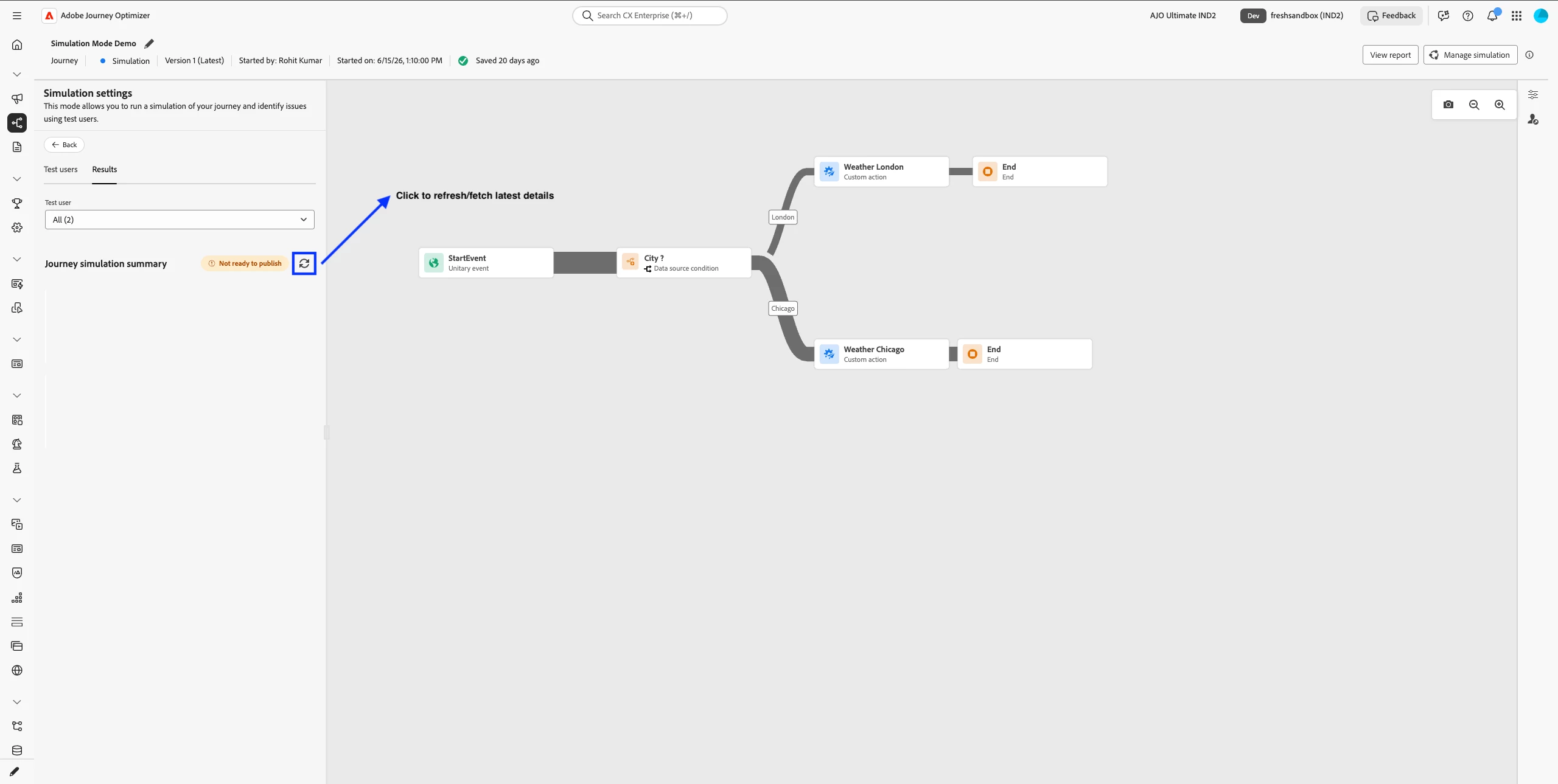
Scroll up and open the Results tab.
-
Wait a few seconds for the dropdown to load.
-
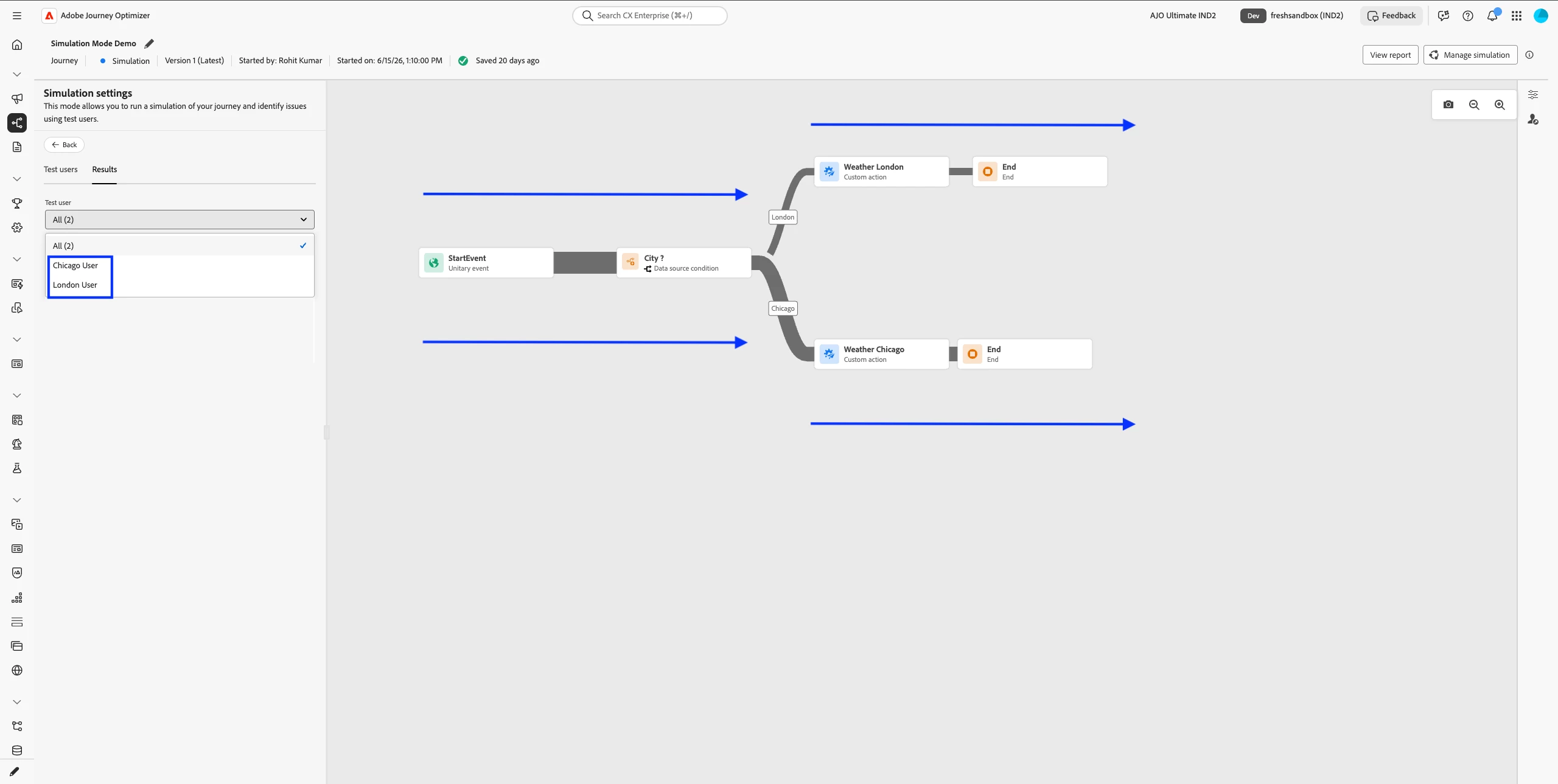
Open the dropdown to see all users in this simulation run.
-
One user at a time — Select a single user and watch the green line on the canvas. It shows the path that user took through the journey.
-
Node-level details — Open step or node details to see timestamps, branch decisions, and context for each step.
-
All users — If you select All, dark grey lines show every path covered by every user in the run, so you can compare coverage across profiles at a glance.
CLOSE SIMULATION MODE
When you are done testing, stop Simulation Mode from the journey (same area where you started Simulate → Simulation). The journey returns from Draft (Test) to your normal draft state. You can start a new simulation run later; simulated users you created remain available for reuse.
COMPLETE WALKTHROUGH (PRACTITIONERS)
RECAP
From access to first quick run: create a simple branched journey, two simulated users, one send per user, then read the green line in Results. That is the full Simulation Mode loop in under five minutes once permissions are in place.