Setting up user groups and project configs/permissions | Community
Skip to main content
June 9, 2017
Solved

Setting up user groups and project configs/permissions

  • June 9, 2017
  • 2 replies
  • 2826 views

in the Adobe Admin console for the experience cloud I am trying to setup a group of users that I can assign to various projects.  i just need a simple 1 group with read-only access setup.

under "user management" I have created a user group
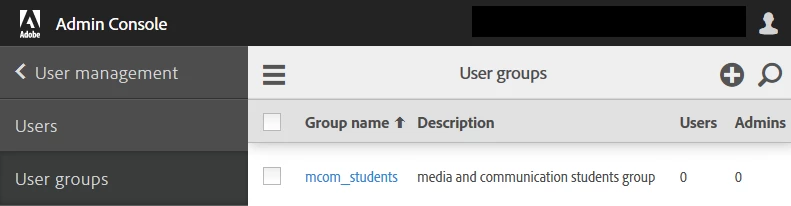
I have read Manage products and configurations and I think the remaining process is to

1) create a new project configuration,

2) assign the user group to this project configuration

3) set permissions on this project configuration

Problems:

1) when i drop down the "groups" dropbox on a new project configuration, I do not see the group (mcom_students) that I created
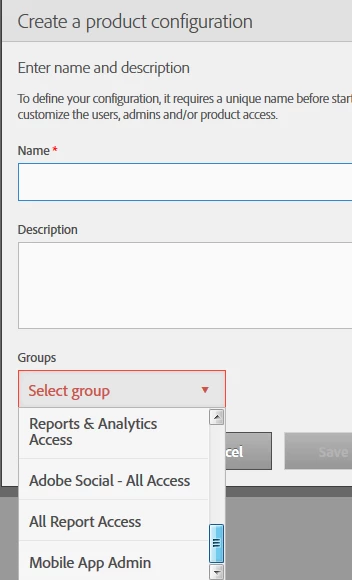
2) i do not see any options or tabs to set permissions on project configuration as outlined in this help document Enterprise Help | Manage product permissions and roles in the Admin Console
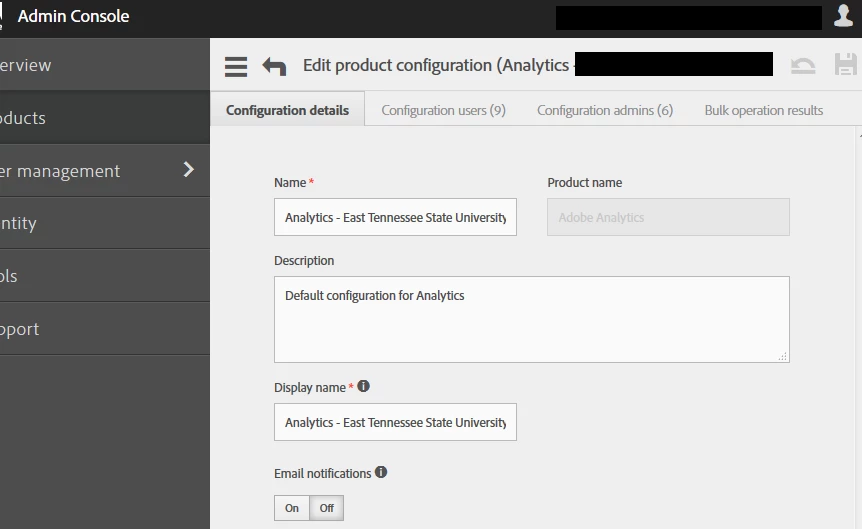
how does one go about setting permissions for groups and products?

thanks

This post is no longer active and is closed to new replies. Need help? Start a new post to ask your question.
Best answer by jantzen_b

Hi,

You would need to create the product configuration and then add the group as a user of the configuration. The "Groups" label on your second screenshot is a bit deceiving. That is pulling a list of the permissions groups that you've set up within the product/solution (Analytics in your case).

If you haven't already seen it, I'd suggest watching the video I put out a few months ago on mapping a product configuration group. It might make things a bit more clear.

How To: Map a Product Configuration Group - YouTube

Let me know if you have any additional questions.

Thanks,
Jantzen

2 replies

kautuk_sahni
Community Manager
Community Manager
June 12, 2017

Moving this Question to Core Services.

~kautuk

Kautuk Sahni
jantzen_b
Adobe Employee
jantzen_bAdobe EmployeeAccepted solution
Adobe Employee
June 22, 2017

Hi,

You would need to create the product configuration and then add the group as a user of the configuration. The "Groups" label on your second screenshot is a bit deceiving. That is pulling a list of the permissions groups that you've set up within the product/solution (Analytics in your case).

If you haven't already seen it, I'd suggest watching the video I put out a few months ago on mapping a product configuration group. It might make things a bit more clear.

How To: Map a Product Configuration Group - YouTube

Let me know if you have any additional questions.

Thanks,
Jantzen