How to update the schedule of a data flow in AEP | Community
Skip to main content
Level 3
July 1, 2025
Solved

How to update the schedule of a data flow in AEP

  • July 1, 2025
  • 3 replies
  • 1019 views

Hi ,

I created a data flow for SFTP source and executed it once at a certain time. Now, that everything was verified and works correctly, I want to modify the flow and schedule it to run daily at a certain time. I checked this link in the documentation Update a Source Connection Dataflow in the UI | Adobe Experience Platform but I don't see an "Update Dataflow" option in my shortcut menu. This is what I see in my AEP:
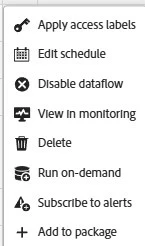
If I try the "Edit Schedule" option - all is greyed out, like below, so I cannot modify anything:
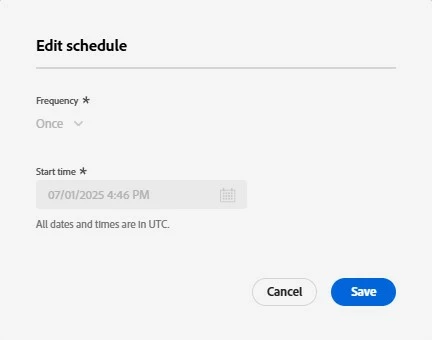
 

So, to my question - is there a way to modify the schedule for an existing Data Flow or I have to create a new one? Is what I see a matter of permissions, and, if so, what permissions must be set for me to be able to change the schedule?


Any help would be highly appreciated.


Thanks

This post is no longer active and is closed to new replies. Need help? Start a new post to ask your question.
Best answer by KumarRishii

In AEP, once a dataflow is created with the frequency set to "Once", its schedule cannot be modified later to a recurring one (like "Daily") — the "Edit Schedule" option becomes disabled.

I will suggest you to create a new dataflow from the same SFTP source and set the desired schedule (e.g., Daily) during setup. After confirming it works, you can disable or delete the original one-time dataflow.

3 replies

KumarRishii
KumarRishiiAccepted solution
Level 5
July 2, 2025

In AEP, once a dataflow is created with the frequency set to "Once", its schedule cannot be modified later to a recurring one (like "Daily") — the "Edit Schedule" option becomes disabled.

I will suggest you to create a new dataflow from the same SFTP source and set the desired schedule (e.g., Daily) during setup. After confirming it works, you can disable or delete the original one-time dataflow.

Level 3
July 2, 2025

Thanks, it looks like you are right! If the schedule is set to Once no changes are possible afterwards - at least from the UI. If the schedule is set as recurring from the beginning, subsequent changes are possible. I wish that the documentation was clearer in this regard, but it is what it is. will work around these limitations!

kautuk_sahni
Community Manager
Community Manager
July 2, 2025

@gabrielana1 Just checking in — were you able to resolve your issue?
We’d love to hear how things worked out. If the suggestion above helped, marking a response as correct can guide others with similar questions. And if you found another solution, feel free to share it — your insights could really benefit the community. Thanks again for being part of the conversation!

Kautuk Sahni
Level 2
July 2, 2025
Hey

You need to create a new dataflow to modify the schedule of an existing SFTP dataflow in Adobe Experience Platform.
The "Edit Schedule" option in the UI is greyed out for modifying existing schedules, and you cannot update the schedule of a dataflow directly. 
 
Reasoning:

The current AEP implementation does not allow modification of schedules for existing dataflows through the UI.
 
Solution:
To change the schedule, you'll need to create a new dataflow with the desired schedule and disable the original one. You can use the same SFTP connection details and mapping when creating the new dataflow. Disabling the original flow prevents data duplication. 

Access : To update a dataflow in AEP, you need the ""Manage Destinations" permission, specifically for connecting to and managing batch destinations. This permission allows you to view, create, and edit connections and activate data. Additionally, depending on the specific update, you might also need "View Destinations" and "Activate Destinations" permissions. 

Reference Docx :https://experienceleague.adobe.com/en/docs/experience-platform/sources/ui-tutorials/update-dataflows
Permission Document :- https://experienceleague.adobe.com/en/docs/experience-platform/access-control/home