Target integration with AEM 6.5 via IMS | Community
Skip to main content
Andrey_Osadchuk
Level 10
May 21, 2019
Solved

Target integration with AEM 6.5 via IMS

  • May 21, 2019
  • 15 replies
  • 11155 views

Hi everyone,

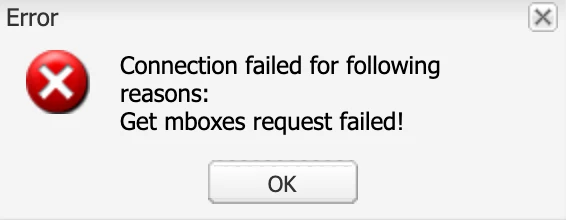
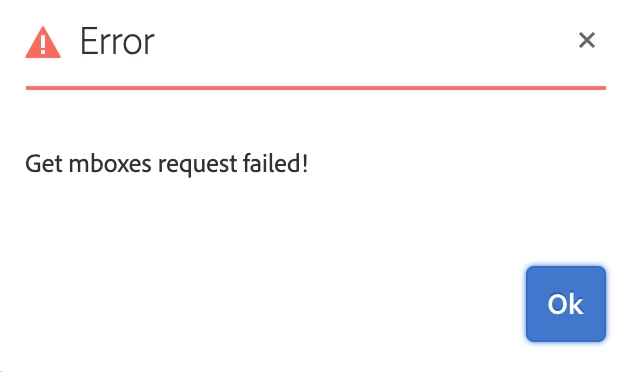
I have faced a challenge to integrate Adobe Target with AEM 6.5 via IMS. The IMS has been configured, the status is OK (Token retrieved successfully). However, when integrating Target either via "AEM Cloud Services Opt-In" dialog or via Cloud Services configuration an error message "Get mboxes request failed!" pops up.

Does anyone know the cause of this error?

---
This post is no longer active and is closed to new replies. Need help? Start a new post to ask your question.
Best answer by Amuthesan

Hi Andrey,

Please check if you have provided IMS Tenant ID as your client code, It is not same as the client code used for earlier integration.

Client code - IMS Tenant ID, can be obtained from Adobe Experience Cloud > Launch Target > Copy IMS teant id from the URL

Reference:

Adobe Experience Manager Help | Understanding Adobe Target Standard integration with AEM Sites

Thanks,

Amuthesan.

15 replies

Adobe Employee
October 2, 2019

Yes we have a solution - you now have to use the "tenant id" where it asks for the "adobe id". The tenant id is part of the URL when you open target:

https://<<tenantid>>.experiencecloud.adobe.com/content/mac/<<tenantid>>/target/activities.html

October 2, 2019

It only provides you option to set the Client Code?

Adobe Employee
October 3, 2019

"Client Code" not "Adobe ID" - sorry.

But yes - this is the field. It says "Client Code" but you have to enter the "Tenant ID". I didn't use the wizard, though but created the Integration "manual" in the Cloud Configuration. But I would assume the wizard mixes up the labels, too.

Adobe Employee
April 26, 2020

Anyone facing this issue should note that the "client code" expected in this dialog is actually the org id or the tenant id. For example if your cloud product URL is https://experience.adobe.com/#/@aes1448/target

or 

https://aes1448.experiencecloud.adobe.com/


Then your "client code" is "aes1448" for that dialog.


I have tested it works with that value.

September 28, 2023

In my particular case, solving this problem was a bit different.

As some of you were mentioning to look for the URL where the client code can be found, it was not obvious at first to me.

I assumed that I was able to just use the client code that was provided within:

  • Adobe Target > Administration > Implementation

Like down below:

However for some reason, copying the client code from this page did not work.

As I was trying to figure out to solve this particular problem, I realized that with if the client code is available within the url like one of u suggested.

Even though the client code presented within the URL is not equal to the client code presented within the screen,

I managed to make this work by using the client code from the URL!


Hopefully, this example might help someone else as well.


Have a good day!