data-sly-resource added component shows twice on page as the node is present in backend | Community
Skip to main content
Level 4
July 22, 2026
Solved

data-sly-resource added component shows twice on page as the node is present in backend

  • July 22, 2026
  • 3 replies
  • 83 views

Am adding below code in my custom Container component to test the data-sly-resource where i do need to use to add a component re-use based on dialog check box. 
<sly data-sly-test="${container.enableButton}">
<sly data-sly-resource="${'test-button' @ resourceType='/apps/core/wcm/components/button/v2/button', decoration=true}"></sly></sly>
OR
<sly data-sly-test="${container.enableButton}">
<div data-sly-resource="${'test-button' @ resourceType='/apps/core/wcm/components/button/v2/button'}"></div></sly>

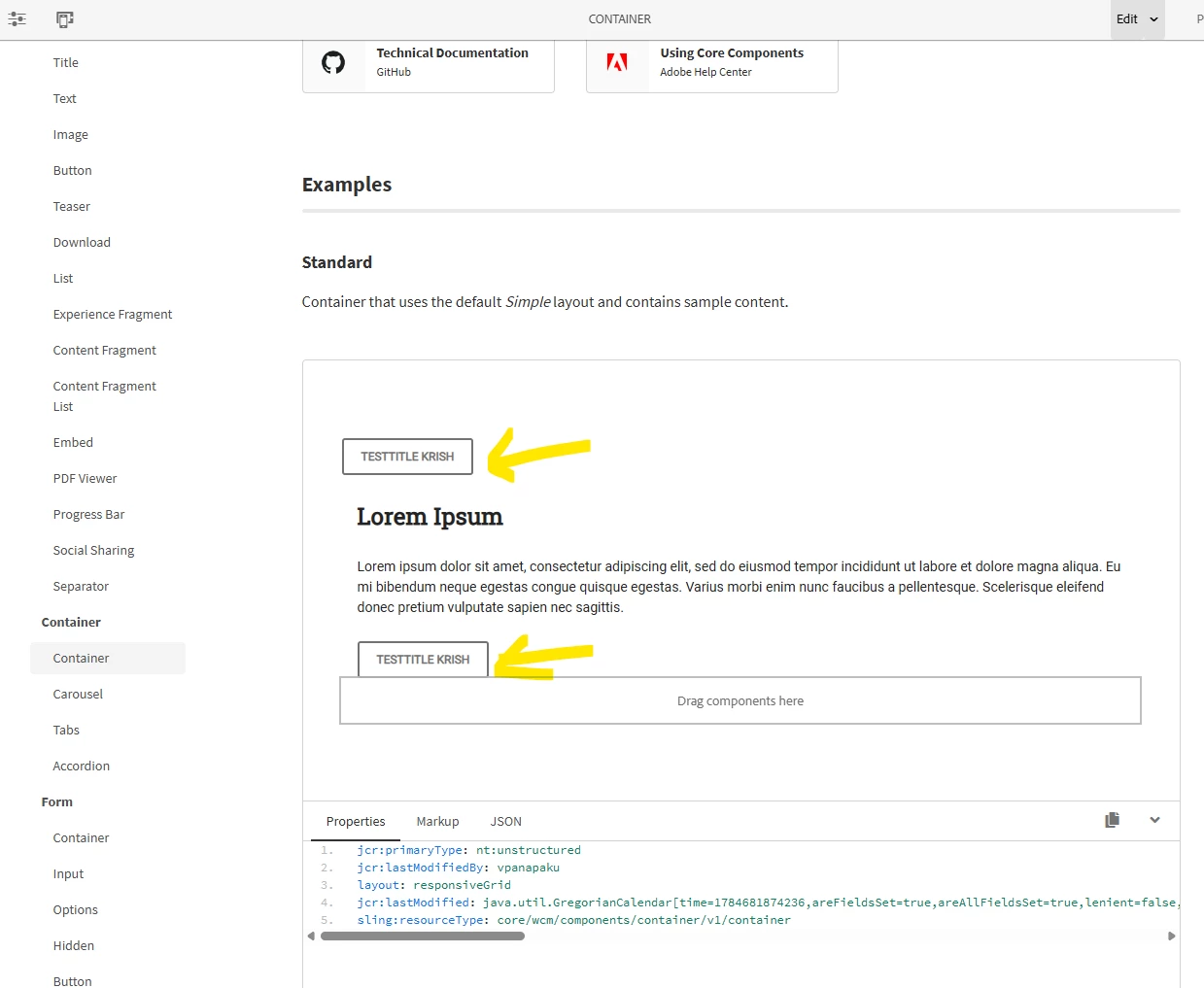
what i have observed is the component is being rendered twice on the page, even when i add it to OOTB core components and test. Is there anything that i need to add in dialog level for the deletion of the component after uncheck of checkbox in dialog.
Is this a bug in framework of sightly ?


Best answer by akhil_merupula

Hi ​@Kkkrish,

Not an HTL bug, this is a Core Container inheritance collision.

Your component extends core/wcm/components/container/v1/container, whose simple.html already iterates and renders all real child JCR nodes via ComponentUtils.getChildComponents(). Your explicit data-sly-resource="${'test-button'...}" renders the same node a second time, that’s your double render.

It works fine initially because test-button doesn’t exist in JCR yet (synthetic resource = one render). Once the component is saved and the node is persisted, both paths fire.

Fix: Pick one render path. Either remove your explicit data-sly-resource and let the container loop handle it, or don’t extend the Core Container and own the render yourself with a single gated include.

On the checkbox: data-sly-test never deletes nodes. Add a hidden ./test-button@Delete field to your dialog, submitted when the checkbox is unchecked, otherwise the node stays and the double render returns next session.

Quick confirm: Check CRXDE, if a real test-button child node exists under your component and sling:resourceSuperType points to the Core Container, that’s your root cause.

3 replies

akhil_merupulaAccepted solution
Level 4
July 28, 2026

Hi ​@Kkkrish,

Not an HTL bug, this is a Core Container inheritance collision.

Your component extends core/wcm/components/container/v1/container, whose simple.html already iterates and renders all real child JCR nodes via ComponentUtils.getChildComponents(). Your explicit data-sly-resource="${'test-button'...}" renders the same node a second time, that’s your double render.

It works fine initially because test-button doesn’t exist in JCR yet (synthetic resource = one render). Once the component is saved and the node is persisted, both paths fire.

Fix: Pick one render path. Either remove your explicit data-sly-resource and let the container loop handle it, or don’t extend the Core Container and own the render yourself with a single gated include.

On the checkbox: data-sly-test never deletes nodes. Add a hidden ./test-button@Delete field to your dialog, submitted when the checkbox is unchecked, otherwise the node stays and the double render returns next session.

Quick confirm: Check CRXDE, if a real test-button child node exists under your component and sling:resourceSuperType points to the Core Container, that’s your root cause.

kapil_rajoria
Community Advisor
Community Advisor
July 28, 2026

Hi ​@Kkkrish , could you please share the screenshot from crx de along with properties on right side for the both button component and the container.

Raja_Reddy
Community Advisor
Community Advisor
July 30, 2026

Hi ​@Kkkrish 

The behavior you're seeing — ending up with a fresh default instance — almost always means the jar was executed the wrong way. AEM service pack jars are not meant to be run standalone like a quickstart jar. that's exactly what triggers "new default instance" behavior. There is a correct in-place upgrade path that does not touch your content or code.

Correct way to apply an AEM 6.5 Service Pack:

  1. Do NOT run it as java -jar <service-pack>.jar directly against nothing — that treats it like a fresh quickstart launcher, which is why you're getting a blank/default instance.
  2. Recommended method — install via the OSGi install folder:
    • Stop your AEM instance.
    • Copy the service pack .jar file into:
     <your-instance>/crx-quickstart/install/
  • Start the instance normally (java -jar cq-quickstart.jar — your existing quickstart jar, not the SP jar).
  • AEM's OSGi framework will detect the new artifact in the install folder on startup and apply it in place, updating bundles/configs without touching your repository content, custom code, or configurations.
  1. Use-  Package Manager:
    • Install it through Package Manager's UI — this also applies it in-place rather than as a new instance.

Before doing either, standard precautions Adobe strongly recommends:

  • Take a full backup of the repository (crx-quickstart/repository) and the install folder contents, while the instance is stopped.
  • Test the exact same SP install on a staging/clone instance first — one that mirrors your production content/code packages — before touching your real instance.
  • Check the Release Notes for that specific service pack for any special pre-install steps (some SPs require specific OSGi configs, Oak upgrade steps, or Java version bumps).

If you already ran it the wrong way and got a blank default instance:

  • Stop that instance immediately.
  • Restore from your last backup of crx-quickstart (if you have one) before the jar execution.
  • If you don't have a backup, your original content/config may not be recoverable from that instance — this is exactly why testing on a clone first matters.