
Cannot add permissions to the created user | Community
Skip to main content
arjuns71585267
Level 4
January 11, 2019
Solved

Cannot add permissions to the created user

  • January 11, 2019
  • 3 replies
  • 2628 views

I was following the tutorial:

Adobe Experience Manager Help | Querying Adobe Experience Manager 6 data using the Sling getServiceResourceResolver meth…

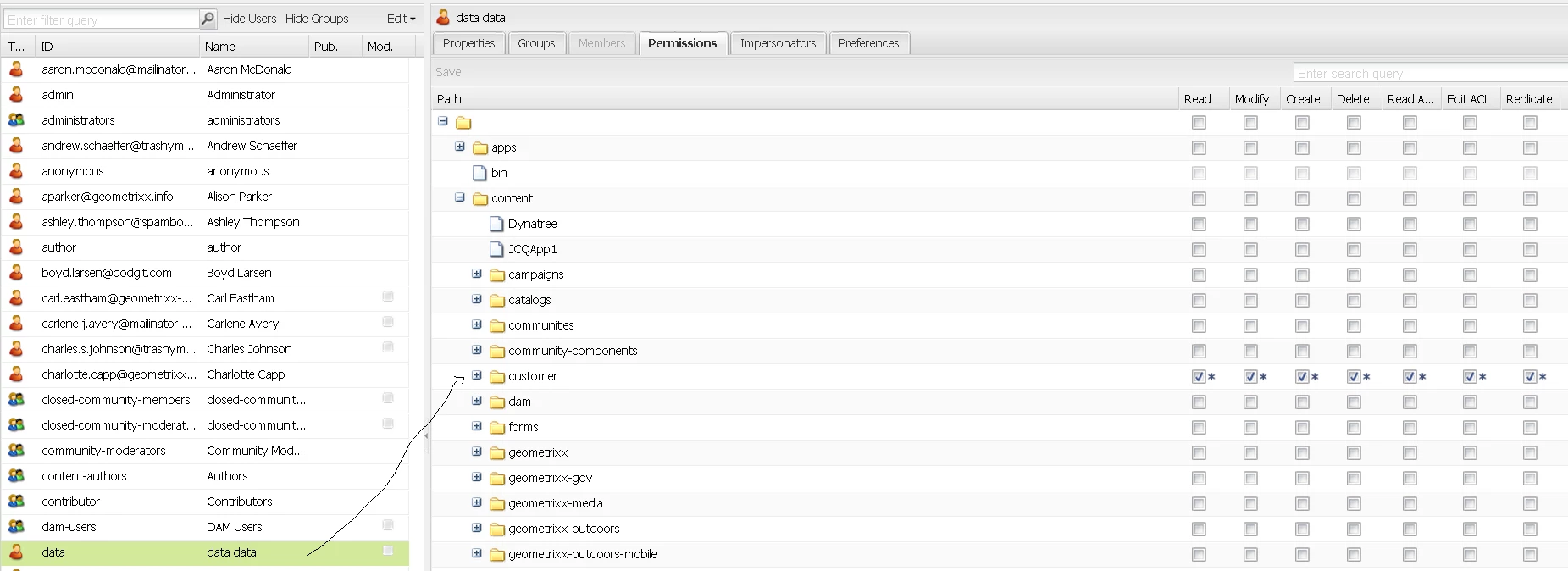
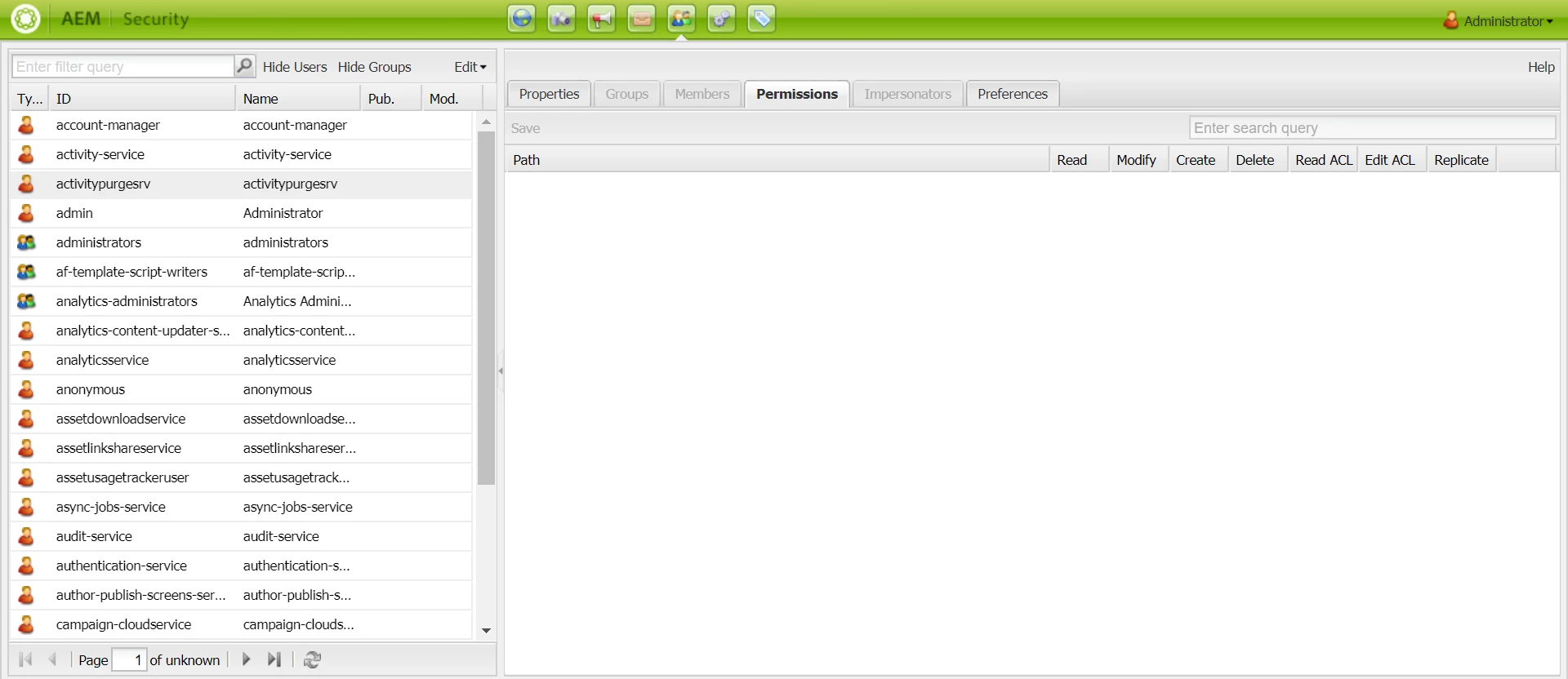
and was trying to create the user named 'data' as mentioned in the tutorial but the main issue is I am not able to give permissions as mentioned in the tutorial since the permission tab does not contain any of the data inside the repository. Attaching the images from the tutorial and my issue below.
Please assist and Thanks in Advance.

This post is no longer active and is closed to new replies. Need help? Start a new post to ask your question.
Best answer by Lokesh_Shivalingaiah

Based on your screen shot, I dont think you have opened the user you want to configure the permissions.

As per the steps in the link you have referred, if you follow below step, you should be able to provide the right permissions

5. Select the data user. - MAKE SURE YOU DOUBLE CLICK ON THE USER 'DATA' YOU HAVE CREATED

6. From the right-hand pane, select the Permissions tab.

7. Expand the content tab and then select the customers row.

8. Click all the checkboxes that represent the permissions.

9. Click the Save button located in the top menu bar (located above the Path heading).

3 replies

Gaurav-Behl
Level 10
January 11, 2019

Double-click on the user in left pane then you would be able to see the permissions for that specific user.

kautuk_sahni
Community Manager
Community Manager
January 15, 2019

Please have a look at this documentation: User Administration and Security Follow the steps mentioned here.

Kautuk Sahni
Lokesh_Shivalingaiah
Lokesh_ShivalingaiahAccepted solution
Level 10
January 16, 2019

Based on your screen shot, I dont think you have opened the user you want to configure the permissions.

As per the steps in the link you have referred, if you follow below step, you should be able to provide the right permissions

5. Select the data user. - MAKE SURE YOU DOUBLE CLICK ON THE USER 'DATA' YOU HAVE CREATED

6. From the right-hand pane, select the Permissions tab.

7. Expand the content tab and then select the customers row.

8. Click all the checkboxes that represent the permissions.

9. Click the Save button located in the top menu bar (located above the Path heading).