AEM 6.5 content fragment model allow mutltiple "Cloud Configurations" | Community
Skip to main content
Level 2
January 22, 2020
Solved

AEM 6.5 content fragment model allow mutltiple "Cloud Configurations"

  • January 22, 2020
  • 1 reply
  • 2075 views

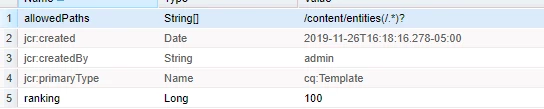
I've read posts about the /content/entities folder that the CF models reference, but I don't have one in my project.

If I go through the Cloud Services configuration in the assets folder properties, I am able to create CFs using the models from the selected conf/ directory. 

My issue is that a global project holds several CF models and this project will have a few extra models. If I enable the new models using this method, I can't use the old "global" models from another project.


Does anyone know what the best practice is for allowing CF models from multiple projects on a asset folder?

This post is no longer active and is closed to new replies. Need help? Start a new post to ask your question.
Best answer by JohnBu3

You can enable your own custom configuration using the Configuration Browser and your custom CF models, as described in [1]. In my tests I created a configuration named "anf" which created the path in the JCR "/conf/anf/settings/dam/cfm/models". I then created a test CF Model "FAQ" in the anf folder (which shows up in the JCR at the same path).

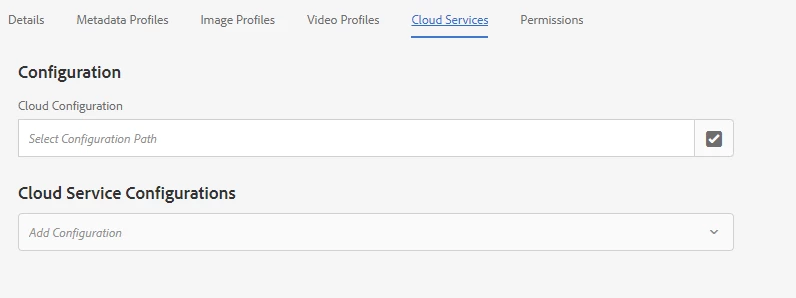
To have your custom CF models show up in your DAM you can go to the top level folder and add the configuration path at the Cloud Services tab for the folder properties. Once that is set, all folders in that hierarchy should be able to use CF Models from the global and your custom configuration. In my test, I created a top-level DAM folder named "anf" (it does not need to match the configuration name) and edited the folder properties. On the folder properties page, go to the tab "Cloud Services" and under "Configuration / Cloud Configuration" add the path to your custom configuration, which in my test is "/conf/anf" and then click "Save & Close".

Now going into the DAM folder "anf" (which is "/content/dam/anf" in the JCR) and clicking Create > Content Fragment, you should see the CF models from global ("Simple Fragment") and the custom configuration ("FAQ", in my tests).


John

[1] https://docs.adobe.com/content/help/en/experience-manager-65/assets/fragments/content-fragments-models.html
1 reply

JohnBu3Adobe EmployeeAccepted solution
Adobe Employee
January 23, 2020

You can enable your own custom configuration using the Configuration Browser and your custom CF models, as described in [1]. In my tests I created a configuration named "anf" which created the path in the JCR "/conf/anf/settings/dam/cfm/models". I then created a test CF Model "FAQ" in the anf folder (which shows up in the JCR at the same path).

To have your custom CF models show up in your DAM you can go to the top level folder and add the configuration path at the Cloud Services tab for the folder properties. Once that is set, all folders in that hierarchy should be able to use CF Models from the global and your custom configuration. In my test, I created a top-level DAM folder named "anf" (it does not need to match the configuration name) and edited the folder properties. On the folder properties page, go to the tab "Cloud Services" and under "Configuration / Cloud Configuration" add the path to your custom configuration, which in my test is "/conf/anf" and then click "Save & Close".

Now going into the DAM folder "anf" (which is "/content/dam/anf" in the JCR) and clicking Create > Content Fragment, you should see the CF models from global ("Simple Fragment") and the custom configuration ("FAQ", in my tests).


John

[1] https://docs.adobe.com/content/help/en/experience-manager-65/assets/fragments/content-fragments-models.html

Level 2
February 12, 2020
I already created the custom configuration and added custom CF models to it. After adding the configuration to the Cloud Service tab I can use the custom CF models, but I can't use the global CF models under this folder anymore.