


5 things: Creating a custom component [ cq:design_dialog] | AEM Community Blog Seeding
5 things: Creating a custom component [ cq:design_dialog] by Anmol Bhardwaj
Abstract
So, we have already created a dialog for the component, and we have also discussed the differences between a normal dialog and a design dialog.
Now, let’s create a design dialog as well for the component, and see the noticeable differences.

How to create/develop a design dialog?
The syntax remains 99.9% the same with the exception of the root node, which would now be “cq:design_dialog” instead of a “cq:dialog”. Also, the steps are exactly the same as #24.

How to author a design dialog?
To author a design dialog of a component, you need to move from a component level to a page or template level, as that is what it’s for essentially. So, naturally, it is present when we edit a template or add the policy for a component. Let’s go through that.

Create a design dialog.
For the sake of comparison, I will use the same exact .xml code or node structure that I used in the cq:dialog. You already have the code with you if you check #24.

Where do I see a design dialog.
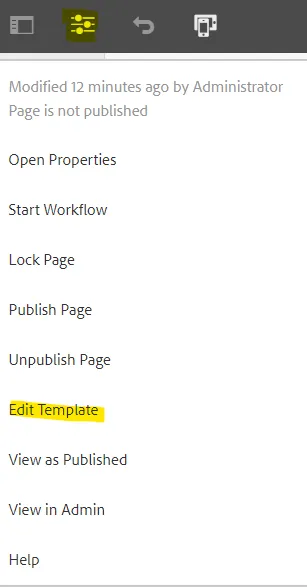
Go to a template[From a page where you have your component present “Edit template” ]
Read Full Blog
5 things: Creating a custom component [ cq:design_dialog]
Q&A
Please use this thread to ask the related questions.