Rolling Hour of Day | Community
Skip to main content
April 12, 2021
Solved

Rolling Hour of Day

  • April 12, 2021
  • 4 replies
  • 3543 views

I am attempting to make an hourly dashboard in which the hour of today ex 5 PM is compared to the same exact hours yesterday. I've created a few multiple segments such as 24 individual segments with exclusions to create a rolling hourly comparison, however, none of my attempts have worked. Is anyone aware of a way to show a daily comparison of performance at the hourly level which excludes hours that haven't happened in the day vs. Yesterday only shows hours which are equivalent to Today. 
This post is no longer active and is closed to new replies. Need help? Start a new post to ask your question.
Best answer by David_Jerome

Hi There,


I have managed to solve this for you.


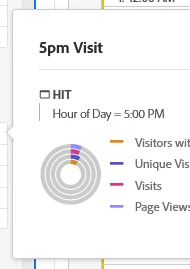
The first thing you need is a "5pm Visit" such as below:


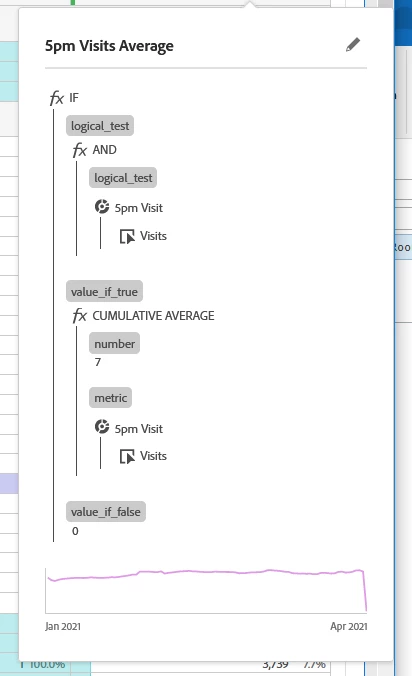
Then you need the following:

Change Number "7" for the period you want to look back.

So if your report is showing days, it will be 7 days, if it is weeks it will be 7 weeks.


I hope that helps.


Dave


4 replies

Level 7
April 13, 2021

@deion If I am right than you want to compare the data from the previous day on hourly basis. To achieve this you can right click on metric name in Workspace project -> Click on Add Time Period column -> click on Prior date range to this date range. Than use the hour dimension to compare the data on hourly basis with previous date.

Refer the below screenshot :-


deionAuthor
April 13, 2021

Hi Amgup,


Thank you for the response, so I' m aware of this version. I think I need to explain a bit further, I'm attempting to make this automated with rolling dates which presents the issue, that I can get it to perform as noted when manually building it, however, upon attempting to automate this it all goes down hill haha. 

akt0m3r
Adobe Employee
Adobe Employee
April 14, 2021

Hi @deion, could you please try using the "Hour of Day" metric for automaton and see if that helps!

David_Jerome
David_JeromeAccepted solution
Level 6
April 14, 2021

Hi There,


I have managed to solve this for you.


The first thing you need is a "5pm Visit" such as below:


Then you need the following:

Change Number "7" for the period you want to look back.

So if your report is showing days, it will be 7 days, if it is weeks it will be 7 weeks.


I hope that helps.


Dave


deionAuthor
April 14, 2021
Hi David, thank you for the response and logic. So an additional question. If i need a full 23 hour coverage, would I just need to replicate the 5pm hour setup 22 additional times? Or does this change your process at all?
jantzen_b
Adobe Employee
Adobe Employee
May 24, 2021
Do any of the answers below answer your initial question? If so, can you select one of them as the correct answer? If none of the answers already provided answer your question, can you provide additional information to better help the community solve your question?