Report Builder Library - uploading a workbook? | Community
Skip to main content
Level 2
August 3, 2019
Solved

Report Builder Library - uploading a workbook?

  • August 3, 2019
  • 2 replies
  • 2654 views

Hello, searched but could not find an answer. How do you upload a workbook to the Library. The online guide says:

  • Create and run a request.
  • After you have saved the report, click Share.
  • Click Browse to locate the workbook.
  • In the Description field, type a description, then click Upload.

However, I cannot find Share in the plug-in only the Share click for the Excel workbook itself which just wants to upload the doc to my OneDrive and share it amongst members of my organization.

When I Browse for Excel files no files are shown in the file explorer dialogue within the Uploader, just directories. Any thoughts? Maybe my organization is blocking this but that's all I can think of.

Best,

Scott

This post is no longer active and is closed to new replies. Need help? Start a new post to ask your question.
Best answer by kumararajak

Hi Scott,

Please follow the below steps to upload files into Adobe Report builder library.

Step 01

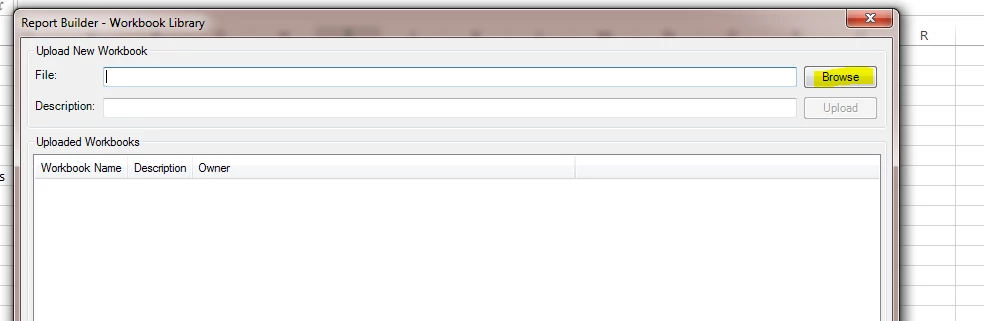
Click the Library

Step 02

Click Browswe on the Pop up dialog box

Step 03

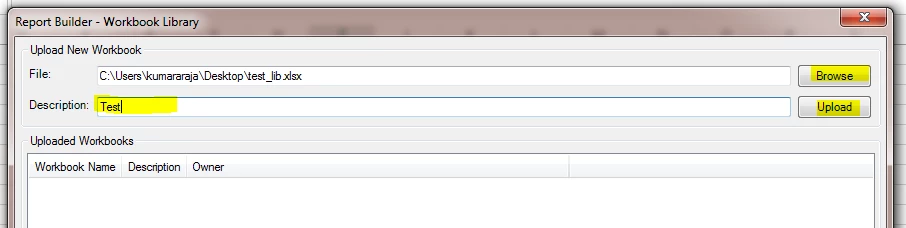
Choose the Excel file version

Step 04

Choose the required file and Give some name in the description field and click upload button.

When you upload it may throw an error to configure FTP so try again after 2 - 3 minutes.

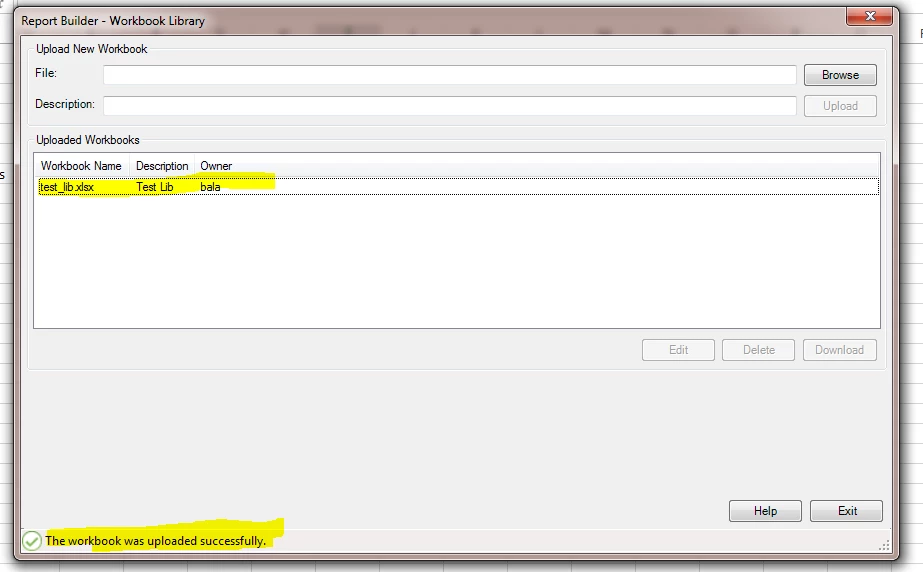
Result

Hope this helps.

Regards,

Kumararaja K

2 replies

kumararajak
kumararajakAccepted solution
Level 5
August 5, 2019

Hi Scott,

Please follow the below steps to upload files into Adobe Report builder library.

Step 01

Click the Library

Step 02

Click Browswe on the Pop up dialog box

Step 03

Choose the Excel file version

Step 04

Choose the required file and Give some name in the description field and click upload button.

When you upload it may throw an error to configure FTP so try again after 2 - 3 minutes.

Result

Hope this helps.

Regards,

Kumararaja K

sgaulin1Author
Level 2
August 5, 2019

Thank you Kumararaja   I was getting tripped up on the step marked Share.

Best,

Scott