
Analysis Workspace Visualization Data Source Settings "Lock Selection" Disabled | Community
Skip to main content
AliMaleki
Level 4
September 27, 2019
Solved

Analysis Workspace Visualization Data Source Settings "Lock Selection" Disabled

  • September 27, 2019
  • 4 replies
  • 4603 views

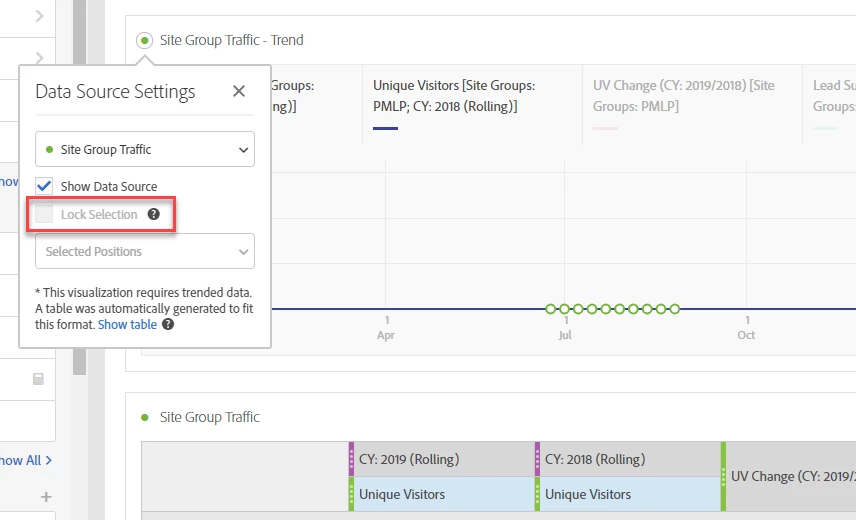
My table has six columns but I only want two of them in the visualization, but when I bring up Data Source Settings the "Lock Selection" checkbox is grayed out?
This post is no longer active and is closed to new replies. Need help? Start a new post to ask your question.
Best answer by fsakjlfdsakljfd

Rather than selecting the metric, select the sparkline immediately below it.  After taking that action the option to lock selection should return.

Similar to most platforms you may select non consecutive items by using the ctrl key.

4 replies

fsakjlfdsakljfd
fsakjlfdsakljfdAccepted solution
Level 5
September 27, 2019

Rather than selecting the metric, select the sparkline immediately below it.  After taking that action the option to lock selection should return.

Similar to most platforms you may select non consecutive items by using the ctrl key.

September 29, 2020
didn't understood your answer. Can you expalin again, i m facing the same issue
AliMaleki
AliMalekiAuthor
Level 4
September 27, 2019

Thanks for the tip. That works!

I can now check the box and chose "Selected Positions" from the list. "Selected Items" is still grayed out. What is that for?

Ali

fsakjlfdsakljfd
Level 5
September 27, 2019

Lets say you had a list of pages in your rows.  And you wanted to always viz values for the home page.  If you chose 'selected items' it would always render a viz based on that value of the dimension. 

If you selected position in that circumstance it would always return the value in that position (say third row), regardless of if the variable value in that position changes over time.

AliMaleki
AliMalekiAuthor
Level 4
September 27, 2019

Thanks!