
Adobe Customer Attributes Setup within Adobe Tags | Community
Skip to main content
fishmatt
Level 2
July 15, 2024
Solved

Adobe Customer Attributes Setup within Adobe Tags

  • July 15, 2024
  • 1 reply
  • 724 views

I am trying to setup customer attributes for the first time to sync Salseforce data within adobe for personalization.  I have uploaded a test file in the customer attributes source per instructions from Adobe https://experienceleague.adobe.com/en/docs/core-services/interface/services/customer-attributes/t-crs-usecase
For the Alias ID to sync it looks like I need to create a corresponding ID in Adobe tags to reference this data source.  I did so with a new rule triggered on the DOM loading utilizing the following logic 

The value is a data element referencing "prz" as a query string.  Here is a copy of the test file I uploaded into customer attributes for reference as well

Personalization IDLB Territory
test1234North
test1111South
test2222East
test3333West
test4444Northwest
test4321Northeast

 It appears that the last selection in the LB Territory column takes priority when inputting the data regardless of the personalization ID being used as a query string.  How can I fix this? 
This post is no longer active and is closed to new replies. Need help? Start a new post to ask your question.
Best answer by Gokul_Agiwal

Hi @fishmatt 

When you are using the Experience Cloud ID service, you must set a Customer ID and Authentication State to use customer attributes in targeting. 

So in your logic, the Auth State value must me AUTHENTICATED. 

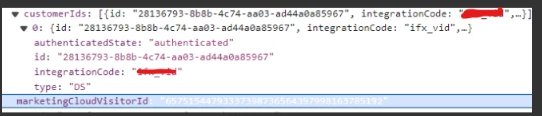
Once you made this change the rule gets trigger and you're able to verify in your delivery call like below. 

For more info Customer IDs and Authentication States | Adobe Experience Cloud Services

Hope this helps. 


1 reply

Gokul_Agiwal
Community Advisor
Gokul_AgiwalCommunity AdvisorAccepted solution
Community Advisor
July 16, 2024

Hi @fishmatt 

When you are using the Experience Cloud ID service, you must set a Customer ID and Authentication State to use customer attributes in targeting. 

So in your logic, the Auth State value must me AUTHENTICATED. 

Once you made this change the rule gets trigger and you're able to verify in your delivery call like below. 

For more info Customer IDs and Authentication States | Adobe Experience Cloud Services

Hope this helps.