Naming Output Files | Community
Skip to main content
NickMannion
Community Advisor
Community Advisor
October 28, 2024
Solved

Naming Output Files

  • October 28, 2024
  • 3 replies
  • 778 views

Hi Community,


So, our team has been generating files within AEP to send out of AEP via FTS connections. We do not have the ability to custom name these files. Is there a work around to name these files?

This post is no longer active and is closed to new replies. Need help? Start a new post to ask your question.
Best answer by Rudi-Shumpert

@nickmannion   This came right from the AI Assistant within AEP. 


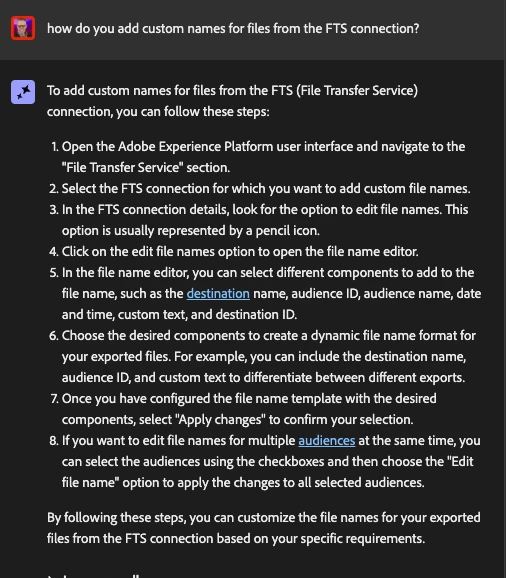
To add custom names for files from the FTS (File Transfer Service) connection, you can follow these steps:

  1. Open the Adobe Experience Platform user interface and navigate to the "File Transfer Service" section.
  2. Select the FTS connection for which you want to add custom file names.
  3. In the FTS connection details, look for the option to edit file names. This option is usually represented by a pencil icon.
  4. Click on the edit file names option to open the file name editor.
  5. In the file name editor, you can select different components to add to the file name, such as the destination name, audience ID, audience name, date and time, custom text, and destination ID.
  6. Choose the desired components to create a dynamic file name format for your exported files. For example, you can include the destination name, audience ID, and custom text to differentiate between different exports.
  7. Once you have configured the file name template with the desired components, select "Apply changes" to confirm your selection.
  8. If you want to edit file names for multiple audiences at the same time, you can select the audiences using the checkboxes and then choose the "Edit file name" option to apply the changes to all selected audiences.

By following these steps, you can customize the file names for your exported files from the FTS connection based on your specific requirements.


3 replies

kautuk_sahni
Community Manager
Community Manager
October 28, 2024

@ccg1706 @atulchavan @tof_jossic @pradeep_kumar_srivastav would you please take a moment to review this question? We would be grateful for any wisdom you could share on this question.

Kautuk Sahni
Tof_Jossic
Adobe Employee
Adobe Employee
October 28, 2024

@nickmannion Can you clarify what destination you are using in this case? Do you not have the options listed in https://experienceleague.adobe.com/en/docs/experience-platform/destinations/ui/activate/activate-batch-profile-destinations#configure-file-names ?

Rudi-Shumpert
Adobe Employee
Rudi-ShumpertAdobe EmployeeAccepted solution
Adobe Employee
October 28, 2024

@nickmannion   This came right from the AI Assistant within AEP. 


To add custom names for files from the FTS (File Transfer Service) connection, you can follow these steps:

  1. Open the Adobe Experience Platform user interface and navigate to the "File Transfer Service" section.
  2. Select the FTS connection for which you want to add custom file names.
  3. In the FTS connection details, look for the option to edit file names. This option is usually represented by a pencil icon.
  4. Click on the edit file names option to open the file name editor.
  5. In the file name editor, you can select different components to add to the file name, such as the destination name, audience ID, audience name, date and time, custom text, and destination ID.
  6. Choose the desired components to create a dynamic file name format for your exported files. For example, you can include the destination name, audience ID, and custom text to differentiate between different exports.
  7. Once you have configured the file name template with the desired components, select "Apply changes" to confirm your selection.
  8. If you want to edit file names for multiple audiences at the same time, you can select the audiences using the checkboxes and then choose the "Edit file name" option to apply the changes to all selected audiences.

By following these steps, you can customize the file names for your exported files from the FTS connection based on your specific requirements.